

Configuration files may contain private addresses, deployment settings, or credentials. Uploading them to unfamiliar conversion websites creates avoidable risks. Fortunately, yaml to json conversion can happen entirely on your computer. Use a terminal command, Python script, or verified offline editor. Here is how each method works, what can change, and how to verify the result.
- Why Convert Locally Instead of Using a Website?
- Before You Begin: Check the File and Your Tools
- Method 1: Use yq in Your Terminal
- Method 2: Convert With Python
- Method 3: Work Inside a Local Code Editor
- What Does a Correct Conversion Look Like?
- Common Errors That Change Your Data
- How to Validate the JSON Before You Use It
- Which Offline Method Is Best?
- Frequently Asked Questions
- Conclusion
Why Convert Locally Instead of Using a Website?
YAML makes configuration files readable; JSON suits applications and data exchange. Both represent structured information, but YAML supports comments and anchors that JSON cannot preserve directly.
Local yaml to json processing keeps files on your device, assuming the software does not transmit them. This protects private endpoints and customer data. Once installed, offline tools need no internet connection.
An online yaml to json converter may be convenient for harmless examples. For production files, avoid sharing secrets with remote services, including ChatGPT and other AI tools.
Before You Begin: Check the File and Your Tools

First, make a backup and identify which program will consume the output. A file named settings.yml is still YAML; its extension does not determine whether a parser accepts its contents. Open it in a trusted text editor and look for multiple document separators, custom tags, and values that resemble dates.
If confidentiality is critical, disconnect from the network during conversion and use tools already installed from trusted sources. An offline operation should not require a browser account, an API key, or permission to send analytics about your document.
Method 1: Use yq in Your Terminal
For repeatable results, Mike Farah’s open-source yq reads YAML and writes JSON locally. Install it from the official project, then open a terminal beside your file.
Run:
yq -o=json config.yaml > config.jsonThe command saves the JSON output to a new file while leaving the original file unchanged. Check yq --version first: other yq implementations use different syntax.
Remove redirection to preview terminal output. For repository-wide yaml to json jobs, use a local script instead of copying text manually.
This helps inspect GitHub Actions settings, but JSON cannot replace YAML where an application requires YAML.
Method 2: Convert With Python
If you have Python, install PyYAML in a virtual environment with python -m pip install pyyaml. Save this as convert.py beside config.yaml:
importjson
frompathlibimportPath
importyaml
source=Path(“config.yaml”)
target=Path(“config.json”)
data=yaml.safe_load(source.read_text(encoding=”utf-8″))
target.write_text(
json.dumps(data, indent=2, ensure_ascii=False, allow_nan=False),
encoding=”utf-8″
)
Run python convert.py. PyYAML recommends safe_load for untrusted input because it blocks arbitrary Python object construction. Even so, enormous or maliciously complex files require caution.
JSON encoding may reject dates or unsupported types. Transform them explicitly instead of silently converting everything to strings. This yaml to json method suits machine learning pipelines needing reproducible output.
Method 3: Work Inside a Local Code Editor
Visual Studio Code opens local files. Before installing a conversion extension, verify its publisher and offline behavior. Some extensions and AI coding assistant features transmit content remotely.
Run the verified local converter and save a separate .json file. A JSON formatter helps inspect nesting. This yaml to json option suits occasional visual editing.
What Does a Correct Conversion Look Like?
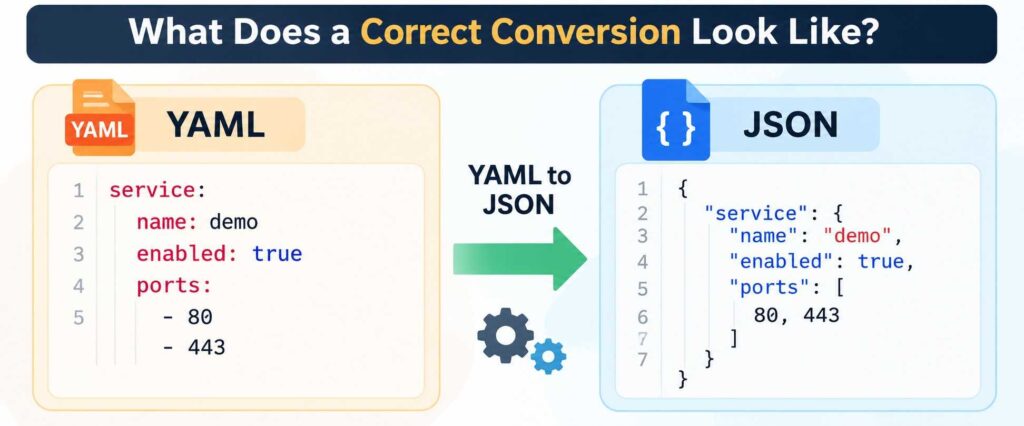
Consider this YAML example:
service:
  name: demo
  enabled: true
  ports: [80, 443]
The corresponding JSON is:
{
  "service": {
    "name": "demo",
    "enabled": true,
    "ports": [80, 443]
  }
}
The hierarchy, boolean, and list remain intact. JSON uses quoted keys, braces, and brackets. During yaml to json conversion, compare actual values, not appearance alone.
Common Errors That Change Your Data
Comments, anchors, and multiple documents
YAML comments disappear because JSON cannot store them. Anchors may expand into repeated values. Multiple YAML documents separated by --- require separate JSON files or an explicit array.
Dates, booleans, and special values
Parsers may interpret unquoted dates or yes differently. Standard JSON disallows NaN. Quote intended strings and inspect types.
Duplicate keys and unexpected nesting
YAML disallows duplicate mapping keys, although some parsers accept them. A YAML validator helps flag problems. Indentation changes can also alter meaning.
Keys that are not strings
JSON object keys must be strings; YAML keys need not be. For yml to json conversions, normalize unusual keys and check for collisions.
How to Validate the JSON Before You Use It
After yaml to json conversion, run python -m json.tool config.json. This checks syntax, not equivalence. Compare fields, arrays, types, and application defaults.
For API integration, test against its schema. For AI agents, add regression tests against silent behavior changes. Keep the original under version control.
Which Offline Method Is Best?
Choose yq when you regularly convert configuration files, need consistent commands, or work within a development repository. Choose Python when transformation rules are necessary, such as replacing unsupported date objects or handling several files in one controlled process. Choose an editor extension only when its data handling is clear and you value side-by-side inspection.
For a one-time conversion, starting with yq is simpler than maintaining a script. For automated deployment, prioritize a reproducible command checked into your project. When working with cloud configuration files, understanding how deployments are managed is equally important. Our AWS Console guide explains how developers inspect cloud resources, review settings, and verify automated deployments.
For sensitive environments, review the software supply chain as carefully as the conversion itself. Local execution reduces exposure, but does not remove the risk of an untrusted tool.
Frequently Asked Questions
Can I convert files with no internet connection?
Yes. Locally installed tools work offline. Disable connected extensions when strict isolation matters.
Is conversion the same as renaming the extension?
No. Renaming cannot rewrite syntax. A parser must serialize YAML data into JSON.
Will JSON keep every YAML feature?
No. Comments, formatting, and some YAML-specific features cannot survive unchanged.
Conclusion
A reliable yaml to json process keeps sensitive data under your control. Choose yq for terminal work, Python for scripts, or a verified offline editor for occasional conversions. Validate output and inspect important values. Success means more than producing a file: the receiving application must interpret its data correctly.
