
A cloud account can contain servers, storage, permissions, monitoring tools, and a growing bill. The AWS console brings those moving parts into a visual workspace, making it easier to understand what you have and decide what needs attention.
Its value goes beyond launching a server. Developers use it to inspect applications, administrators review access, and business owners check spending. Understanding what the interface does—and what still depends on the underlying services—helps you use it with clearer expectations.
What Is the AWS Console?
The AWS Management Console is Amazon Web Services’ browser-based interface for accessing and managing its cloud services. It brings individual service dashboards together through shared navigation, search, account controls, and settings.
Think of it as the management workspace for cloud computing, rather than the infrastructure itself. The browser displays information and lets authorized users request changes; AWS services carry out those actions.
That distinction matters. Signing out does not remove a running server or delete stored files. Your resources have their own lifecycle, independent of the browser session.
Core Features That Make Cloud Work Easier
The AWS console groups useful controls around everyday work: finding a service, checking its resources, and understanding their condition.
Shared Navigation and Customizable Home
Unified search helps users find services and features without remembering every product name or menu location. Favorites and recently visited services provide shortcuts to regular tasks.
The home page also supports widgets, including recent activity and health information. A useful dashboard highlights the information you actually review, rather than presenting everything with equal importance.
Service Views and Notifications
Each service has its own screens for configuration, status, and relevant operational information. Shared navigation connects these views, but their controls reflect different jobs.
For example, a storage page focuses on objects and access settings, while a compute page emphasizes running instances and their configuration. Notifications and health information add context when investigating an unexpected change.
A dashboard is only useful when you know what its indicators mean. An alarm can signal a threshold breach without explaining the cause. Likewise, a resource marked healthy may still be part of an application with a slow database or faulty configuration. Use the summary as a starting point for investigation.
Browser-Based Command Access
AWS CloudShell provides a browser-based terminal with command-line tools already available. It uses your signed-in credentials, subject to permissions, so occasional command work does not require a separate local setup.
This is useful when a command answers a question more quickly than navigating several screens.
Benefits for Beginners and Working Teams
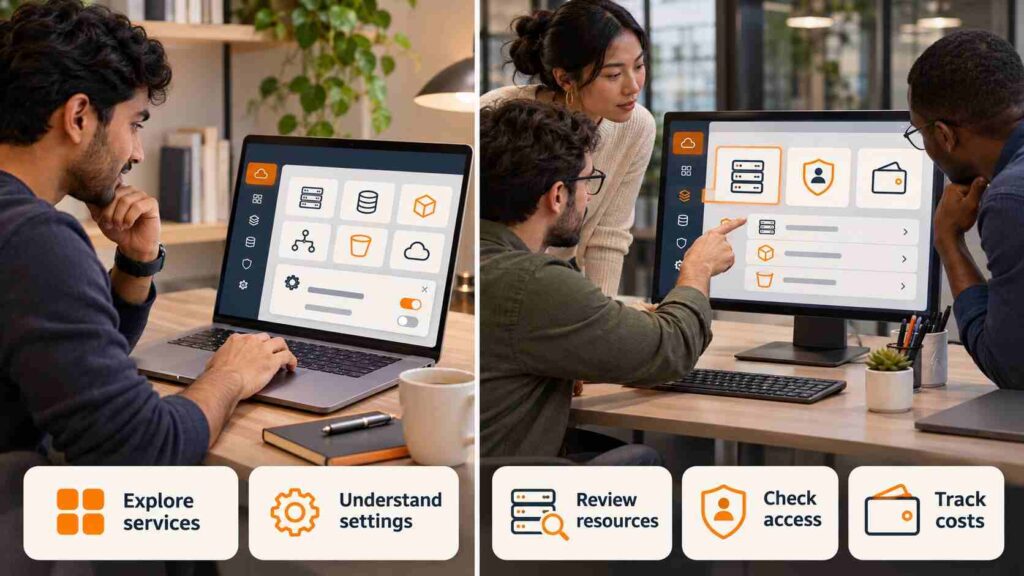
The biggest benefit of the AWS console is visibility. Beginners can examine resources and settings while learning how services relate to each other.
For working teams, that visibility supports investigation. A developer can compare a deployment’s configuration with its intended settings. An administrator can review access. A project owner with appropriate permissions can examine spending without writing a script.
Consider a small publisher investigating a slow website. The interface can help reveal resource status, monitoring information, and recent configuration choices. It does not automatically identify every cause, but it gives the team evidence to investigate.
For websites using Cloudflare, our guide to Cloudflare error codes and fixes explains how to investigate connection, DNS, and certificate problems.
The practical gain is a shorter path from a question to relevant information. It is particularly useful for inspection, learning, and occasional administrative work.
Key Uses: From Hosting to Operational Checks
The AWS console supports many workflows, but the service you open determines what you can manage.
| Service | Typical use through its interface |
|---|---|
| Amazon EC2 | Review virtual servers, their status, and configuration |
| Amazon S3 | Manage stored objects, buckets, and access settings |
| AWS Lambda | Inspect event-driven functions and their configuration |
| Amazon CloudWatch | Investigate metrics, logs, and alarms |
| AWS IAM | Review identities, roles, and access policies |
These services often work together. An illustrative publishing workflow might store uploaded images, trigger a processing function, and record operational information. The interface lets an authorized team inspect the relevant parts rather than treating the application as an unexplained black box.
Choose a service according to the workload. A familiar dashboard alone does not establish that its underlying service is the best fit.
Costs, Security and Regional Limits
The Interface and the Bill Are Different
There is no separate fee simply for AWS console access. Charges depend on the services and resources you use, including applicable requests, storage, and data transfer. Accessing services through a browser does not make those operations free.
AWS Cost Explorer helps explain spending patterns. Its data is refreshed at least daily, with some upstream information arriving later; treat it as cost analysis rather than an instant spending meter.
AWS Free Tier eligibility, credits, and limits depend on the offer and account circumstances. Check the terms that apply to your account before assuming a resource costs nothing.
Budget notifications can provide useful warnings. They should be part of cost management, alongside reviewing and removing resources you no longer need. Alerts notify you; automatic restrictions require separately configured actions, and billing updates can lag behind usage.
Access Follows Your Identity
In the AWS console, your permissions determine which resources you can view and which actions you can take.
AWS recommends temporary credentials for human access, multi-factor authentication, and least-privilege permissions. Routine work should use an appropriate role or workforce identity; reserve the root user for tasks that require it.
Account and Region Change the View
Many resources belong to a particular Region. An apparently empty service screen can therefore reflect the wrong account, Region, or permissions—not missing infrastructure. Check that context before creating a replacement resource.
Where the Console Fits Alongside Automation
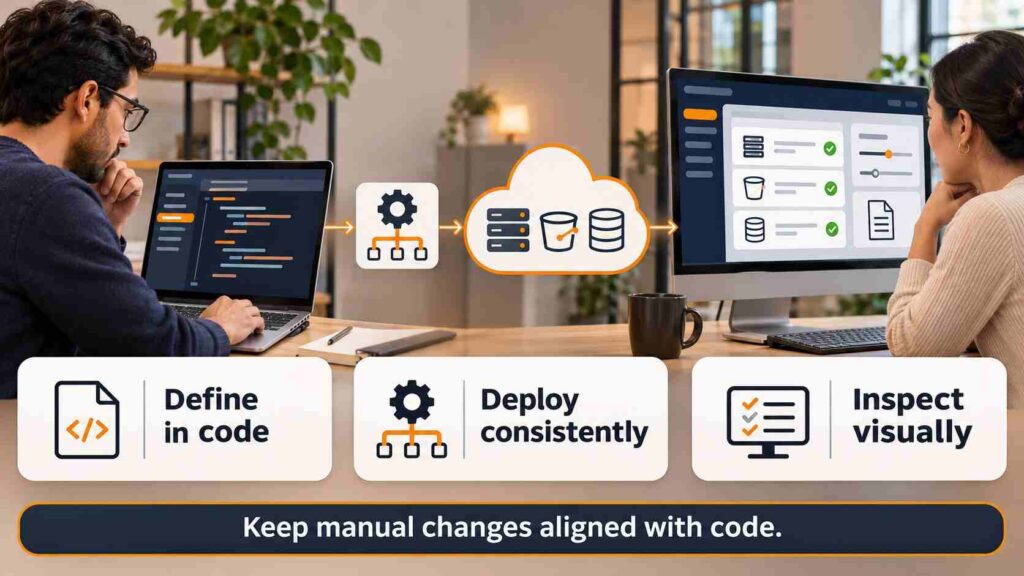
The AWS console remains useful when infrastructure is deployed through code. Teams can inspect settings, investigate alarms, and verify the results of an automated deployment.
Repeated infrastructure changes usually benefit from templates, scripts, or deployment pipelines. AWS CloudFormation, for example, describes resources in templates that can be reused and tracked through version control.
A sensible division is to explore visually, document the intended configuration, and automate repeatable work. If a resource is managed through code, coordinate manual changes with that source configuration. Otherwise, the next deployment may behave differently from what someone expects after an undocumented edit.
Frequently Asked Questions
Do I Need Coding Skills to Use the Interface?
No. Many resource and account-management tasks use forms and visual controls. You still need to understand the settings, permissions, and costs involved. A graphical interface makes actions accessible; it does not choose the right configuration for you.
Does Signing Out Stop Running Resources?
No. Signing out ends your session. Resources continue according to their service configuration until they are stopped, deleted, or otherwise changed. Review each service’s lifecycle and billing rules when finishing an experiment.
Can I Manage Resources From My Phone?
Yes. AWS offers a mobile application for supported monitoring and management tasks, including viewing alarms and health information. Available functions depend on the service, app support, and your permissions.
Is the Browser Interface the Same as the CLI?
No. The browser provides visual controls; the command-line interface accepts commands. Both interact with AWS services, and both require appropriate authorization. Use whichever suits the task, especially when balancing visual investigation with repeatable operations.
Conclusion
The AWS console brings service management, operational visibility, access controls, and cost information into a shared workspace. Its strongest uses are understanding resources and making informed decisions. Choose one workload, identify the services supporting it, and review its configuration, permissions, and spending together. That provides a useful foundation before expanding your cloud setup.
