
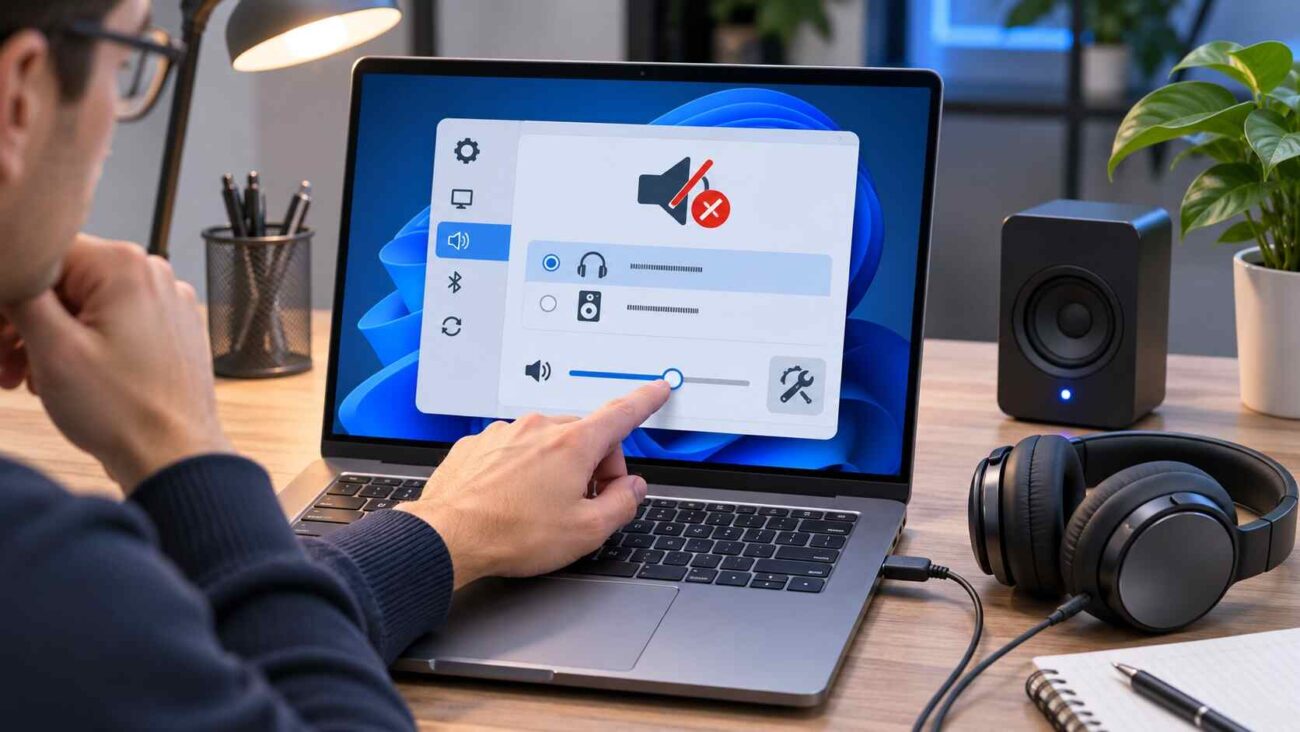
To fix sound not working in Windows, open Settings → System → Sound, select the correct audio output device, and check that the volume isn’t muted. If that doesn’t restore audio, run Microsoft’s built-in Get Help audio troubleshooter to identify common playback problems. You can also repair malfunctioning audio drivers, restart Windows Audio services, or correct application-specific sound settings.
Quick verification: No sound from speakers, a missing audio output device, and Bluetooth headphones connected without audio are different problems. The fixes below apply to Windows 11 and Windows 10, although some menu labels vary between versions.
What Does Sound Not Working in Windows Mean?
Windows sound problems occur when the operating system cannot deliver audio correctly to speakers, headphones, or another playback device. The cause may be incorrect settings, disabled hardware, incompatible drivers, interrupted audio services, or a physical connection failure.
Simple distinction:
- Who this guide is for: Windows users experiencing silent speakers, unrecognized headphones, missing audio devices, or sound failures after an update.
- Who it isn’t for: Users whose only problem is microphone recording or audio editing, rather than playback.
The symptoms help identify where troubleshooting should begin.
| What you’re experiencing | First thing to check |
|---|---|
| No sound anywhere | Volume, mute, and output selection |
| Headphones work, speakers don’t | Default output and speaker connection |
| Only one app has no sound | Volume mixer |
| No audio output device detected | Device Manager and audio drivers |
| Sound disappeared after an update | Windows Update and driver rollback |
| Bluetooth connected but silent | Bluetooth audio output and pairing |
How to Fix Sound Not Working in Windows: 6 Steps
Try these six solutions in order, testing the sound after each one. Start with Windows settings before making changes to drivers or services.
1. Check Volume, Mute, and Audio Output Settings
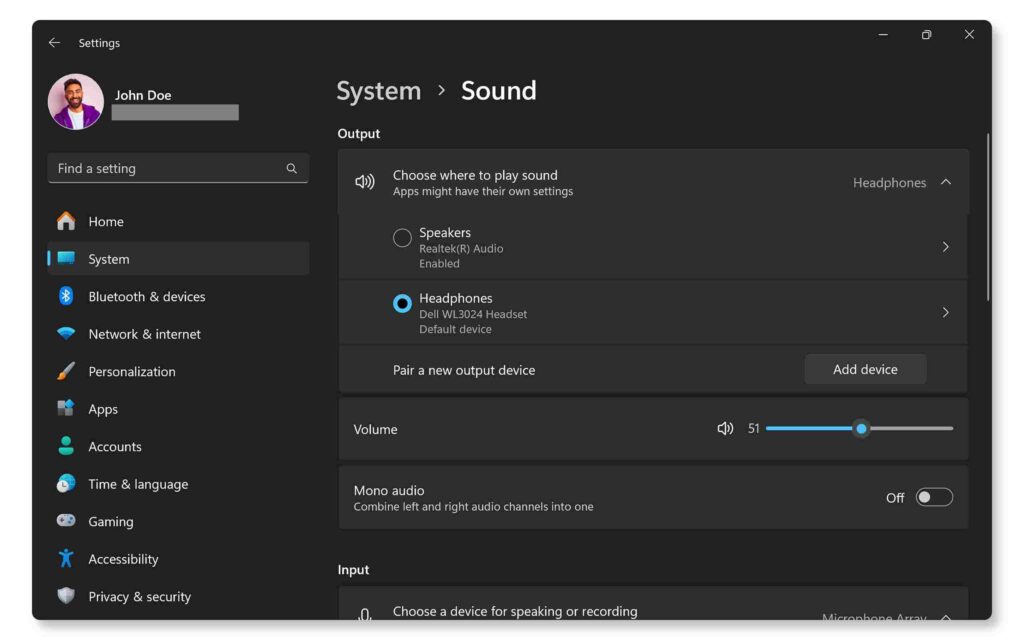
Open Windows Sound settings. Press Windows + I, select System → Sound, and locate the Output section.
Choose the speakers or headphones you actually want to hear. If Windows has selected a monitor, disconnected headset, or another device, switch to the correct output.
Next, check the following:
- Make sure the system volume slider is above zero.
- Verify that the speaker icon doesn’t indicate mute.
- Check that external speakers are switched on.
- Disconnect unused headphones or USB audio devices.
- Test the speakers using another audio source.
For a wired headset, reconnect its 3.5 mm plug or USB connector securely. If you use external desktop speakers, make sure their cable is firmly connected to the correct audio output port on your computer.
If Windows recognizes multiple playback devices, open Sound → More sound settings → Playback, right-click the intended device, and select Set as Default Device.
2. Run the Official Windows Audio Troubleshooter
Launch Microsoft’s Get Help tool. Open Start, search for Get Help, and type audio troubleshooter in the application’s search field.
Follow the diagnostic prompts and select the affected audio device when requested. The tool checks common audio configuration problems and may recommend or apply repairs.
Restart the computer if the troubleshooter requests it, then play a video or system sound.
Microsoft provides this procedure in its official Windows sound troubleshooting guide.
3. Check Volume Mixer and Disable Audio Enhancements
Inspect application-level sound settings. Navigate to Settings → System → Sound → Volume mixer and look under Apps.
Check whether the affected application is muted or using a different output device. This frequently explains why YouTube or a video meeting is silent while other Windows sounds work.
If the application isn’t listed, start playing audio in it and check the mixer again.
Next, disable audio enhancements:
- Open Settings → System → Sound.
- Select the affected device under Output.
- Find Audio enhancements.
- Set the option to Off.
- Test sound again.
Audio enhancements can interfere with playback on some hardware. If sound remains distorted or unusually quiet, test another supported setting under Default format rather than changing unrelated Windows options.
4. Update or Reinstall Your Audio Driver
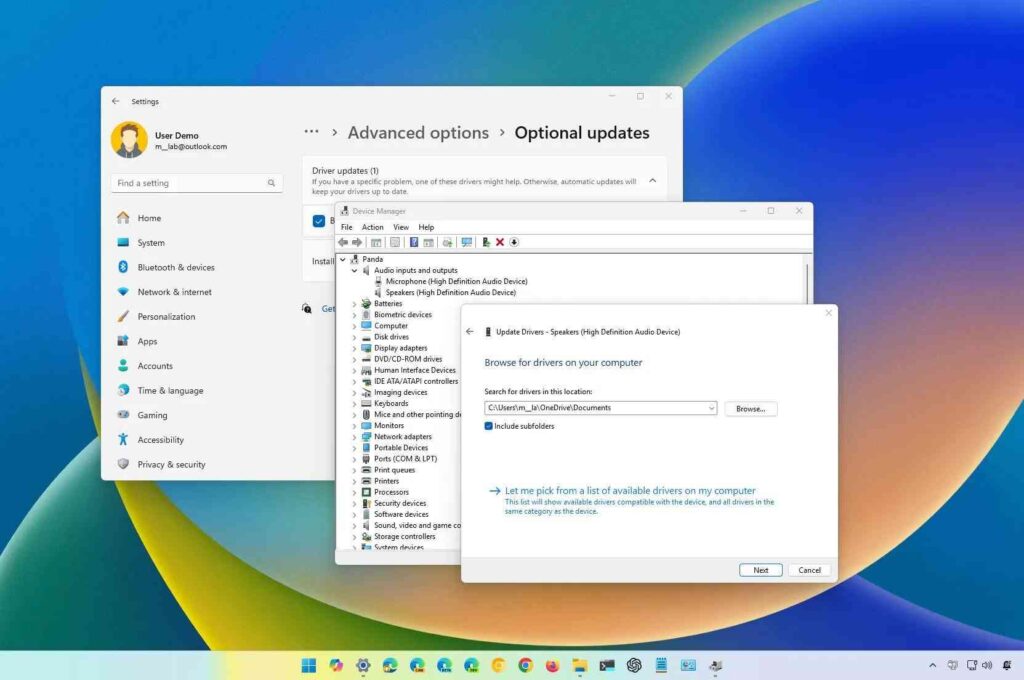
Open Device Manager. Right-click Start, select Device Manager, and expand Sound, video and game controllers.
Find your Realtek, Intel, USB, or other audio device, then right-click it and choose Update driver → Search automatically for drivers.
If Windows cannot find a suitable update, visit the computer manufacturer’s official support website and search for the exact model.
If updating doesn’t help:
- Return to Device Manager.
- Right-click the affected audio device.
- Select Uninstall device.
- Confirm the removal.
- Restart the computer.
Windows normally attempts to reinstall the driver during startup. If it doesn’t, install the compatible driver downloaded from your computer or audio-device manufacturer.
Pro tip — Driver safety: Avoid unknown driver-download websites and utilities promising automatic fixes for every audio problem. Use Windows Update or the device manufacturer’s support page to reduce the risk of installing unsuitable drivers.
5. Restart Windows Audio Services and Check Updates
Restart the services responsible for playback. Press Windows + R, type services.msc, and press Enter.
Find Windows Audio, right-click it, and select Restart. Repeat for Windows Audio Endpoint Builder, then test your speakers.
If sound stopped after a system update, open Settings → Windows Update → Check for updates and install applicable fixes.
One recent example deserves attention: Microsoft confirmed that certain USB Audio Class 1.0 devices stopped working after September 2026 updates. Affected devices sometimes displayed “This device cannot start (Code 10)” in Device Manager.
Microsoft resolved the documented problem through security updates released November 10, 2026. The update addressing this issue is KB5132061, which applies to Windows 11 versions 24H2, 25H2, and 26H2.
Check Windows Update → Update history to review installed updates. Microsoft’s Windows release-health documentation provides the affected-device details.
If the problem instead began after an audio-driver update, open Device Manager → Audio device → Properties → Driver → Roll Back Driver, when that button is available.
6. Fix Bluetooth, HDMI, or External Speaker Output
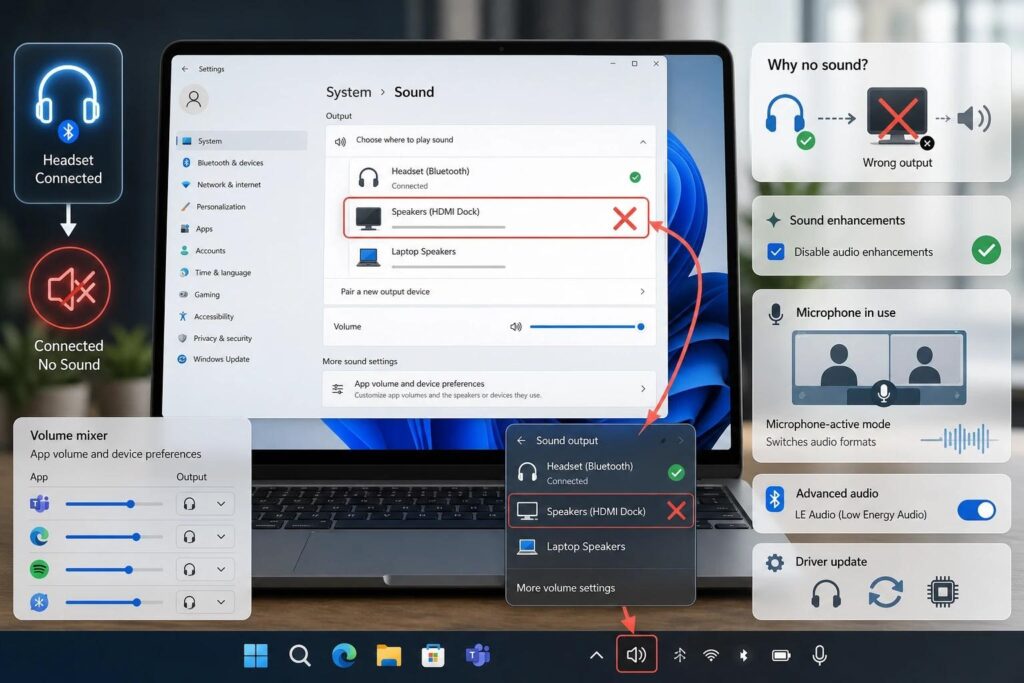
Confirm where Windows is sending audio. A connected Bluetooth headset or HDMI monitor may become the active playback device even when you expect sound from the laptop speakers.
Open Settings → System → Sound → Output and select the intended device.
For Bluetooth headphones, navigate to Settings → Bluetooth & devices → Devices. If needed, remove the headphones using More options (…) → Remove device, then pair them again through Add device.
Bluetooth devices using the A2DP profile support higher-quality audio playback. Check the headset manufacturer’s specifications if sound quality or profile compatibility remains a problem.
For HDMI monitors, verify whether the monitor actually contains speakers. If your Windows computer is connected to an external monitor through HDMI, check whether the monitor supports audio playback and whether Windows has selected it as the output device. For related display connection and configuration issues, see our screen resolution guide. If it doesn’t, select the laptop’s speakers or another connected audio device instead.
Verified Windows Audio Fixes and Their Limitations
Microsoft provides several built-in audio recovery options, but each addresses a different type of failure.
| Fix or tool | Confirmed capability | Limitation |
|---|---|---|
| Sound settings | Changes playback output and volume | Cannot repair damaged speakers |
| Volume mixer | Controls individual application audio | Cannot restore missing hardware |
| Get Help | Diagnoses common playback problems | Cannot fix every hardware defect |
| Device Manager | Updates, enables, or reinstalls drivers | Requires compatible hardware and drivers |
| Windows Audio services | Can restore interrupted audio services | Won’t repair broken connections |
| Driver rollback | Restores a previous driver version | May be unavailable without an earlier driver |
These tools are included with Windows or provided through Microsoft’s support environment. You don’t need a paid driver-updater subscription to use them.
Common Windows Sound Problems and Troubleshooting
1. “No Audio Output Device Is Installed”
Windows may display this error when it cannot detect a functioning audio device.
Open Device Manager → Sound, video and game controllers and check for disabled devices or warning symbols. If the device is missing, select View → Show hidden devices, followed by Action → Scan for hardware changes, then install the correct driver if necessary.
2. Realtek Audio Not Working
Realtek audio failures may result from incompatible drivers, disabled outputs, or an incorrect playback selection.
Check whether Realtek speakers appear under Settings → System → Sound → Output. If they don’t work, reinstall the audio driver supplied for your specific laptop or motherboard.
3. Headphones Connected but No Sound
A recognized headphone connection doesn’t guarantee that Windows is using it for playback.
Select the headphones under Sound → Output and test again. For Bluetooth headphones, reconnect the device and verify its audio profile and volume settings.
4. Sound Works in Windows but Not in Chrome or Zoom
Application-specific volume settings can differ from the system volume.
Open Sound → Volume mixer, locate the affected application, and check its volume and output selection. Also inspect the application’s internal audio settings and any muted browser tabs.
5. Sound Is Very Low or Crackling
Low or distorted sound may be caused by enhancements, unsupported audio formats, failing cables, or driver problems.
Disable Audio enhancements, test another supported Default format, and try a different headset or speaker connection. If the distortion persists across devices, investigate the audio driver.
Best Alternatives and Next Steps if Windows Sound Still Fails
If Windows’ built-in fixes don’t restore sound, manufacturer-supported diagnostics can help determine whether the problem is software-related or physical.
| Diagnostic tool | Price | Best use |
|---|---|---|
| Microsoft Get Help | Free | General Windows sound troubleshooting |
| Windows Device Manager | Included | Missing devices and driver failures |
| Dell SupportAssist | Free diagnostics | Supported Dell PC audio problems |
| HP Support Assistant Audio Check | Free | Supported HP speaker and audio testing |
Dell provides a dedicated audio troubleshooting resource, while HP offers official sound diagnostics.
If speakers or headphones fail on multiple devices, test or replace the accessory before considering computer repairs. If every audio output fails despite successful software checks, request a hardware diagnosis.
Key Takeaways
- Start with output settings: Wrong playback devices and muted volume can cause complete silence.
- Use Windows tools first: Get Help and Volume mixer address many common problems without additional software.
- Check drivers and updates: Missing devices and post-update failures may require driver recovery or security updates.
- Test the actual hardware: Separate speaker, headphone, Bluetooth, and HDMI issues before paying for repairs.
FAQs
How do I fix sound not working on Windows 11?
Open Settings → System → Sound, choose the correct output device, and verify that the volume isn’t muted. Run the Get Help audio troubleshooter if sound doesn’t return, then check drivers and audio services.
Why does my computer suddenly have no sound?
An update, changed playback device, muted application, or audio-driver problem can interrupt sound. Check output selection and Volume mixer first, then investigate recently installed drivers or Windows updates.
How do I restart Windows Audio?
Press Windows + R, enter services.msc, and find Windows Audio. Right-click the service, choose Restart, and repeat for Windows Audio Endpoint Builder if necessary.
How can I fix Windows sound without reinstalling drivers?
Check volume and playback settings, run Get Help, disable audio enhancements, and restart audio services. Reinstalling drivers is generally a later step when simpler fixes fail or Device Manager reports a problem.
Does resetting Windows fix audio problems?
A Windows reset may address some software-related faults, but it isn’t guaranteed to resolve hardware failures or incompatible audio devices. Try the available sound diagnostics and driver recovery options before considering a system reset.

One thought on “How to Fix Sound Not Working Windows: 6 Quick Fixes”