
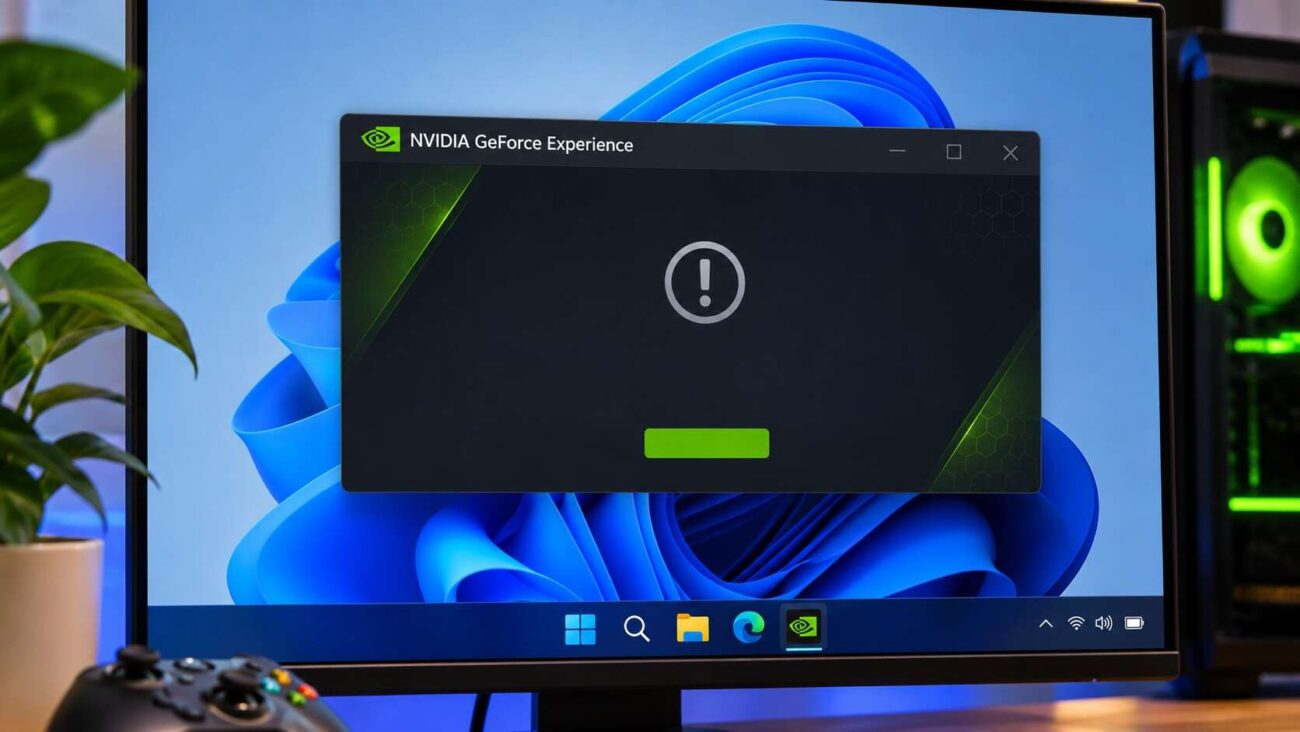
Restart Windows using Start > Power > Restart, then open GeForce Experience again. If GeForce Experience error code 0x0003 returns, check the installed NVIDIA services before reinstalling anything. For a longer-term solution, consider switching to the supported NVIDIA App rather than repeatedly repairing the older program.
The message reads: “Something went wrong. Restart your computer, then try opening GeForce Experience again. ERROR CODE: 0x0003.” It is not a confirmed hardware diagnosis. These steps cover Windows 11 and 10.
- First, identify which problem you actually have
- What Causes GeForce Experience Error Code 0x0003?
- Fix 1: Restart the App and Windows Properly
- Fix 2: Inspect NVIDIA Services Without Changing Random Settings
- Fix 3: Switch From GeForce Experience to the NVIDIA App
- Fix 4: Recover a Failed NVIDIA App Installation
- Fix 5: Clean-Install the Graphics Driver if the Driver Itself Is Failing
- Fix 6: Roll Back a Driver if the Issue Began After Updating
- Still Seeing Error 0x0003? Check Evidence Before More Changes
- Conclusion
- Frequently Asked Questions
First, identify which problem you actually have
| What you see | Best place to start |
|---|---|
| GeForce Experience won’t open; error 0x0003 appears | Restart Windows, then inspect NVIDIA services |
| Legacy app keeps failing despite reinstalling | Check NVIDIA App compatibility and migrate |
| NVIDIA app not working or installer stops | Follow NVIDIA’s installer recovery instructions |
| Driver update failed, or games started crashing after an update | Manually reinstall or roll back the graphics driver |
| Windows no longer recognizes the NVIDIA GPU | Investigate Device Manager and PC-manufacturer support |
Stop once the symptom is fixed. Do not reinstall a working graphics driver unnecessarily.
What Causes GeForce Experience Error Code 0x0003?
The legacy program is failing to start. Stopped NVIDIA services, incomplete installations, driver conflicts, or other software could contribute, but NVIDIA has not published a definitive diagnosis for 0x0003.
NVIDIA released its replacement in November 2024. Its FAQ says GeForce Experience is no longer supported. NVIDIA also plans to retire critical legacy web services.
Fix 1: Restart the App and Windows Properly
- Save your work and close any game or recording session.
- Press the Ctrl, Shift, and Esc keys simultaneously to launch Task Manager.
- Under Processes, end an unresponsive NVIDIA GeForce Experience process if one is shown. Do not indiscriminately end display-driver or Windows processes.
- Open Start > Power > Restart. Avoid merely shutting the lid or putting the PC to sleep.
- Launch GeForce Experience again.
Note when the error first appeared; this helps with later event-log checks.
Fix 2: Inspect NVIDIA Services Without Changing Random Settings
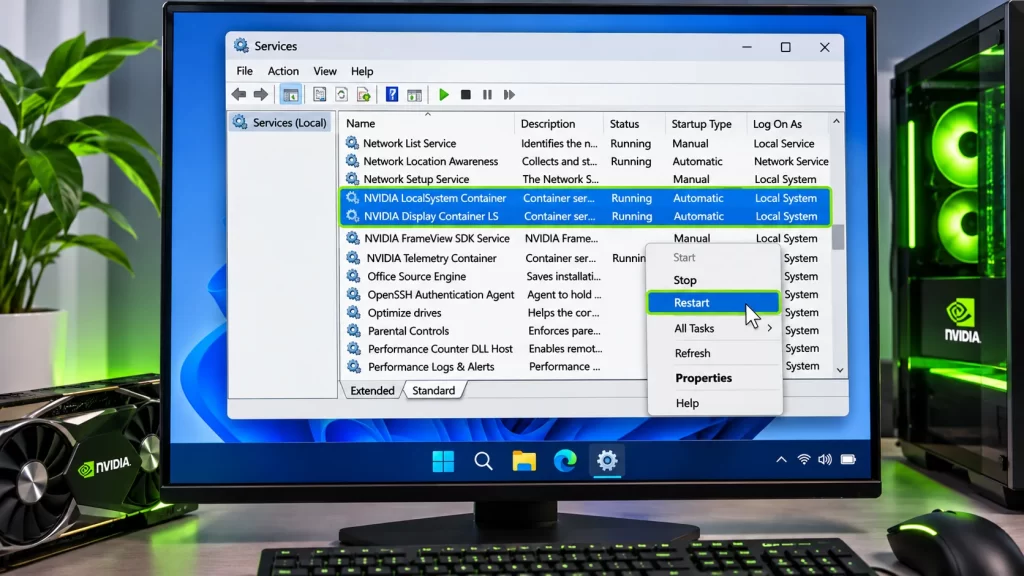
When GeForce Experience is not working, an unexpectedly stopped NVIDIA background service is one possible clue.
- Press Windows + R, type
services.msc, and press Enter. - Find entries beginning with NVIDIA. Depending on the installed software, examples may include NVIDIA LocalSystem Container or NVIDIA Display Container LS.
- Look at the Status column. For an NVIDIA service that unexpectedly stopped, right-click it and choose Start, or Restart if that command is available.
- Try launching the app again. If the service stops repeatedly, note its exact display name and move to the installer checks below.
Service lists vary by installation. A legacy NVIDIA Telemetry Container may be absent. Do not create missing services, enable desktop interaction, or indiscriminately force Automatic startup.
Fix 3: Switch From GeForce Experience to the NVIDIA App
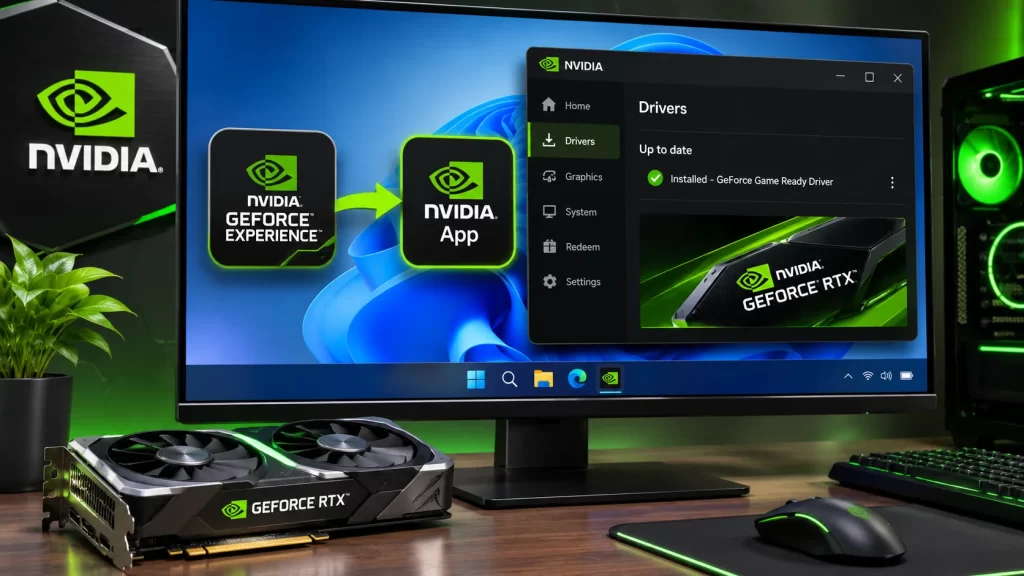
For compatible PCs, upgrading is more sustainable. The NVIDIA App handles driver updates, settings, and recordings.
- Press Windows + I. In Windows 11, open Apps > Installed apps. On some Windows 10 systems, the list is under Apps > Apps & features.
- Find NVIDIA GeForce Experience, choose Uninstall, and follow the prompts. Do not uninstall the NVIDIA graphics driver during this app-only step.
- Restart Windows, then download and install the NVIDIA App from NVIDIA’s official website.
- Open the new app and check its Drivers section. Confirm that the driver and features you need work before attempting further repairs.
NVIDIA lists Windows 10/11, driver 551.52 or newer, and supported GPU families including RTX 20–50 and GTX 800/900/1000/1600 series. Older cards may not qualify; review the requirements.
Fix 4: Recover a Failed NVIDIA App Installation
If the NVIDIA app is not working because installation failed, NVIDIA recommends rebooting and retrying, then uninstalling, restarting, and reinstalling if needed.
Close games, overlays, and GPU-tuning tools; background software and Windows Update may interfere. NVIDIA also documents checking services and running processes for persistent installer failures. This does not prove they caused 0x0003.
Avoid registry edits and third-party cleanup tools as first steps. Save the exact installer error.
Fix 5: Clean-Install the Graphics Driver if the Driver Itself Is Failing
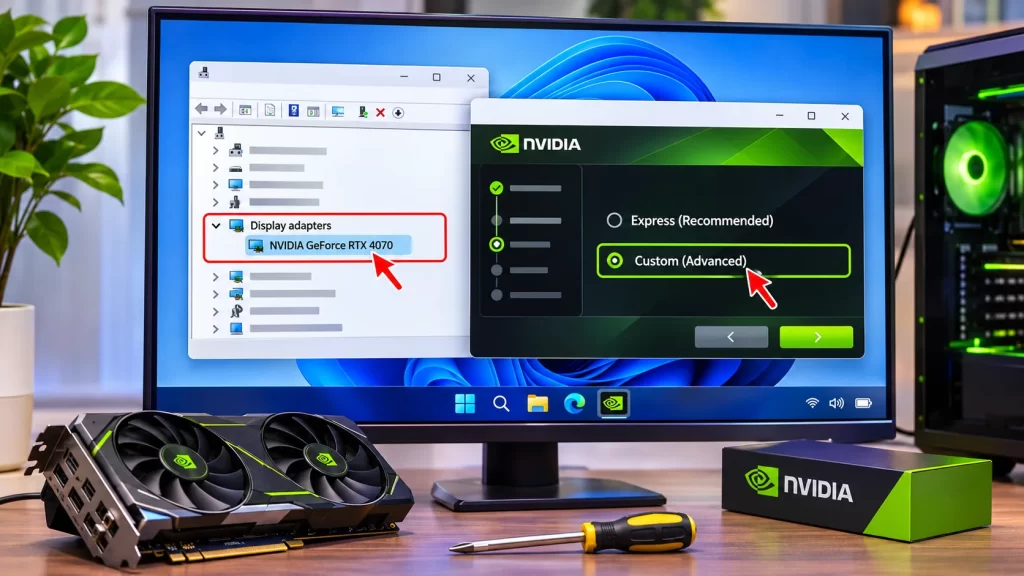
Clean installation is worth considering when an NVIDIA driver installation failed or Windows reports a display-device problem—not simply because the legacy app will not open.
- Right-click Start > Device Manager > Display adapters to identify the exact NVIDIA GPU. On laptops, also check the manufacturer’s driver instructions.
- Open NVIDIA’s official driver finder. Select the matching GPU, Windows version, and appropriate Game Ready or Studio driver.
- Close open programs, especially recording, overlay, and GPU monitoring tools.
- Right-click the downloaded installer and select Run as administrator.
- Follow the installer, choose Custom (Advanced), then select Perform a clean installation when offered.
- Finish installation and restart the computer.
These labels come from NVIDIA’s 2026 instructions. Warning: A clean install resets custom NVIDIA settings and profiles; save your preferred settings first. It is not a guaranteed 0x0003 fix.
If an HDMI or DisplayPort audio output disappears after a driver change, investigate the playback device separately. TechHBX’s Windows sound troubleshooting guide covers that different symptom.
Fix 6: Roll Back a Driver if the Issue Began After Updating
If games or graphics features broke immediately after a driver update, consider the previous version.
Open Device Manager > Display adapters, right-click your NVIDIA GPU, and choose Properties > Driver > Roll Back Driver. If the button is available, follow the prompts and restart. If it is unavailable, Windows may not have a previous version to restore. Microsoft’s Device Manager guidance confirms this procedure.
Rollback helps suspected driver regressions, not every app-launch error.
Still Seeing Error 0x0003? Check Evidence Before More Changes
Open Event Viewer > Windows Logs > System and check Service Control Manager entries near the error time. An NVIDIA service named in an error provides a useful clue; no entry does not rule out a problem.
For suspected conflicts, follow Microsoft’s clean-boot guide. It can disable essential NVIDIA services too, so interpret results carefully and restore normal startup afterward.
Avoid blanket network resets unless login or download failures also point to connectivity. Skip unofficial installers and blanket security shutdowns.
Conclusion
For error 0x0003, restart Windows, check installed NVIDIA services, and migrate to the NVIDIA App if compatible. Reserve driver repairs for driver symptoms. If the GPU disappears from Windows or installs repeatedly fail, contact NVIDIA or your PC manufacturer with the exact error.
Frequently Asked Questions
Can I fix error 0x0003 without reinstalling drivers?
Yes, sometimes. Restarting Windows, restarting a stopped installed NVIDIA service, or replacing the legacy app may resolve the application problem without touching the graphics driver. The correct fix depends on the underlying failure.
Is GeForce Experience still supported?
No. NVIDIA’s current FAQ says the legacy application is no longer supported. The NVIDIA App is its recommended replacement, although NVIDIA still provides a legacy installer for users who need it.
Why is NVIDIA LocalSystem Container stopping?
A repeatedly stopping service can indicate a local software, permission, or installation problem, but the service name alone cannot establish the cause. Check Event Viewer for the specific failure and use NVIDIA’s installer guidance before making advanced changes.
Does error code 0x0003 mean my GPU is broken?
No. This message is an app startup symptom, not a hardware diagnosis. Investigate hardware only if Windows also fails to recognize the card, displays persistent graphical failures, or reports device errors.
Should I install an older GeForce Experience version?
Usually not. Old installers recommended in forum posts may be unsupported or downloaded from unsafe mirrors. Use NVIDIA’s current app where compatible; if you specifically need legacy software, obtain it through NVIDIA’s own support documentation.
