
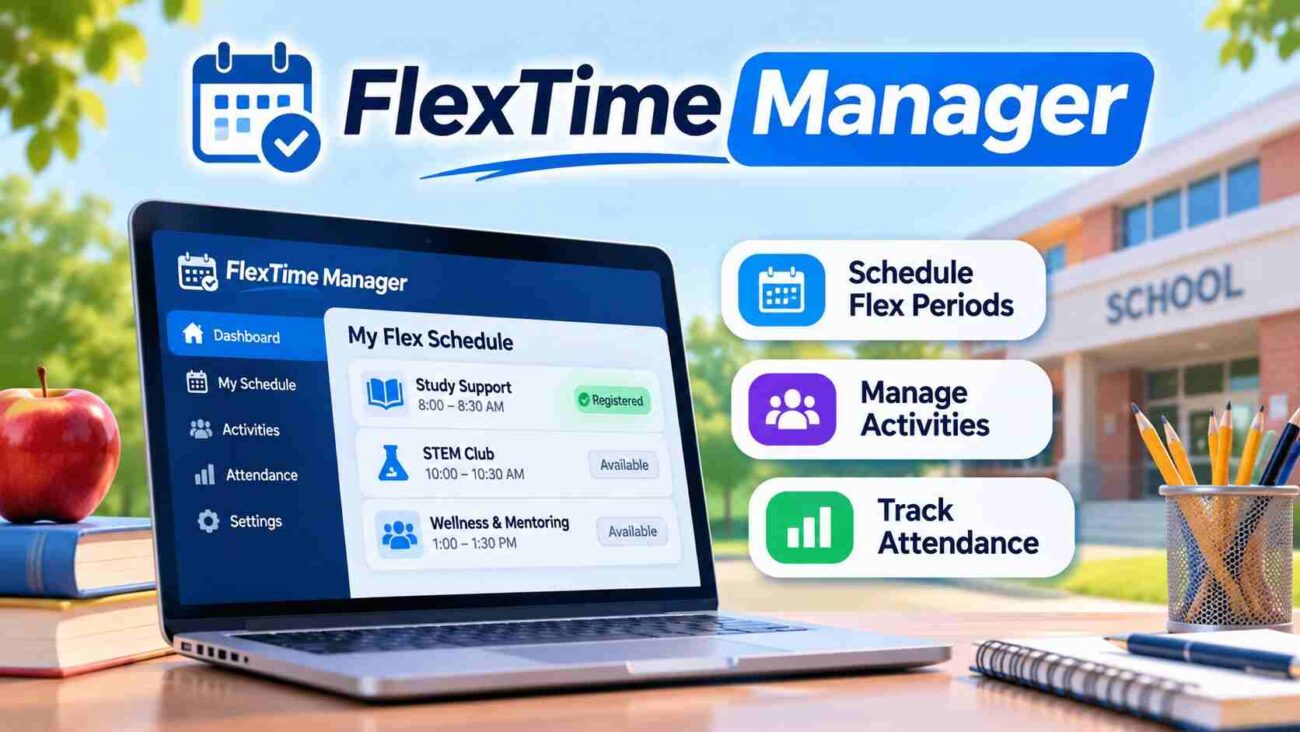
Trying to access FlexTime Manager but finding Securly Flex instead? The name change can be confusing, especially when your school expects you to register for a flex period before a deadline.
FlexTime Manager is now known as Securly Flex, a school scheduling platform that helps students choose activities, teachers organize support sessions, and administrators manage attendance.
This guide explains the official login process, how students register for activities, what teachers can control, and how to resolve common scheduling problems.
- What Is FlexTime Manager?
- How to Log In to FlexTime Manager (Securly Flex)
- How Students Use FlexTime Manager for Scheduling
- How Teachers and Administrators Manage FlexTime Manager
- Key Features of FlexTime Manager Explained
- FlexTime Manager Login and Scheduling Problems
- Is FlexTime Manager Available as a Mobile App?
- Frequently Asked Questions
- Conclusion
What Is FlexTime Manager?
FlexTime Manager is a web-based school scheduling system designed to organize flexible activity periods during the school day. It is now marketed as Securly Flex.
Unlike traditional timetables, flex periods allow schools to offer academic intervention, enrichment, counseling, and other activities within designated time blocks.
For example, a student who needs mathematics support might attend a teacher-led review session, while another joins a robotics activity.
The platform coordinates those assignments through student scheduling software, reducing the need to organize individual sessions manually.
According to Securly’s official product information, the system includes automated placement, capacity controls, notifications, attendance, and reporting.
Importantly, this is educational scheduling technology, not employee timesheet or workplace flexible-hours software.
How to Log In to FlexTime Manager (Securly Flex)
Students, teachers, and administrators generally access FlexTime Manager login services through their school’s approved authentication method.
Official Login Instructions
- Open Chrome, Safari, or another supported browser.
- Visit the official Securly Flex login page: https://flex.securly.com/login.
- Select the authentication option approved by your school.
- Sign in using your authorized school account.
- After authentication, open My Schedule to review available activities or existing assignments.
Some schools provide access through Clever or ClassLink. In those cases, use your district’s instructions instead of choosing an unfamiliar authentication option.
Signing in successfully does not necessarily grant access to all platform features. Your account role and school configuration determine what appears.
Security tip: Check the website address before entering credentials. Avoid unofficial login portals, and never share your school password with websites claiming to offer faster access.
Schools use different digital platforms for scheduling and communication. If your school also uses Microsoft Teams, our Team App login guide explains how to access your school account and resolve common sign-in problems.
How Students Use FlexTime Manager for Scheduling
The main student workflow combines flex period scheduling with activity registration and calendar management.
Find and Join an Activity
After signing in, students can open My Schedule and locate a flex period.
To register:
- Select Join activity for an available period.
- Search using an activity name or teacher’s name.
- Narrow the results by activity type or room when needed.
- Select an eligible session.
- Click Join This Activity to confirm registration.
The chosen activity should then appear on the student’s calendar.
However, activity registration depends on availability and permissions. A session may be unavailable because its capacity is full, the student is not eligible, or a restriction applies.
Understand Priority and Mandatory Activities
Not every flex session is optional.
Teachers can create Required activities, use Plus Add to bring available students into sessions, or establish higher-priority assignments. Administrators can also create mandatory placements.
A student who chooses an enrichment session may therefore be reassigned to required academic support.
Schools may rename or hide certain priority levels, so the options can differ.
Can Students Change Their Flex Schedule?
Usually, yes, before the school’s registration cutoff.
Students can revisit the activity selection screen and choose another eligible session. Once the cutoff passes, they cannot independently change their selection.
Schools using Autoassign can place unregistered students into available sessions. Other configurations may direct them to a designated reporting location.
How Teachers and Administrators Manage FlexTime Manager
Teachers use the platform for school activity scheduling, targeted support, and attendance.
Creating and Scheduling Teacher Activities
The official teacher reference guide describes this workflow:
- Navigate to Activities > Activities List > New Activity.
- Enter the activity information and save it.
- Open Activities > My Schedule.
- Select the appropriate date and flex period.
- Choose Schedule Activity, then select the saved activity.
Teachers can configure student groups, adjust capacities, and schedule recurring sessions.
For attendance, teachers open Student Attendance, select the correct date and period, update each student’s status, and submit the record.
Administrators have additional controls for school settings, user roles, attendance reports, and assignments. These tools support student attendance tracking without relying entirely on paper rosters.
Key Features of FlexTime Manager Explained
The following table summarizes its practical capabilities.
| Feature | What it does | Primary users |
|---|---|---|
| Activity scheduling | Organizes flex sessions by date, room, and capacity | Teachers |
| Student registration | Allows eligible students to select available activities | Students |
| Autoassign | Places unregistered students into eligible sessions | Administrators |
| Priority scheduling | Gives mandatory sessions precedence over student choices | Teachers and admins |
| Attendance management | Records participation and attendance status | Teachers |
| Notifications | Communicates schedules and important changes | Students and staff |
| Reporting | Supports attendance reviews and exported records | Administrators |
Why Automated Placement Matters
Imagine a school offering a 30-minute intervention period with several hundred students.
Without centralized scheduling, administrators must coordinate room capacities, teacher assignments, and student locations.
FlexTime Manager can automate eligible placements while preserving higher-priority requirements.
That makes it useful for Response to Intervention (RTI) and Multi-Tiered Systems of Support (MTSS) scheduling, although the software itself does not determine whether an educational intervention succeeds.
FlexTime Manager Login and Scheduling Problems
Even well-configured school scheduling software can produce access or registration issues.
Login Page Not Working
Check the exact official address, internet connection, and authentication method.
If your school uses single sign-on (SSO), make sure you are selecting the correct school account. For persistent problems, contact your district’s technology support team.
Activity Missing or Unavailable
A session may already be full, restricted to particular students, or unavailable because of another assignment.
Check the date, activity eligibility, and priority status before assuming the platform has failed.
Unable to Change a Schedule
The school’s cutoff may have passed. Students should contact a teacher or administrator rather than attempt to bypass scheduling restrictions.
Assigned to the Wrong Location
Review the latest schedule and any notifications. A mandatory assignment or automatic placement may have changed the original selection.
Ask school staff to confirm the reporting location before moving to another classroom.
Is FlexTime Manager Available as a Mobile App?
Yes. The Securly Flex app is listed on both Google Play and Apple’s App Store.
Its official listings identify the application as the successor to FlexTime Manager and describe scheduling, activity management, and notifications.
The app is available to download without an upfront app-store charge, but access depends on school participation and account permissions. This does not establish that the service is free for districts.
For student data privacy, schools should review the provider’s current policies, access controls, retention arrangements, and applicable student-data requirements.
Frequently Asked Questions
Is FlexTime Manager the same as Securly Flex?
Yes. FlexTime Manager is the former product name, while Securly Flex is its current branding.
Can students access FlexTime Manager from home?
Yes, provided they have internet access, valid credentials, and their school permits access. Available functions remain subject to school rules.
What happens if a student forgets to register?
Depending on school configuration, Autoassign may place the student into an eligible activity or a designated location.
Can teachers override student selections?
Yes. Authorized teachers can make certain priority assignments, while administrators have broader scheduling controls.
Is Securly Flex different from Securly Pass?
Yes. Flex manages scheduled activity periods. Securly Pass is a separate product for managing student movement and hall passes.
Conclusion
FlexTime Manager, now Securly Flex, provides a structured way to organize flexible school periods, support student choice, and manage mandatory academic sessions.
Students should use the official login, register before the cutoff, and regularly review schedule changes. Teachers and administrators should verify activity priorities, capacities, and attendance procedures.
For instructions specific to your school, consult its technology team or the official Securly Flex documentation before making schedule changes.
