
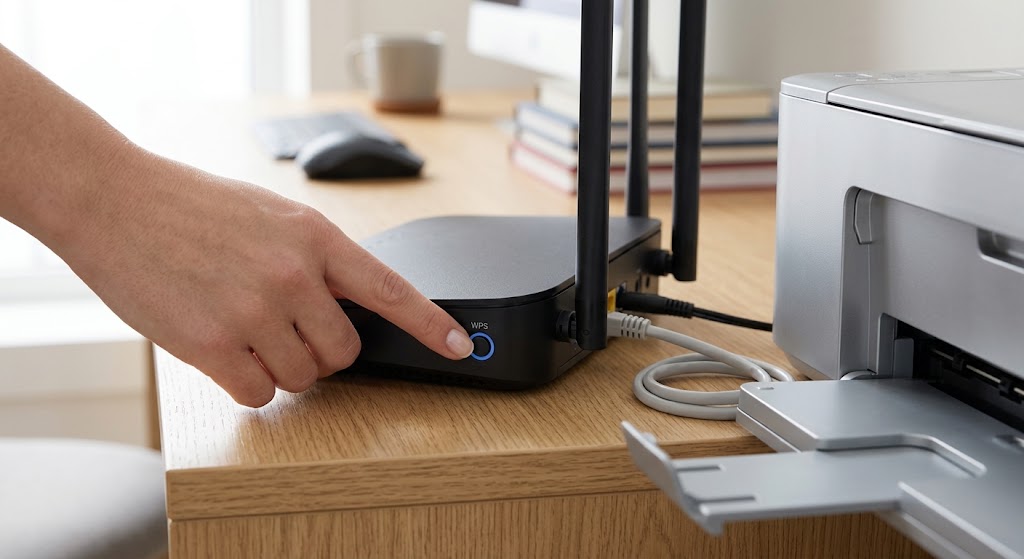
You’re setting up a printer when the instructions tell you to press a button you’ve barely noticed. Is it safe? Could it disconnect everyone?
That small WPS button can simplify connecting a device—but first, check whether it shares another function. On some routers, holding it too long can switch off Wi-Fi or trigger a factory reset.
- WPS Meaning: What Does WPS Mean on a Router?
- WPS Button on Router: Identify the Control Before Pressing
- How to Use the WPS Button on Router Models Safely
- Is WPS Safe? Separate Push-Button Pairing From PIN Access
- WPS Not Working? Check Compatibility Before Retrying
- A Real Customer Question: Which PIN Does the Printer Need?
- Frequently Asked Questions
- Conclusion: Use the Shortcut Without Taking Unnecessary Risks
WPS Meaning: What Does WPS Mean on a Router?
WPS stands for Wi-Fi Protected Setup. It lets compatible devices join a wireless network without you manually selecting the network and typing its password.
What is WPS doing behind the scenes? It handles the exchange of connection settings during device enrollment. The two main approaches are push-button configuration, often abbreviated PBC, and PIN-based setup.
Think of it as a setup shortcut—not a faster internet setting. Its practical appeal is straightforward: connecting a printer with a tiny display is easier when you don’t have to enter a long password.
WPS Button on Router: Identify the Control Before Pressing
Check your router’s labels and model-specific manual. A control marked WPS/Wi-Fi or WPS/Reset deserves particular attention because its behavior can depend on how long you press it.
| Control | Main job | What to watch for |
|---|---|---|
| WPS button on router | Starts compatible-device pairing | Follow the documented press duration |
| Wi-Fi/WLAN | Turns wireless connectivity on or off | May share a control with WPS |
| Reset | Restores factory settings | Can erase your customized configuration |
The distinction is real, not merely labeling. On TP-Link’s EX511, a one-second press starts WPS, while a two-second hold toggles Wi-Fi. Its separate reset control requires more than ten seconds. Other designs combine WPS and factory reset on one control.
The safest rule: never substitute “hold it longer” for checking the manual.
How to Use the WPS Button on Router Models Safely
For push-button pairing:
- Confirm compatibility. The router and device both need to be WPS-enabled.
- Start the device’s pairing process. Select its WPS option or use its designated control, following its instructions.
- Activate pairing on the router. Follow the model’s specified press duration and activation order.
- Complete both actions within the setup window. This is commonly two minutes.
- Verify success. Check the device’s connection status, then try its intended task—for example, printing a test page.
That final check matters. Starting the pairing process is not the same as confirming that the printer or extender is ready to use.
Is WPS Safe? Separate Push-Button Pairing From PIN Access
The important security distinction is how you connect.
The router-PIN method has a documented brute-force weakness: an attacker can repeatedly try PIN combinations against vulnerable implementations. NETGEAR recommends disabling router-PIN access; its supported routers also use temporary lockouts after repeated failed attempts.
Push-button pairing avoids that particular PIN-guessing route, but it is not risk-free. Wi-Fi Alliance warns that unintended nearby devices could join during the two-minute enrollment window.
A sensible approach is to prefer password-based or manufacturer-guided setup when convenient. If you need WPS, use push-button pairing deliberately, check which devices joined, and disable unused WPS functionality where your router permits it.
WPS Not Working? Check Compatibility Before Retrying
Repeated pressing will not fix an unsupported setup. Check these possibilities first:
- WPS is disabled. Look in your router’s wireless settings; TP-Link documents an enable/disable option in its administration interface.
- The router does not support it. Google Nest Wifi and Google Wifi explicitly omit WPS for security reasons.
- The network uses WPA3-only security. ASUS confirms that WPA3-Personal does not allow WPS connections. Rather than weakening security just to use a shortcut, try password entry or the device’s supported setup app.
- The enrollment window expired. Restart the documented pairing sequence rather than holding a shared control longer.
Also Read: “No Internet, Secured” Error: 7 Quick Fixes for Windows
A Real Customer Question: Which PIN Does the Printer Need?
In HP’s Support Community, a LaserJet MFP owner asked what WPS PIN was needed for their printer. The post documents a setup question—not a confirmed hardware fault or a verified successful fix.
HP’s official guidance provides the useful next step: when prompted, check the printer’s control panel or the information sheet printed during setup. For most models, the PIN must be entered within 90 seconds.
The lesson is practical: identify which device the prompt refers to before searching the router’s label or changing network settings.
Frequently Asked Questions
1. What does WPS mean on a router?
It means Wi-Fi Protected Setup, a feature for connecting compatible devices through push-button or PIN-based enrollment.
2. Where is the WPS button on router models from different brands?
Placement and labeling vary. Check the model’s manual; some routers also offer a software pairing option through their web interface.
3. Why is my WPS light blinking?
On the TP-Link models covered by its guide, blinking indicates pairing mode. Check your model’s instructions rather than assuming every blinking light signals a fault.
4. Is the WPS PIN my Wi-Fi password?
No. They serve different setup purposes. If printer installation requests a WPS PIN, HP directs users to the printer’s displayed or printed PIN—not automatically to the router’s Wi-Fi password.
5. Can I connect without WPS?
Yes. A router can support ordinary password-based Wi-Fi without offering WPS at all; Google Nest Wifi is one example.
Conclusion: Use the Shortcut Without Taking Unnecessary Risks
WPS is useful when it removes a genuine obstacle, such as entering a complicated password on a printer. It is not something every device needs—or every router offers. Check compatibility, distinguish push-button pairing from router-PIN access, and follow your model’s timing instead of guessing. If the shortcut becomes complicated, choose another supported connection method. The goal is a working device, not weakened security or an accidental factory reset.
