
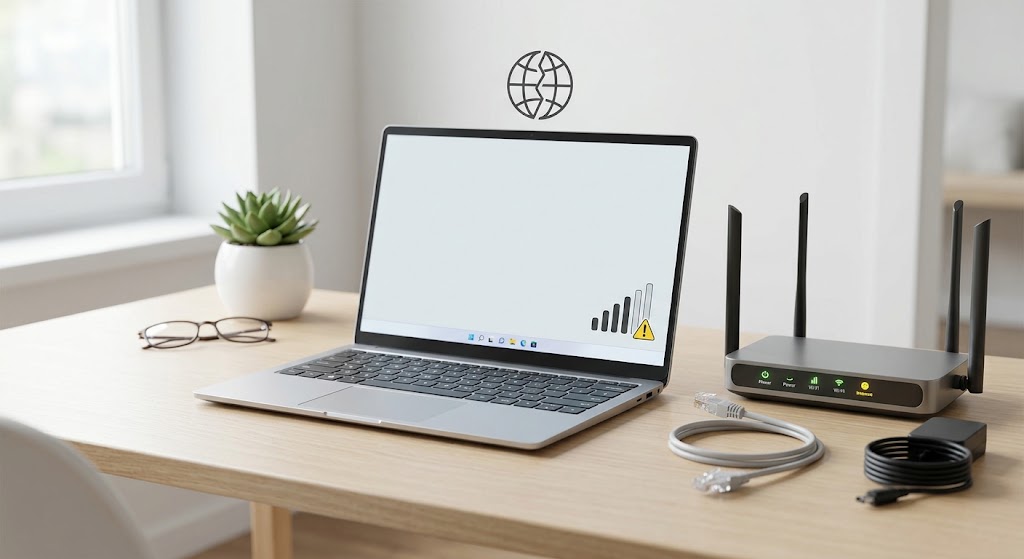
Your laptop connects to Wi-Fi, but websites refuse to load. Then you notice no internet secured beneath your network’s name. Frustrating? Absolutely—but that message gives you a useful starting point.
Here’s what it means, how to identify the problem, and seven practical fixes to try before paying for repair software.
What Does No Internet Secured Mean?
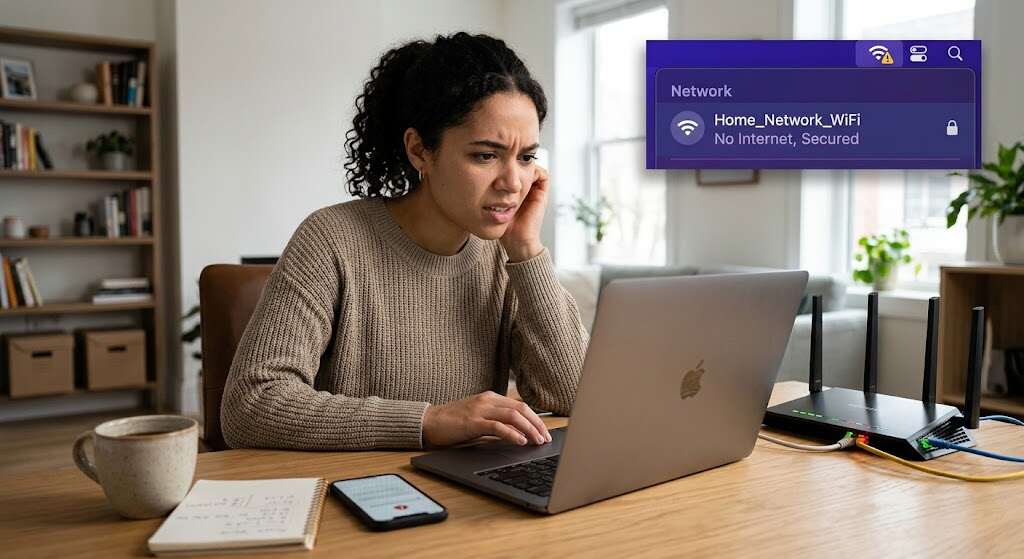
“Secured” describes the protection on your Wi-Fi connection. It does not confirm that your router can reach the internet.
Windows uses its Network Connectivity Status Indicator, or NCSI, to assess connectivity. If those checks fail, Windows can display a warning—even when some internet services still work. This difference is important because a bad connection and a bad connectivity test require different troubleshooting.
Start With This Quick Diagnostic Table
Before troubleshooting no internet secured, open two unrelated websites. Then test another device on the same Wi-Fi. When testing a phone, switch off mobile data so it cannot silently bypass the connection.
| What you observe | Where to start |
|---|---|
| Other devices cannot browse either | Restart the router and check for an ISP outage |
| Only your Windows computer is offline | Reconnect Wi-Fi and run Windows diagnostics |
Your Wi-Fi IPv4 address starts with 169.254 | Check automatic IP assignment and DHCP |
| Websites work despite the warning | Investigate proxy settings and NCSI checks |
Microsoft recommends checking another device and explains that a 169.254.x.x address indicates Windows could not obtain an address from the router.
7 Quick Fixes for No Internet Secured
Start with the least disruptive options. Test your connection after each fix, and stop once it works. The instructions focus on Windows 11; a Windows 10 reset path is included where it differs.
1. Restart Your Computer and Network Equipment
Restart Windows first. If that does not help, unplug your modem and router from power for at least 30 seconds.
Reconnect the modem and wait until it finishes starting. Then reconnect the router and allow its connection lights to settle. A combined modem-router needs only one restart.
This temporarily disconnects everyone using the network. Use the power connection—not the factory-reset button.
2. Forget the Wi-Fi Network and Reconnect
Have your Wi-Fi password ready. Go to Settings > Network & Internet > Wi-Fi > Manage known networks.
Select your network, choose Forget, then connect again and enter the password. This rebuilds the computer’s saved connection profile rather than changing the router’s configuration.
For an organization-managed network, check with IT before removing its profile.
3. Run the Windows Network Troubleshooter
For no internet secured on Windows 11, open Get Help and run the Network and Internet troubleshooter.
The tool performs diagnostics and attempts repairs. Follow its findings rather than changing unrelated settings. If it identifies an unresolved problem, keep the exact message—it provides useful evidence for further troubleshooting.
4. Reset Networking Components and Refresh DNS
If no internet secured persists on a DHCP-based home network, search for Command Prompt and select Run as administrator. Enter these commands individually:
netsh winsock reset
netsh int ip reset
ipconfig /release
ipconfig /renew
ipconfig /flushdns
The first two commands reset networking components. The next pair releases and requests an automatically assigned IP address. The final command clears cached DNS records, which Windows uses when translating website names into addresses.
Restart afterward. Expect temporary disconnection, and do not run these commands during a remote-support session. For managed networks or custom static-IP configurations, record settings and obtain IT guidance first.
5. Check Proxy Settings and Connectivity Detection
Still seeing no internet secured even though websites load? Open Settings → Network & internet → Proxy.
On a personal computer, disable a manual proxy only if you know that it is not necessary. Do not remove settings required by your employer.
If browsing works but the warning remains, ask the network administrator to check whether Windows connectivity probes are being blocked. Microsoft specifically advises against disabling active probing to conceal the problem.
6. Reinstall the Wi-Fi Adapter Driver
A no internet secured problem that begins after an update warrants a driver check.
First, download the correct wireless driver for your computer model from its manufacturer. Use another device and a USB drive if necessary.
Open Device Manager → Network adapters, right-click your Wi-Fi adapter, and select Uninstall device. Restart Windows.
Windows will attempt to reinstall the adapter driver. If it cannot, install the backup you downloaded. Keeping that backup prevents a driver-removal step from leaving you without a recovery option.
7. Use Network Reset as a Last Resort
Reserve Network reset for stubborn no internet secured problems.
In Windows 11, open Settings → Network & internet → Advanced network settings → Network reset. In Windows 10, use Settings → Network & Internet → Status → Network reset.
Save your work, record custom network settings, then select Reset now → Yes.
This removes installed network adapters and restores their settings to defaults after restarting. You may need to reinstall VPN software or recreate virtual switches, so it should not be your first troubleshooting step.
Conclusion
Fixing no internet secured starts with identifying what actually fails. Check other devices, try simple reconnection steps, and escalate carefully. If multiple devices remain offline after restarting the network equipment, contact your internet provider rather than repeatedly resetting Windows.
Frequently Asked Questions
1. Should I disable IPv6 to restore internet access?
Not as a routine fix. Microsoft advises against disabling IPv6 because Windows components and features can depend on it.
2. Can hotel Wi-Fi require an extra login?
Yes. Public Wi-Fi may require accepting terms or signing in through a captive portal before granting internet access. Follow the venue’s official connection instructions.
3. Will switching from Public to Private fix connectivity?
That is not a general internet repair. Network profiles govern discoverability and sharing. Reserve Private for networks whose users and devices you trust.
4. What should I check if the issue appears after sleep?
If available, open your Wi-Fi adapter’s Properties → Power Management in Device Manager. Test with Allow the computer to turn off this device to save power unchecked.
5. How can I collect useful evidence for technical support?
Run netsh wlan show wlanreport in an administrator Command Prompt. It generates an HTML wireless report. Review identifying device and network information before sharing it publicly.
