
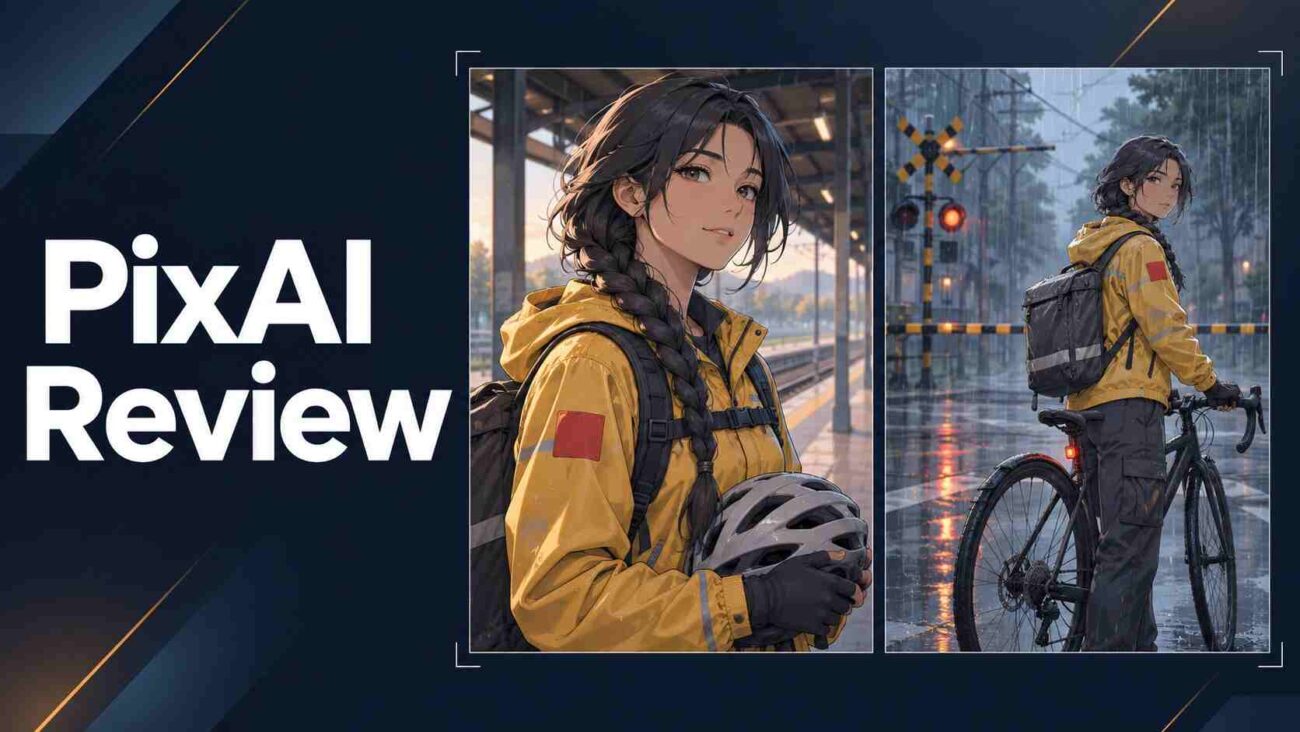
The first anime portrait is the easy part. The real test for PixAI is whether you can put the same character in a second scene and still recognize the face, outfit, and little details. If your first few attempts eat through the day’s credits, you’ll also want to know which settings are costing you.
PixAI gives you several ways to tackle that problem, from image references to add-ons for specific characters and styles. Drawing on PixAI’s documentation, this review explains which tools suit a first project, what the free balance covers, and what to check before using PixAI artwork in paid work.
What PixAI Does Well
PixAI is an AI image generator built around anime, manga, and illustration. You can use PixAI in a web browser or through its iOS and Android apps. The base model sets the broad look, the prompt describes the subject, and an optional LoRA can steer the output toward a character, outfit, or style. Think of a LoRA as a small add-on for a compatible model.
Choose a model based on the job
Tsubaki.3, the PixAI flagship model, accepts plain-language prompts and can use reference images. Haruka v2 suits a tag-based workflow and supports SDXL LoRAs, which may feel familiar if you’ve used Stable Diffusion. Check the base model listed on a PixAI LoRA page before adding it. Compatibility depends on the model family.
As an AI art generator, PixAI makes the most sense when you want several related images, such as portraits for a visual novel. For a quick profile picture, treat PixAI as an AI avatar generator and start with a plain background. If you want the round features and simple shapes of an AI cartoon generator, try the chibi preset in PixAI’s Tsubaki.2 model.
For a longer project, PixAI Studio puts references, drafts, and editing tools on one canvas. That gives you a place to lay out related panels and see which references feed into each shot.
How PixAI Credits and Paid Plans Work
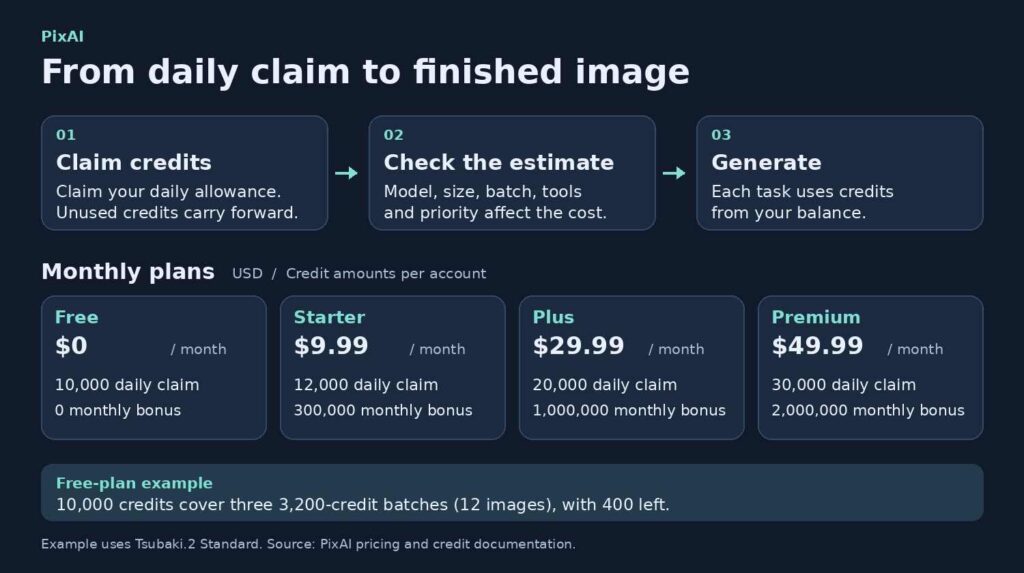
How far do free PixAI credits go?
Free accounts can claim 10,000 PixAI credits each day. Unused credits accumulate. PixAI charges by task, and the model, image size, batch size, extra tools, and queue priority can all affect what you spend. Check the estimate before pressing Generate.
PixAI documents a four-image Tsubaki.2 Standard batch at 3,200 credits. At that rate, one daily claim covers three batches, or 12 images, with 400 credits left. If you get one usable portrait from two batches, that portrait effectively costs 6,400 credits. Track credits per keeper when deciding whether the PixAI free tier covers your project.
What a PixAI membership adds
The table uses the USD monthly rates listed in the PixAI membership documentation. Check your checkout total and renewal amount. Annual offers and app-store pricing can differ.
| PixAI plan | Monthly price | Daily claim | Monthly bonus | LoRAs per task |
|---|---|---|---|---|
| Free | $0 | 10,000 | 0 | Up to 3 |
| Starter | $9.99 | 12,000 | 300,000 | Up to 5 |
| Plus | $29.99 | 20,000 | 1,000,000 | Up to 10 |
| Premium | $49.99 | 30,000 | 2,000,000 | Up to 15 |
PixAI also sells one-time credit packs. A PixAI subscription makes more sense if you routinely run out of credits or need member features such as Turbo queueing. If you’re still finding a style you like, use the standard queue and change one setting per run. You’ll learn which changes make a difference before spending on faster iterations.
A Two-Scene PixAI Test for Character Consistency
An AI anime generator earns its place when it can carry a design across scenes. Give PixAI an original character with three easy-to-spot features. A bicycle courier with a side braid, a yellow rain jacket, and a square red shoulder patch works because you can spot each detail even in a small preview.
- Make a baseline portrait. Open the PixAI text to image generator and start with a simple crop. Try this prompt in PixAI with Tsubaki.3.Waist-up anime illustration of a bicycle courier with a dark braid over her left shoulder, a yellow rain jacket, and a square red patch on her upper sleeve. She holds a bicycle helmet at an empty train station in soft morning light.
- Move the character to a new scene. Save your strongest frame and give PixAI that image as a reference. Ask PixAI to show the courier at a rainy crossing in a wider shot. Tell the model which three features to preserve.
- Compare the details before rerunning. Put the two PixAI images side by side. Did the braid switch sides? Is the patch still square? If the composition works and just one detail drifts, try a targeted edit in PixAI. Keep a copy of the original so you can compare it with the edited version.
When to add a LoRA
For a longer PixAI series in an SDXL workflow, test one compatible character LoRA before stacking several. Check the PixAI model listing for trigger words and a suggested strength. If your model accepts a seed, save that number alongside the prompt and settings. The seed sets the starting noise, which helps when comparing runs that differ by just one setting.
Where PixAI Editing Helps and Where It Falls Short
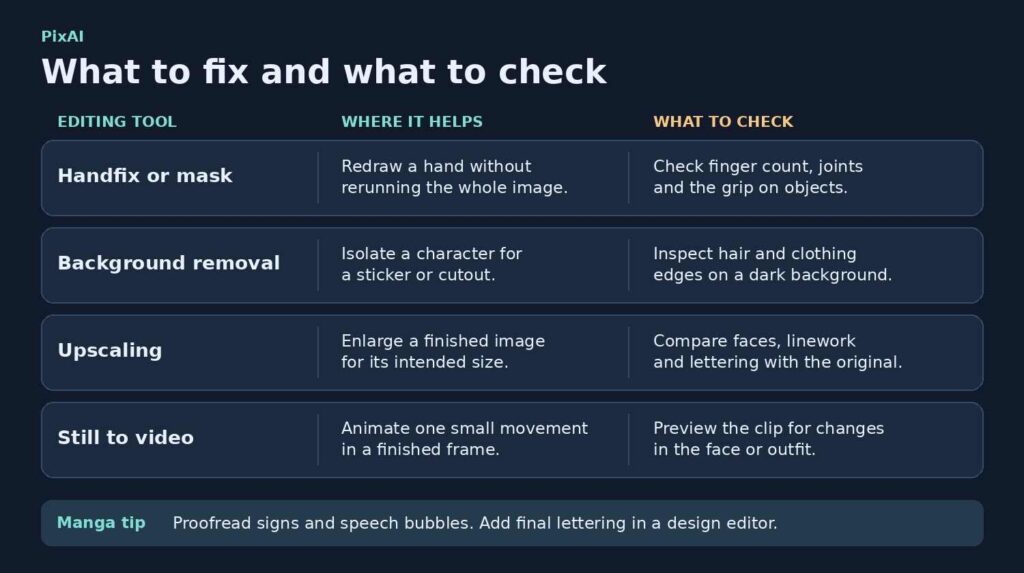
Fix the picture before enlarging it
PixAI can work as an AI photo editor for restyling an upload or changing one part of a generated picture. If the bike and background work but the courier has six fingers, try Handfix in PixAI or mask the hand so the edit focuses on that area. For a sticker, try the background remover, then inspect the hair and jacket edges against a dark fill.
Use the PixAI image upscaler after the underlying artwork looks right. An image enhancer can clean up soft details, but it can also alter the features you wanted to keep. Compare the PixAI exports at the size readers will see, then zoom in to check faces, edges, and lettering. If you’re comparing tools for cutouts and larger exports, see our review of Remaker AI’s editing tools.
Proofread panels and preview motion
For manga drafts made in PixAI, read each speech bubble in order and check signs separately. Add final lettering in a design editor when the wording needs to be exact. PixAI also has an AI video generator for members. Try Image to Video with a small motion, such as the courier’s braid moving in the wind. The video guide lists starting costs of around 16,000 credits. Confirm the estimate for your model before starting.
PixAI Privacy and Commercial Use
PixAI saves results in generation history. Publishing sends selected work to the community gallery. When sharing AI generated images for feedback, check whether the PixAI publishing settings also make your prompt or settings visible. Keep a local copy of the work you need to retain.
Check permissions before selling an image
PixAI disclaims ownership and copyright over generated images. Before selling AI generated art, read the permissions on the base model and any LoRA you used on PixAI. Check the rights to your reference material and to any existing characters, logos, or likenesses in the result. For a paid project, keep a dated record of the model, permissions, and source images.
If a client restricts cloud uploads, get their approval before sending any files to PixAI. The PixAI privacy policy says the company requires explicit consent to use uploaded images for foundational model training.
Frequently Asked Questions
Is PixAI free to use?
Yes. You can claim 10,000 PixAI credits daily on a free account and use them to generate images. You can download those images using the free plan. Some models, modes, or tools depend on your membership.
Do PixAI credits expire?
PixAI says unused credits carry forward. Monthly LoRA training slots work differently. Unused slots reset when the next monthly allowance begins.
Can PixAI turn a photo into anime?
Yes. Upload a photo you have permission to use and ask PixAI for an illustrated version. Specify what to preserve, such as glasses or hair color, and compare the result with the original before saving it.
How many reference images can PixAI use?
It depends on the model. Tsubaki.3 supports up to three references. Give each one a job in your PixAI prompt. For example, ask for the character from the first image and the pose from the second.
Is PixAI Worth Trying?
PixAI is worth trying if you want an anime avatar, recurring character art, or rough manga panels. The free balance is a practical starting point. For your first PixAI project, make one portrait, reuse it in a second scene, and record the credits you spent getting both frames right. That gives you a budget based on the work you actually want to make.
