
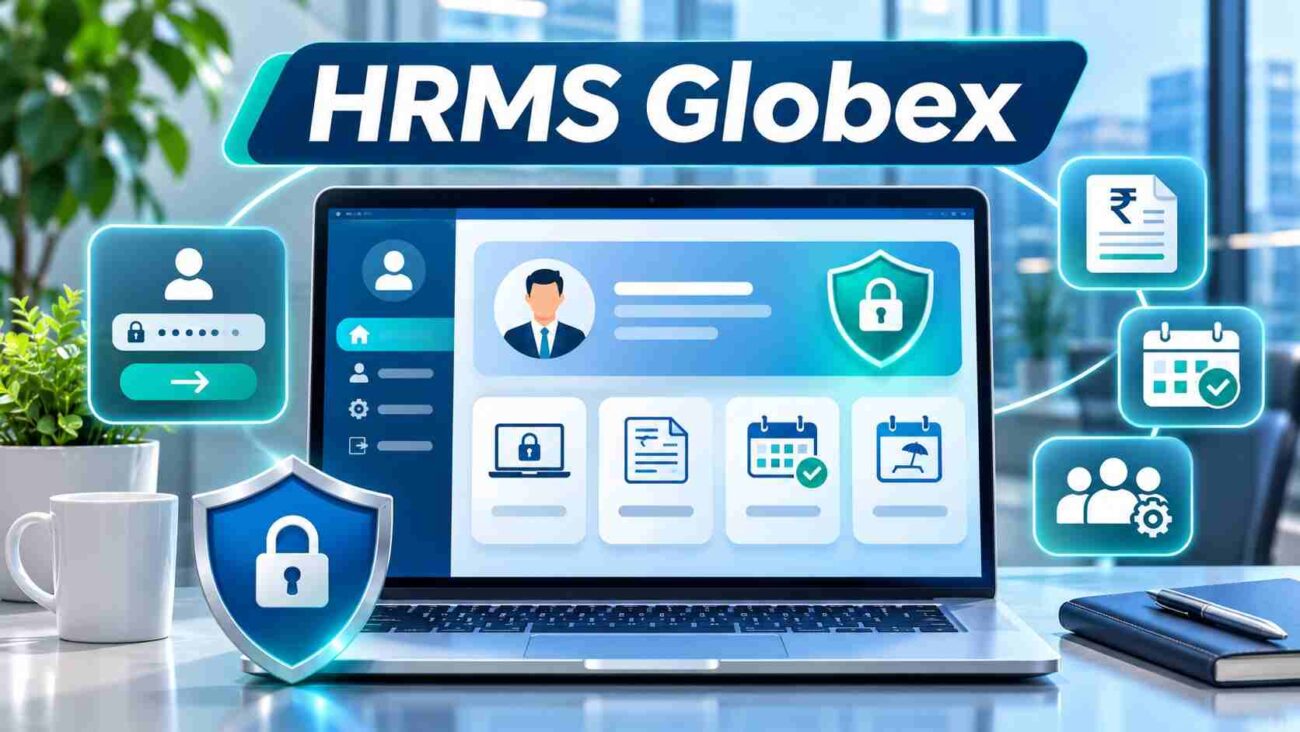
HRMS Globex is an employer-managed HR portal with a public sign-in page at hrms.theglobex.com/Web/Default.aspx. It requests User Name, Password, and a CAPTCHA; its recovery form requires Employee Code. Historical manuals document performance reviews and appraisal letters, but current payroll, attendance, and leave access are not publicly confirmed.
Quick answer: To log in to HRMS Globex, first confirm the address with HR, enter the username and password issued by your employer, copy the current CAPTCHA, and submit the form. If you cannot sign in, use the official recovery page or your company’s IT support—not an unrelated website claiming to provide access.
Important: This independently researched guide covers HRMS Globex features and functions supported by publicly available documentation. It cannot access an employee-only dashboard, verify your account permissions, or reset passwords for you. Never enter company credentials on a site solely because its name resembles the portal.
- HRMS Globex Login: Official Address and Quick Steps
- How to Reset Your HRMS Globex Password Using Employee Code
- What Is HRMS Globex? Confirmed Functions vs. Assumptions
- HRMS Globex Payslip: How to View and Download Salary Records
- Attendance, Leave and Employee Records
- Performance Reviews and Appraisal Letters: What the Manuals Show
- HRMS Globex Login Problems: Troubleshooting by Symptom
- HRMS Globex Security: Fake Portals, Remote Access and Mobile Use
- Before Resigning or Changing Roles
- Is HRMS Globex a Public HR Software Product?
- Frequently Asked Questions
- Conclusion
HRMS Globex Login: Official Address and Quick Steps
The HRMS Globex login portal can be accessed through its publicly available sign-in page at https://hrms.theglobex.com/Web/Default.aspx. Before using it, check that the same hostname appears in your organization’s onboarding message, employee intranet, or instructions from a known HR contact.
- Open the approved page. Type or use the employer-confirmed HRMS Globex address. Look at the entire hostname, not just a logo or search-result snippet.
- Enter User Name. Supply the employee login ID assigned for HRMS Globex. The login form does not indicate whether a personal email address or Employee Code can be used instead of the assigned username.
- Enter your password. Use your current HRMS Globex credentials. If login fails, check Caps Lock, keyboard layout, accidental spaces, and whether a password manager filled an outdated value.
- Complete the CAPTCHA. Read the challenge displayed by HRMS Globex and type those characters into Enter Captcha. Refresh the challenge if it is unclear; the code shown in an article screenshot will not work.
- Submit the login. Select the page’s login control and allow the portal to respond. If access is granted, the HRMS Globex dashboard will display the functions your organization has enabled.
- Check your HRMS Globex profile. Where an employer operates multiple employee records or roles, verify you are viewing your own information before downloading anything.
Public sign-in image supplied with the earlier TechHBX article, dated November 15, 2026. Refer to the live page for the current CAPTCHA and buttons.
What new employees should know
No public self-registration is established for HRMS Globex. New starters should ask HR about activation, assigned usernames, initial passwords, and approved devices. Avoid guessing: the account may not be active yet.
If the HRMS Globex page rejects your credentials, record the exact error. If it does not load, check the browser and network first.
How to Reset Your HRMS Globex Password Using Employee Code
The official HRMS Globex password recovery form is available at https://hrms.theglobex.com/Web/ForgotPassword.aspx. It requests Employee Code and CAPTCHA rather than the sign-in username.
- On the HRMS Globex sign-in screen, choose Forgot password?, or open the employer-approved recovery URL directly.
- Enter your HRMS Globex Employee Code exactly as recorded by HR. Preserve leading zeros and any formatting your employer requires.
- Enter the CAPTCHA code displayed on the HRMS Globex password recovery page. Use the refresh control if the characters are difficultSign in to HRMS Globex using your assigned credentials and check which sections are available to you. to read.
- Select the button labeled Send Mail, if shown, to submit the request. The public page does not establish the full message-delivery flow for every employee.
- Check the recovery contact method registered with your organization. If no instructions arrive, contact HR or IT to verify your employee record and the next authorized step.
Public recovery-form illustration. Enter the CAPTCHA from the live page, never from this image.
User Name versus Employee Code
The difference is small but important. HRMS Globex labels its sign-in field User Name while the reset form asks for Employee Code. They might be related in a particular organization, but that is not demonstrated publicly. Using the wrong identifier can make a valid account appear inaccessible.
If the reset message is missing, check spam and ask HR to confirm the recovery contact on file. Never post employee identifiers or reset codes publicly.
Lost access to an authenticator or a locked account
The public HRMS Globex pages do not document a universal two-factor recovery or unlock process. Use your employer’s IT procedure; avoid third-party “unlock” services.
What Is HRMS Globex? Confirmed Functions vs. Assumptions
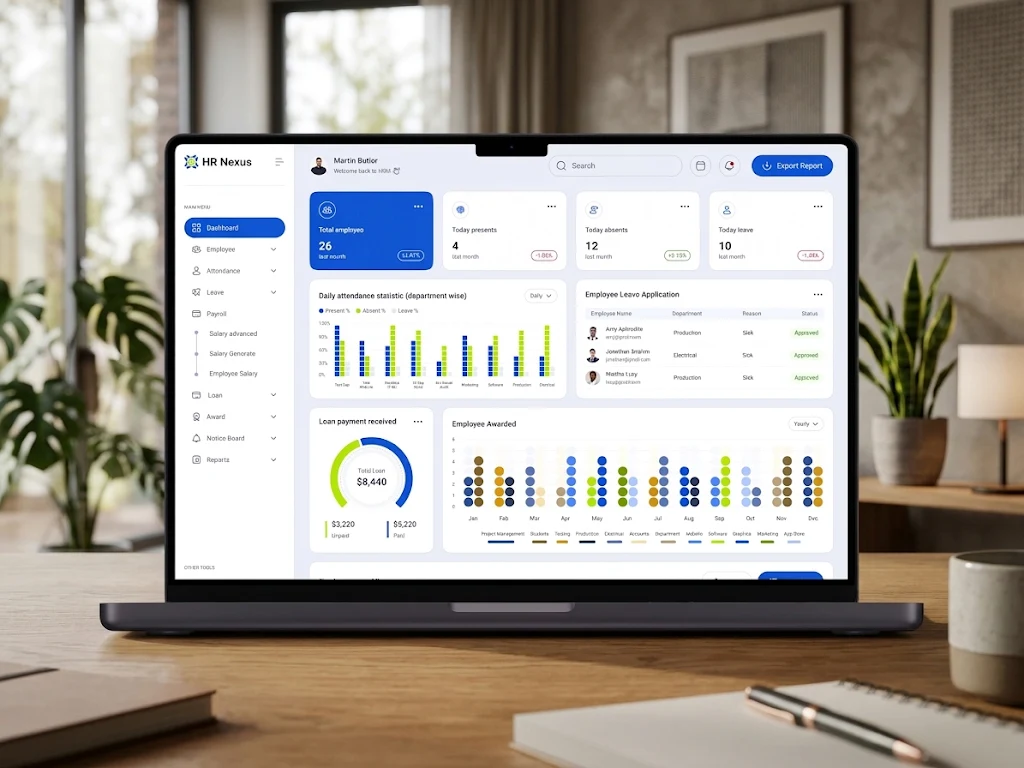
HRMS Globex appears to function as an internal employee self-service entry point, not a product that outside companies can buy or trial from its public login screen. A human resource management system can support many workflows, but its general category should not be mistaken for evidence about this specific portal.
| Area | What can be substantiated | What employees should verify |
|---|---|---|
| Sign-in | HRMS Globex publicly requests User Name, Password and CAPTCHA. | Assigned username, enabled account and approved access route. |
| Password recovery | HRMS Globex recovery requests Employee Code and CAPTCHA. | Whether and where an employer sends next steps. |
| Performance management | A 2018 HRMS Globex employee manual documents a PMS review workflow. | Whether the current PMS cycle is open for their role. |
| Appraisal letters | A July 2021 HRMS Globex manual explains reviewing and acknowledging a letter. | Whether a letter has been released in their current cycle. |
| Payslips and payroll | Not publicly confirmed across all employee accounts. | Which system publishes salary statements. |
| Attendance and leave | Not publicly confirmed as universal current modules. | Whether these sections appear for the employee. |
| Public pricing, signup or app | No universal offering established by the reviewed public materials. | Official instructions from HR or the operator. |
The 2021 document names Global Healthcare Billing Partners Pvt Ltd; this does not establish all current users or corporate ownership of the portal.
HRMS Globex Payslip: How to View and Download Salary Records
Employees looking for an HRMS Globex payslip should know that payroll access is not verified from public pages. If your employer publishes salary documents in the portal, use these steps; otherwise use its approved payroll channel.
- Log in to HRMS Globex with your employer-provided credentials, then review the sections and features accessible through your account.
- Look for a payroll-related menu such as Payroll, Payslips, Salary, or Documents. These are examples of common labels, not verified names of current HRMS Globex menus.
- Select the relevant pay month or financial period and open the statement, if one is listed.
- Check that the employee name or ID and the salary period are correct before downloading.
- Use the provided Download, Print, or document-export option if enabled. Save the file only to a device and location allowed by your employer.
- If the month is absent, ask payroll whether the statement is pending release, stored in another system, or limited to particular roles.
Illustrative image only; it is not proof of an active payroll menu inside today’s employee dashboard.
What to check on a salary slip
A downloaded HRMS Globex document is useful only if its figures are accurate. Compare the pay period, basic salary, allowances, paid days, overtime or arrears, deductions and net pay with your records. Where relevant, Indian payroll may show provident fund, ESI and tax deducted at source; exact entries depend on employment and applicable rules.
An unexpected deduction could reflect a payroll cutoff or attendance adjustment, not a portal error. Send payroll the month and line item, with permitted supporting records; never post the full payslip publicly.
Missing payslip or incorrect salary amount
A missing HRMS Globex payslip menu may reflect permissions, not a fault. Ask whether your employer distributes statements elsewhere, or when the missing pay period will be released.
Contact HR about policy, payroll about figures, and IT about access errors. A password reset will not solve a payroll dispute.
Attendance, Leave and Employee Records
Some readers expect an HRMS Globex attendance screen and a leave balance, but the public sources cannot confirm that those functions are available to every employee. A historical performance-review manual includes monthly attendance figures as an appraisal input; that is not proof of a present-day leave-booking or time-clock module.
Where time records exist, compare shift dates, paid hours and missing punches; report mistakes through the official correction process before payroll cutoff.
Where HRMS Globex leave management is available, verify leave type, balance, dates and approval status. A submitted request is not necessarily approved. If the menu is absent, ask HR which system handles leave.
Performance Reviews and Appraisal Letters: What the Manuals Show
The clearest documented HRMS Globex performance review evidence comes from two older PDF manuals hosted on the portal’s domain. They are valuable for understanding historical features but should not be treated as current-year employee instructions.
The 2018 PMS self-review workflow
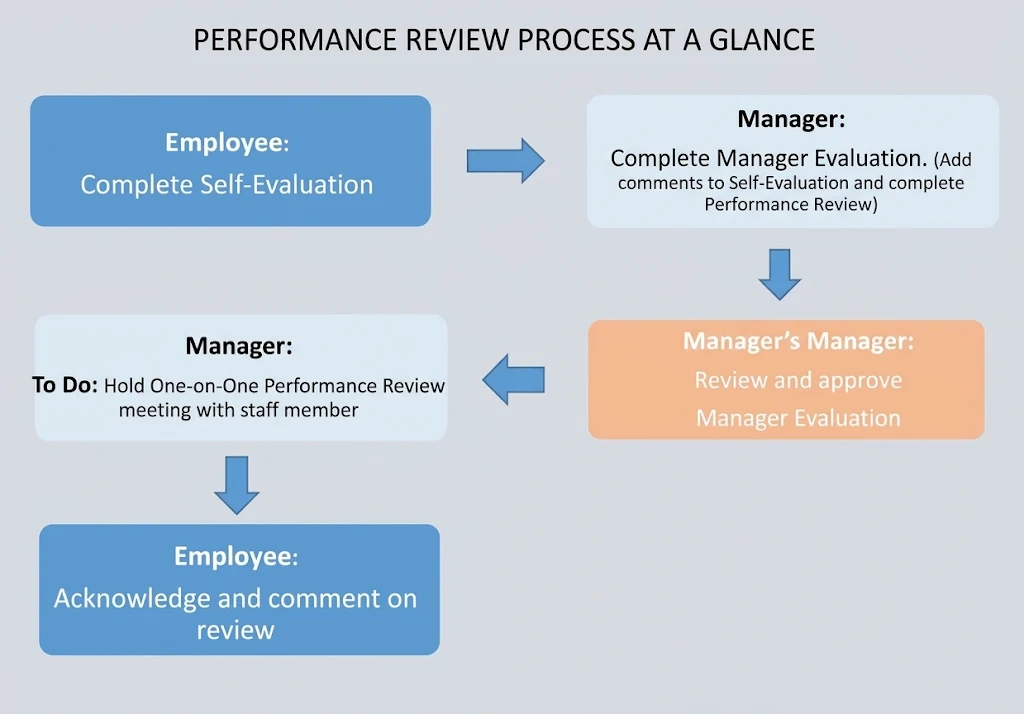
The 2018 PMS guide describes employee self-review, a reporting lead’s team review after discussion, and department-head approval. The historical HRMS Globex process showed PMS → Performance Review and Start Review.
The manual lists efficiency, quality, attendance, communication and ownership among performance criteria, and illustrates monthly results alongside employee comments.
A useful historical detail: interrupted work could be saved as a draft, but Complete Review prevented changes. Verify your current cycle’s editing rules before final submission.
The July 2021 appraisal-letter process
The July 2021 review guide showed appraisal letters, an Accept control, password confirmation and acknowledgment. Eligible employees missing a letter were directed to their manager or HR.
If your HRMS Globex dashboard shows an appraisal letter, check its cycle before acknowledging it and follow confidentiality rules. For missing records, ask HR whether the review is pending or deferred; historical deadlines no longer apply.
HRMS Globex Login Problems: Troubleshooting by Symptom
If HRMS Globex fails, first identify whether the problem occurs before the form loads, during authentication, or after successful login. Those stages require different fixes.
| Problem | Practical action |
|---|---|
| CAPTCHA rejected | Refresh the challenge and type the new characters. Check letters and numbers carefully. |
| User Name or password rejected | Confirm your assigned login ID; if necessary, use the HRMS Globex Employee Code recovery form. |
| Account locked or disabled | Stop guessing and request an authorized unlock from IT or HR. |
| Login page not loading | Check the URL, connection, browser status and any employer network restrictions. |
| Works at office, fails at home | Ask IT whether HRMS Globex requires a VPN, managed device or permitted remote network. |
| Reset instructions never arrive | Verify the employee record’s recovery contact details with HR. |
| Dashboard loads but menu is missing | Confirm your assigned role and whether the desired service is actually enabled. |
| Salary document opens incorrectly | Try an approved browser/PDF reader; ask payroll for an authorized copy if the file remains unusable. |
When the page is blank or reports a certificate error
For a blank page, try the employer-approved browser and ask whether colleagues see an outage. If the certificate is invalid or the connection is not private, do not bypass the warning; report it to IT.
How to report a problem without exposing personal information
A useful HRMS Globex support request identifies the time, error, browser, device and network. Redact usernames, codes and financial information from screenshots; never attach a password or live CAPTCHA.
HRMS Globex Security: Fake Portals, Remote Access and Mobile Use
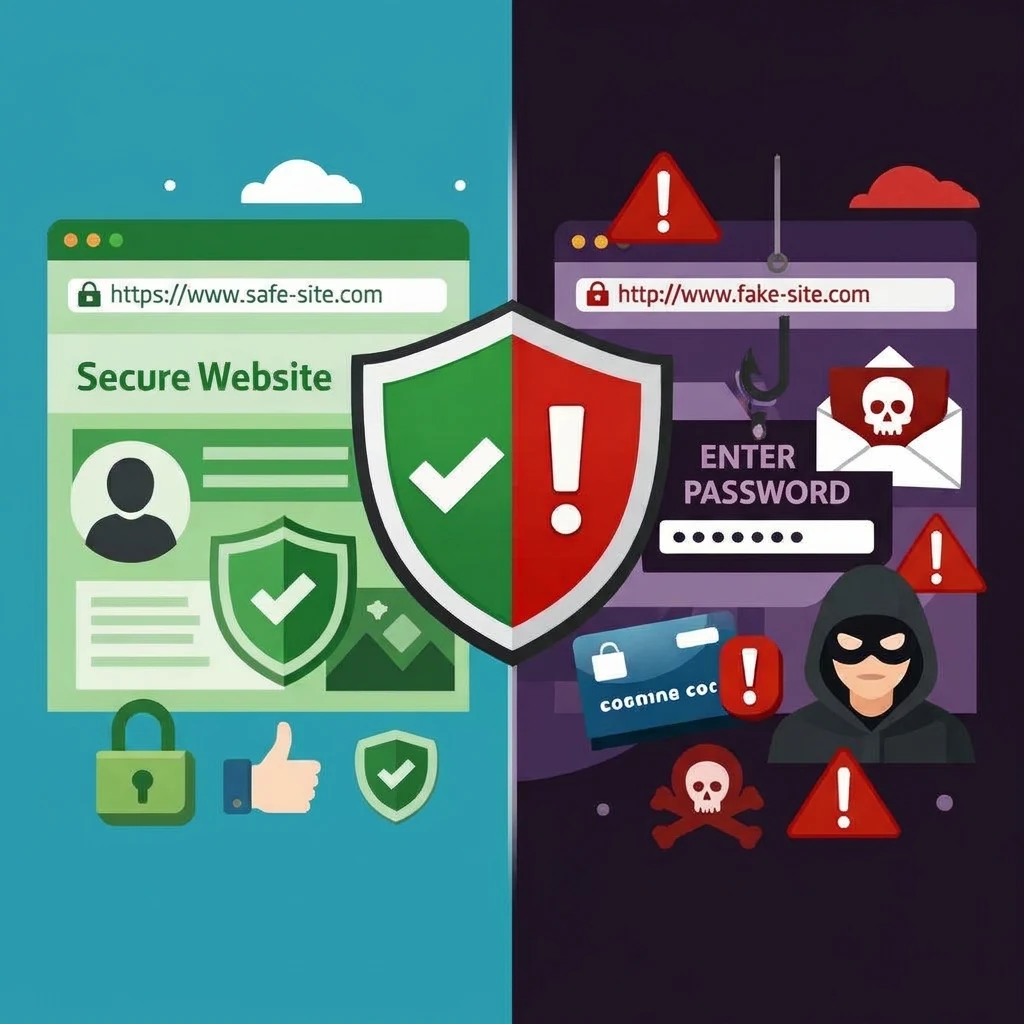
The most important HRMS Globex security check is the full hostname. The documented portal uses hrms.theglobex.com; the separately named hrmsglobex.com should not be assumed to be the same service. Another website that uses “Globex” in its address is not automatically an authorized replacement.
Compare the HRMS Globex address against your employer’s verified intranet or onboarding materials. HTTPS alone does not prove employer ownership. Treat unexpected reset links, messaging-app sign-ins and requests for one-time codes cautiously.
The reviewed documentation does not confirm the availability of an official HRMS Globex mobile app for all users. Mobile-browser access and remote access may depend on device compatibility and company policy. Ask HR or IT for an approved approach instead of downloading an unofficial APK or installing a browser extension advertised as an HR portal shortcut.
If you entered HRMS Globex credentials on a suspicious page, stop using it and report the incident immediately through a known company contact. Follow the organization’s instructions for password changes and account checks. On shared devices, sign out and handle downloaded employment documents according to company policy.
Before Resigning or Changing Roles
Before leaving, ask HR when HRMS Globex access ends. Save only employment records you are authorized to keep, verify the files open, and ask HR how final settlements and later documents will be provided.
For unresolved corrections, retain approved correspondence and ask about the formal post-employment records process.
Is HRMS Globex a Public HR Software Product?
The public HRMS Globex pages reviewed show employee authentication and recovery, not a public product trial, pricing schedule or self-service business signup. Terms such as HR management software, employee self-service portal, payroll management system and performance management system describe broad software categories; they do not prove that this particular portal sells those modules to outside organizations.
Business buyers should compare vendors’ official documentation and security terms—not assume that this employee portal is a commercial product. For an example of a separately documented employee-facing HR platform, explore our Prevention Cloud guide, which examines workplace wellness features, employer administration, pricing, and payroll-related incentives.
Frequently Asked Questions
Who can create an HRMS Globex account?
HRMS Globex does not publicly show a normal self-registration flow. Employees should request approved credentials from their own organization, not create an account on an unrelated third-party site.
Can I log in with my Employee Code?
The HRMS Globex sign-in form says User Name; the recovery form says Employee Code. Ask HR whether the two identifiers coincide in your employee record.
Can HRMS Globex download my payslip?
A salary slip may be downloadable if your employer offers that feature. Public documents do not confirm a universal current HRMS Globex payroll menu. Ask payroll where official statements are published.
Does HRMS Globex work from home or on a phone?
That depends on the employer’s remote-access policy and supported devices. If HRMS Globex fails outside the office, ask IT before attempting a VPN or installing any software.
Why is my appraisal letter unavailable?
Historical HRMS Globex guides refer to review-cycle eligibility and release timing. Your manager or HR can confirm whether the present cycle is open and whether a letter has been issued for you.
Is HRMS Globex the same website as hrmsglobex.com?
No relationship was established by the reviewed evidence. The public HRMS Globex login discussed here is hosted at hrms.theglobex.com; verify any different address with HR before entering credentials.
Conclusion
HRMS Globex has a verifiable public login form, an Employee Code password-recovery route and historical documents describing appraisal workflows. Those findings do not justify promising that every account includes payslips, attendance, leave management or a public mobile app. The most reliable approach is to use your employer-approved address, verify what your individual dashboard actually offers, and contact the correct HR, payroll or IT team when something is missing.
Research note (November 19, 2026): This independent guide reviewed the public sign-in page, public recovery page, a 2018 PMS employee manual, and a July 2021 appraisal manual. No employee credentials or private dashboard were used. The images are labelled according to whether they show a publicly accessible form or an illustrative process. The article is not affiliated with the portal operator.
