
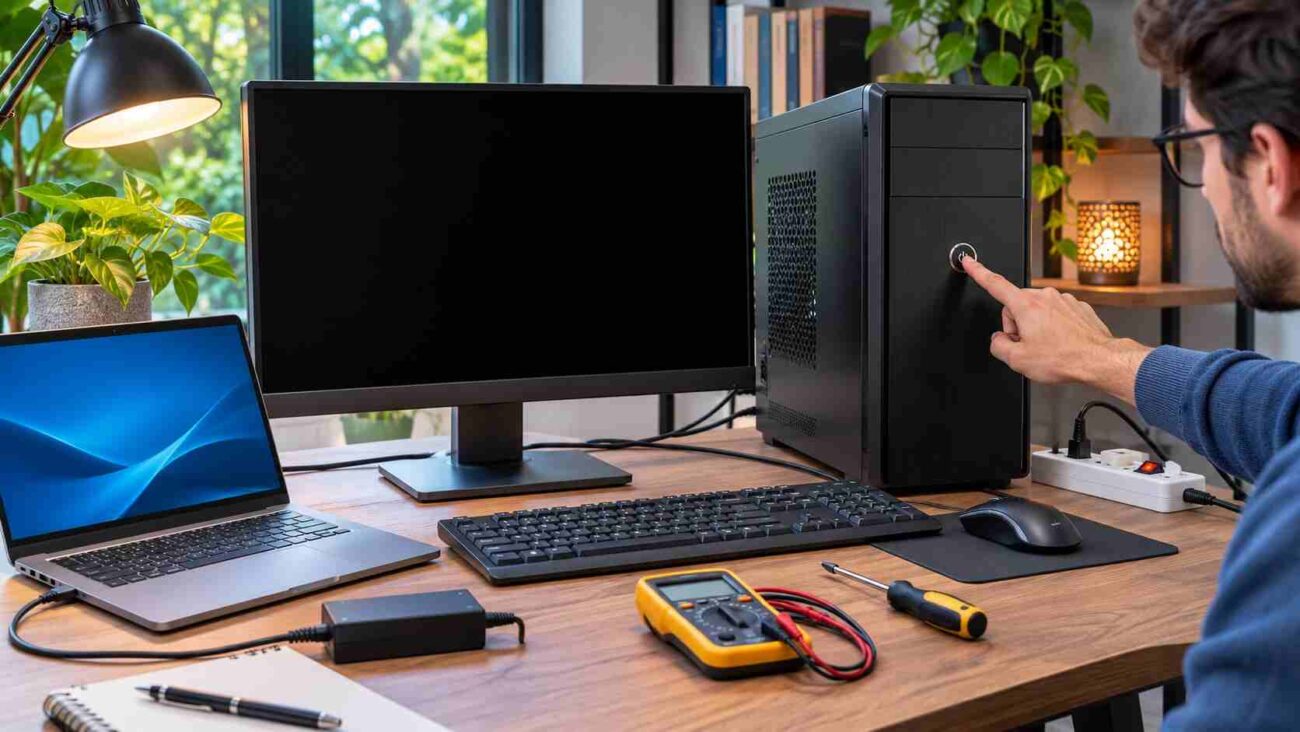
If your computer won’t turn on, first test the wall outlet, check the power cable or charger, and perform the manufacturer’s recommended power reset. If the fans run but the screen stays black, check the display connection before replacing hardware. If Windows fails to load, use Microsoft’s built-in Startup Repair tool to diagnose boot problems.
Quick verification: A computer with no power, a black screen, and a Windows startup failure are three different problems. Identifying which one you’re experiencing prevents unnecessary repairs and wasted troubleshooting.
- What Does “My Computer Won’t Turn On” Actually Mean?
- How to Fix a Computer That Won’t Turn On: 6 Steps
- 1. Check the Power Outlet, Cable, and Power Supply
- 2. Disconnect Accessories and Check Laptop Charging
- 3. Perform the Correct Power Reset for Your Computer
- 4. Check Whether the Computer Is Running Without Displaying Video
- 5. Run Hardware Diagnostics Before Replacing Parts
- 6. Repair Windows If the Computer Powers On but Won’t Boot
- Verified Fixes and What They Actually Resolve
- Common Computer Startup Problems and Troubleshooting
- Best Alternatives and Next Steps if the Fixes Fail
- Key Takeaways
- FAQs
What Does “My Computer Won’t Turn On” Actually Mean?
A computer that won’t turn on may have a faulty power connection, discharged battery, damaged charger, failing hardware, or operating system problem. The symptoms reveal which component needs attention.
Technicians typically distinguish four startup conditions:
| Condition | What you notice | Likely area to check |
|---|---|---|
| No Power | No lights, fans, or response | Outlet, charger, battery, PSU |
| No POST | Lights or fans activate, but startup stops | RAM, motherboard, firmware |
| No Video | Computer runs, but screen remains black | Monitor, display cable, GPU |
| No Boot | Manufacturer logo appears, but Windows doesn’t load | SSD, Windows, boot configuration |
Simple distinction:
- Who this guide is for: Windows desktop and laptop users experiencing power failures, blank screens, or startup problems, with applicable advice for Macs.
- Who it isn’t for: Computers that start normally but have unrelated performance, application, or internet connectivity problems.
Dell’s official startup troubleshooting guide uses these diagnostic categories to separate electrical failures from hardware initialization and operating system errors.
How to Fix a Computer That Won’t Turn On: 6 Steps
Start with external power checks. Move to diagnostics only after confirming that electricity reaches the computer.
1. Check the Power Outlet, Cable, and Power Supply
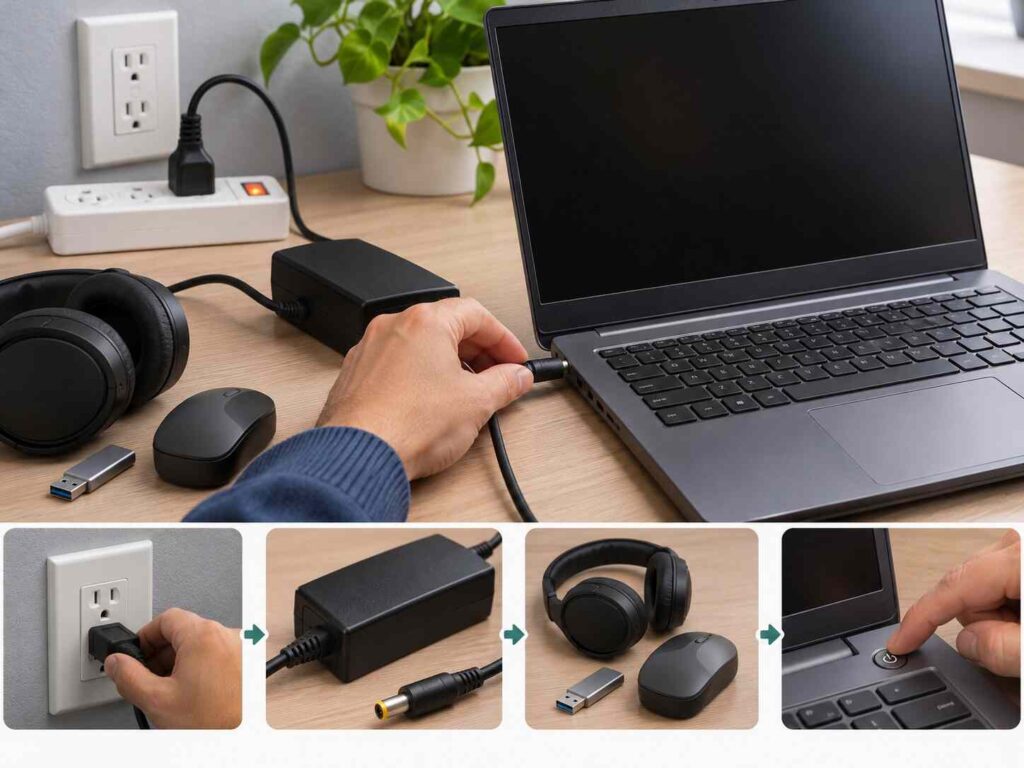
Test the outlet first. Disconnect the computer from its power strip or surge protector and connect it directly to a known-working wall outlet.
For a desktop, check that the power cord is firmly seated and the power supply’s rear switch is in the I (on) position, if present. Inspect the cord and adapter for visible damage without opening either component.
For a laptop, look for a charging indicator when connecting the manufacturer’s power adapter. An unusually hot, damaged, or buzzing adapter should be disconnected rather than repeatedly tested.
If the computer still shows no lights or fans, continue to the next step.
2. Disconnect Accessories and Check Laptop Charging
Remove external devices. Disconnect USB drives, external hard disks, docking stations, printers, and other unnecessary peripherals, then try powering on again.
Laptop users should also confirm the charger’s wattage and compatibility. A USB-C connector fitting the charging port does not guarantee that the adapter provides sufficient USB Power Delivery output.
Check the laptop’s specified charging requirements and the adapter label. If available, test a known-working, manufacturer-approved charger with the correct power rating.
Leave a deeply discharged laptop connected to a compatible charger for around 20–30 minutes before retrying. If charging never begins, the battery, charging port, or power circuit may need examination.
3. Perform the Correct Power Reset for Your Computer
Clear a possible power-controller fault. A power reset can restore some unresponsive computers without reinstalling Windows or deleting personal files.
Follow the procedure matching your device:
- HP laptops: Disconnect AC power and external accessories, then hold the power button for approximately 15 seconds. Reconnect the charger and restart, following HP’s instructions.
- ASUS laptops: On supported models, connect the power adapter and hold the power button for 40 seconds; other models use a 20-second sequence. Check the ASUS EC/RTC reset guide.
- Lenovo ThinkPads: Certain models have an emergency-reset hole underneath. Disconnect AC power, use a straightened paper clip only in the identified reset hole, then reconnect power, as shown in the Lenovo documentation.
- Apple Macs: Press and hold the power button for about 10 seconds, then release it and press it again to try turning on your Mac. Apple also provides model-specific guidance for older Intel Macs.
Do not apply a random reset duration to every computer. Hardware designs differ, particularly when batteries are built into the device.
4. Check Whether the Computer Is Running Without Displaying Video
Look for evidence of power. Listen for fans and check keyboard lights or diagnostic LEDs before concluding that the computer is completely dead.
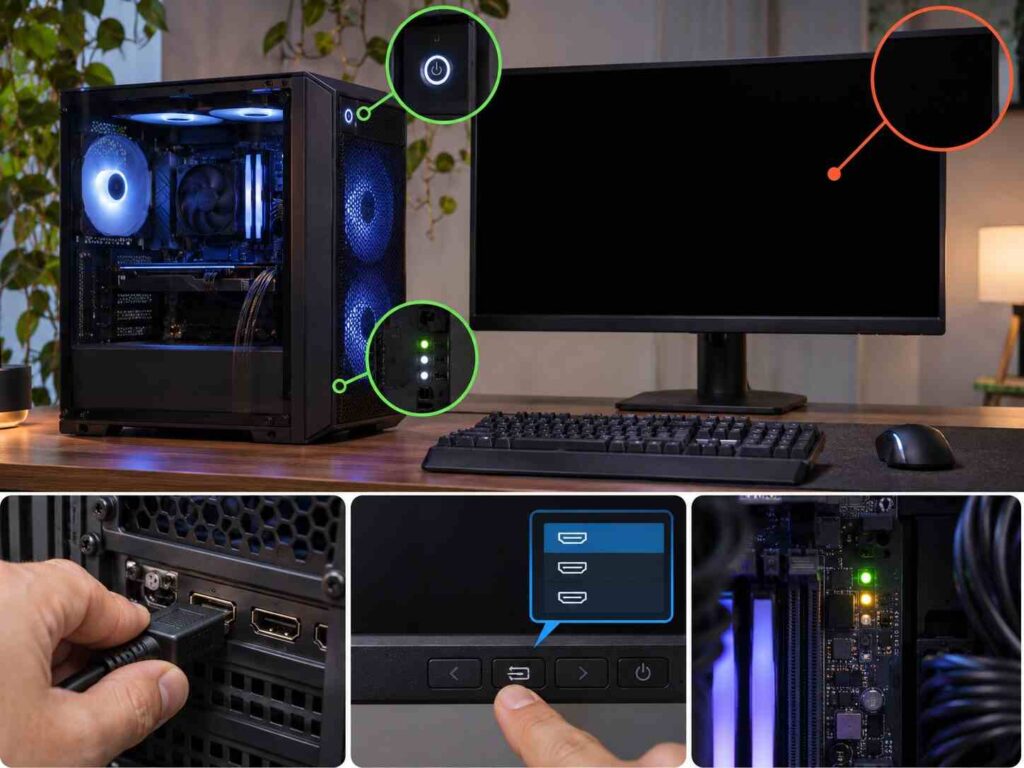
For desktop computers, confirm that the monitor is powered on and its Input Source matches the connected HDMI or DisplayPort cable. If the computer has a dedicated graphics card, verify that the monitor is connected to the intended graphics output.
On a Windows PC that appears to be running, press Windows + Ctrl + Shift + B to request a graphics-driver reset. You can also press Windows + P to troubleshoot an incorrect display mode.
If your computer powers on but the display remains blank or shows an unexpected resolution after restarting, check the monitor connection and graphics settings. Our screen resolution guide explains how to troubleshoot display settings and connection-related issues once Windows becomes accessible.
Microsoft documents these shortcuts in its blank-screen troubleshooting guide.
5. Run Hardware Diagnostics Before Replacing Parts
Use built-in diagnostic tools. If the computer reaches its manufacturer’s startup screen, testing the hardware can narrow down the fault.
On supported Dell computers, repeatedly press F12 at the Dell logo and select Diagnostics from the One Time Boot Menu.
For HP computers, repeatedly press the Esc key while the system starts, then press F2 to open the HP PC Hardware Diagnostics UEFI tool. Select System Tests → Fast Test → Run once, where available.
Record any failure ID, blinking LED pattern, or error code. Manufacturer-specific codes offer stronger evidence than assuming that a black screen means the motherboard is defective.
6. Repair Windows If the Computer Powers On but Won’t Boot
Open Windows Recovery Environment (WinRE). If Windows enters its recovery screen, select:
Troubleshoot → Advanced options → Startup Repair → Restart
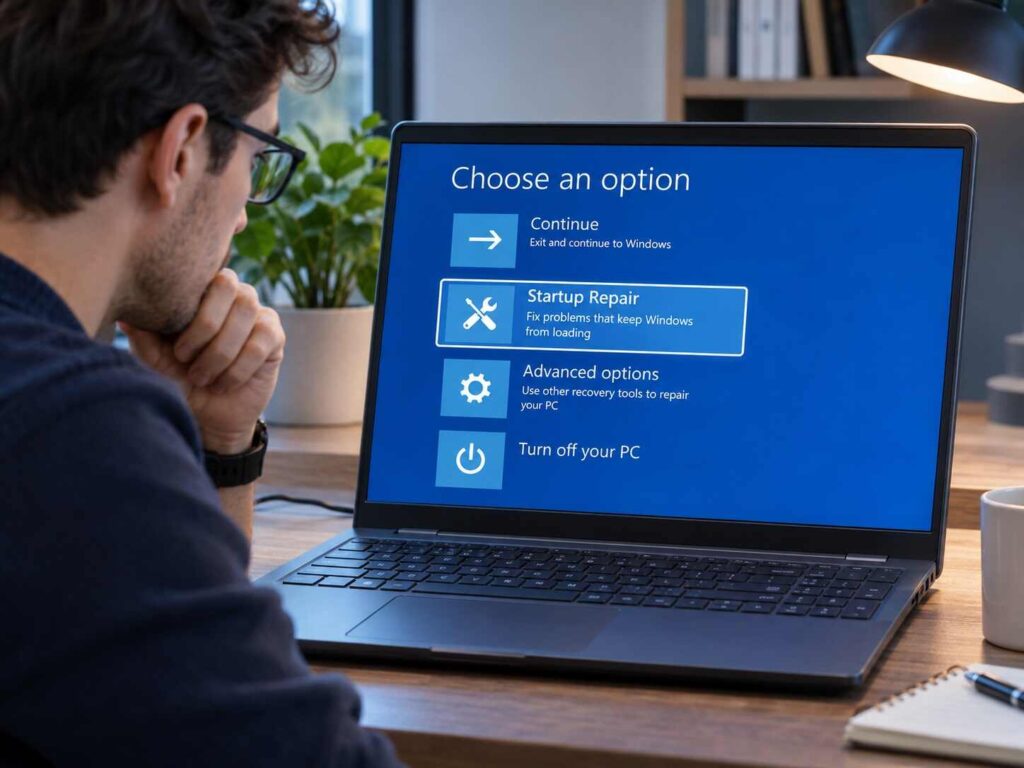
Startup Repair checks for problems such as damaged system files and boot configuration errors. It is available in Windows 10 and Windows 11, as explained in Microsoft’s official guide.
If prompted for a BitLocker recovery key, locate it at https://aka.ms/myrecoverykey using the associated Microsoft account. Work-managed devices may require assistance from their IT administrator.
Pro tip — Protect your computer and data: Avoid factory resets, drive formatting, and unnecessary BIOS changes while diagnosing a startup failure. Never open a desktop PSU; internal electrical components may retain dangerous charges after unplugging.
Verified Fixes and What They Actually Resolve
Not every popular troubleshooting recommendation addresses the same failure.
| Troubleshooting method | Confirmed use | What it cannot fix |
|---|---|---|
| Power outlet and cable check | Identifies external power problems | Failed motherboard circuitry |
| Manufacturer power reset | Can clear certain power-controller faults | Physically damaged components |
| Graphics reset shortcut | Can recover some Windows display failures | A computer with no electricity |
| Preboot hardware diagnostics | Helps identify failing components | Every possible hardware defect |
| Windows Startup Repair | Repairs certain Windows boot failures | Dead chargers or power supplies |
Two less-obvious situations also deserve attention.
USB-C charging: Some laptops require higher-wattage adapters and compatible cables. The USB Implementers Forum specifies certified USB-C cable power markings, including 60W and 240W, but the computer’s own requirements determine what is suitable.
Memory training: After certain RAM changes or firmware resets, some ASUS systems may show a blank display while initializing memory. ASUS documentation describes startup delays that can last several minutes, depending on the hardware configuration.
Common Computer Startup Problems and Troubleshooting
Computer Won’t Turn On, but the Charging Light Is On
A charging indicator proves that some power-related circuitry is active, not that the entire laptop is functional. Try the manufacturer’s power-reset procedure and test the approved adapter before seeking a motherboard repair.
PC Fans Spin, but Nothing Appears on the Monitor
Check the monitor input, graphics cable, and display output first. If the issue appeared after a RAM upgrade, allow the system to complete memory training before considering further hardware troubleshooting.
Computer Turns On, Then Immediately Shuts Off
Repeated shutdowns can indicate unstable power delivery, thermal protection, or defective hardware. Disconnect unnecessary peripherals and run supported diagnostics if the computer stays powered long enough.
Stop repeated startup attempts if you notice burning smells, sparks, or unusual electrical noises.
Computer Won’t Start After a Power Outage
Test the outlet independently, bypass the surge protector, and inspect external power connections. If the computer remains completely unresponsive with known-working power equipment, the PSU or internal power circuitry may require professional testing.
Windows Won’t Boot After an Update
If the computer reaches WinRE, try Startup Repair first. If the failure began immediately after a Windows update, Troubleshoot → Advanced options → Uninstall updates may provide a targeted recovery option.
Best Alternatives and Next Steps if the Fixes Fail
When basic troubleshooting fails, use a manufacturer-supported diagnostic tool instead of purchasing an unknown third-party PC repair utility.
| Tool or service | Cost | Best use |
|---|---|---|
| Microsoft Startup Repair | Free | Windows boot errors |
| Dell preboot diagnostics | Free | Supported Dell hardware tests |
| HP PC Hardware Diagnostics UEFI | Free | HP memory, storage, and component checks |
| Apple Diagnostics | Free | Identifying supported Mac hardware faults |
These utilities require the computer to reach an appropriate startup or diagnostic state. A system showing absolutely no signs of power may need physical inspection rather than software.
For professional repairs, request a diagnostic quote before approving parts replacement. Charger, battery, PSU, and motherboard repairs involve very different costs, so replacing the computer without identifying the failed component may be unnecessary.
Key Takeaways
- No lights or fans: Check the outlet, power cord, charger, battery, and PSU first.
- Power but no display: Verify the monitor, cable, graphics output, and startup status.
- Manufacturer logo but no Windows: Run hardware diagnostics and Windows Startup Repair.
- Persistent hardware failure: Record diagnostic codes and obtain a professional repair assessment before replacing components.
FAQs
Why won’t my computer turn on even though it’s plugged in?
A connected power cable does not guarantee that electricity reaches the computer’s internal components. A damaged adapter, faulty outlet, failed battery, or defective power supply can prevent startup.
How do I fix a computer that won’t turn on at all?
Start by using a known-working outlet and checking all external power connections. Disconnect accessories, perform the manufacturer’s specified power reset, and test a compatible charger where possible.
Can a dead CMOS battery stop a computer from turning on?
A weak CMOS or RTC battery can cause clock resets, firmware-setting problems, or startup warnings on some systems. It is not the first component to replace when a computer shows no signs of electrical power.
Why does my PC turn on but show a black screen?
The computer may be experiencing a display connection problem, graphics failure, incomplete POST, or memory initialization delay. Check the monitor and cables, then use manufacturer diagnostics when available.
Should I repair or replace a computer that won’t start?
Repair is generally worth considering when the problem is limited to a replaceable adapter, battery, storage drive, or PSU. Compare a written repair estimate with the computer’s age, condition, warranty, and replacement cost before deciding.
