
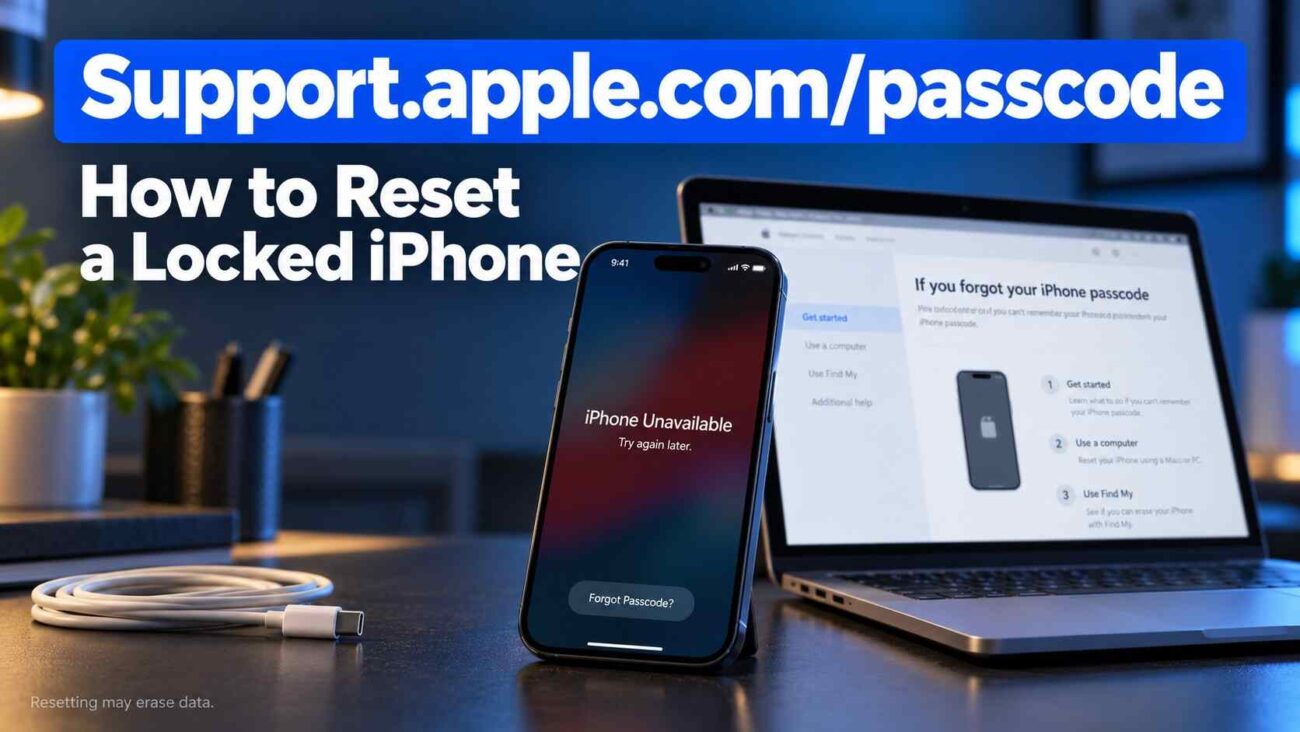
Your iPhone says “iPhone Unavailable,” and the photos, messages, and apps behind that screen suddenly feel out of reach. Before choosing an erase option, check whether you recently changed the passcode. That detail could change your next step.
If you searched for support.apple.com/passcode, this guide explains which recovery method fits your situation, what you need before starting, and how to recover available data afterward. The first decision is whether you qualify for Apple’s previous-passcode feature or need to erase and set up the phone again.
What Does support.apple.com/passcode Mean for a Locked iPhone?
The address points readers toward Apple’s passcode support. Opening a support page does not unlock your phone; you still need to complete the appropriate recovery process.
Keep these two credentials separate:
- Device passcode: The code entered on the iPhone’s Lock Screen.
- Apple Account password: The password used for services such as iCloud and for account verification during recovery.
Apple ID is now called Apple Account. If you cannot remember that password, use another trusted Apple device or Apple’s account-recovery process. Resolve account access before erasing where possible, because setup may require those credentials afterward.
Before proceeding, identify your iPhone model, confirm whether you changed its passcode recently, and check what backups you already have. Write down those answers so you can follow one suitable method without jumping between unrelated instructions.
If you are helping a relative, let them enter their account password themselves. Gather the phone and charging cable, and allow enough uninterrupted time to finish setup after any erase. Avoid starting just before you need the phone urgently.
Try the 72-Hour Previous-Passcode Option First
On iOS 17 or later, Apple’s Passcode Reset feature can let you use the previous passcode for 72 hours after changing it. This route preserves access without erasing the device. It will not help if you never changed the code recently or cannot remember the previous one.
How to use the previous passcode
- When the unavailable screen offers Forgot Passcode?, tap it.
- Choose Enter Previous Passcode.
- Enter the old code and follow the prompts to create another passcode.
For example, if you changed your code yesterday and now remember only the earlier one, check this option before considering a factory reset. The relevant window starts when the passcode changes, not when you first get locked out. An old code that you manually expired is no longer available for this recovery method.
Reset Your iPhone Without a Computer
If previous-passcode recovery is unavailable, eligible iPhones can erase themselves from the Lock Screen. You need iOS 15.2 or later, an active Wi-Fi or cellular connection, Find My enabled beforehand, and the Apple Account password. This method deletes the phone’s data and settings.
Steps for iOS 17 or later
- On the unavailable screen, tap Forgot Passcode? when offered.
- Select Start iPhone Reset.
- Supply the Apple Account password requested by the phone.
- Read the warning, then confirm Erase iPhone.
- After restarting, follow setup and select an available backup.
On iOS 15.2 or iOS 16, look for Erase iPhone instead. With iOS 17 or later, the process can offer a choice to retain or delete the eSIM. Retain it if you intend to continue using that cellular plan. For an eSIM on iOS 16 or earlier, Apple advises contacting your carrier about reactivation before erasing.
If the required reset option is missing, move to the computer method below.
Use iPhone Recovery Mode With a Mac or Windows PC
A computer provides another way to erase the device when Lock Screen recovery is unavailable. Prepare an internet-connected Mac or Windows PC and a suitable USB cable. Apple suggests allowing up to an hour.
Enter recovery mode using the correct button
Turn the iPhone off. Connect the cable to the computer, then connect the phone and immediately hold the button listed below.
| iPhone model | Button to hold while connecting |
|---|---|
| Models with Face ID; iPhone 8 or 8 Plus; iPhone SE, second or third generation | Side button |
| iPhone 7 or 7 Plus | Volume down |
| iPhone 6s or earlier; original iPhone SE | Home button |
Keep holding through the Apple logo until the computer-and-cable image appears.
Restore the device
Open Finder on a current Mac or Apple Devices on Windows, select the connected iPhone, and choose Restore. This reinstalls iOS and erases the phone, including the forgotten passcode.
If downloading the software takes longer than 15 minutes and the phone leaves recovery mode, let the download finish. Then enter recovery mode again and continue. A return to the Lock Screen during downloading does not automatically mean the process has failed.
A broken or stuck button can prevent recovery mode from working. If that happens, or restoration repeatedly fails, contact Apple or an Apple Authorized Service Provider. Explain which screen appears and any error number shown.
Recover Your Data and Handle Activation Lock
After erasing, the setup screens let you restore an existing iCloud backup or a backup stored on a computer. Check the backup date before selecting it: a successful restore cannot include changes made after that backup.
Understand what can return
Some information is synchronized separately rather than stored inside the device backup. For example, photos already synchronized through iCloud Photos are excluded from iCloud Backup. Distinguish between “I have no backup” and “nothing was ever synchronized” before assuming everything is gone.
Keep the phone on Wi-Fi and power while restoration continues. Apps and other content may keep downloading after initial setup. An encrypted computer backup requires its separate backup password.
If text messages fail after setting up your iPhone, follow our guide to fix message blocking errors and check your cellular line and carrier settings.
If Activation Lock appears
Activation Lock is a separate ownership check. Follow the screen’s instructions for the Apple Account associated with the device. If you bought the phone used and it requests the previous owner’s account, contact the seller. For a company or school device, contact the administrator.
Apple also offers an Activation Lock support request for people with proof-of-purchase documentation. Keep that evidence ready; erasing the phone should never be treated as a way around ownership verification.
Frequently Asked Questions
Can I reset a forgotten iPhone passcode without losing data?
Possibly, if you changed it within the previous 72 hours and can use the eligible previous-passcode option. Otherwise, Apple’s forgotten-passcode reset methods erase the device. A backup can restore saved information afterward.
Why is Forgot Passcode missing from my iPhone?
Check the software version and recovery requirements. Apple’s on-device reset needs a network connection and Find My enabled beforehand. Earlier supported software can show Erase iPhone instead. If the option remains unavailable, use a computer.
Do I need to buy iPhone unlocking software?
Apple documents recovery methods using the phone itself or its computer software. Try the applicable official process before spending money on a third-party tool. Evaluate any purchase against the specific problem you still need solved.
What if I forgot my Apple Account password too?
Try resetting it through another trusted device. If that is unavailable, follow Apple’s account-recovery instructions. Recovery can involve a waiting period, so do not assume erasing the phone will immediately resolve account access.
Choose Your Next Step Before Erasing
Start your support.apple.com/passcode recovery by checking the previous-passcode option. If you must erase, confirm account access and available backups first. Then follow the on-device or computer instructions that match your phone. Once access returns, create a memorable, secure passcode and review your backup arrangements before you need them again.
