
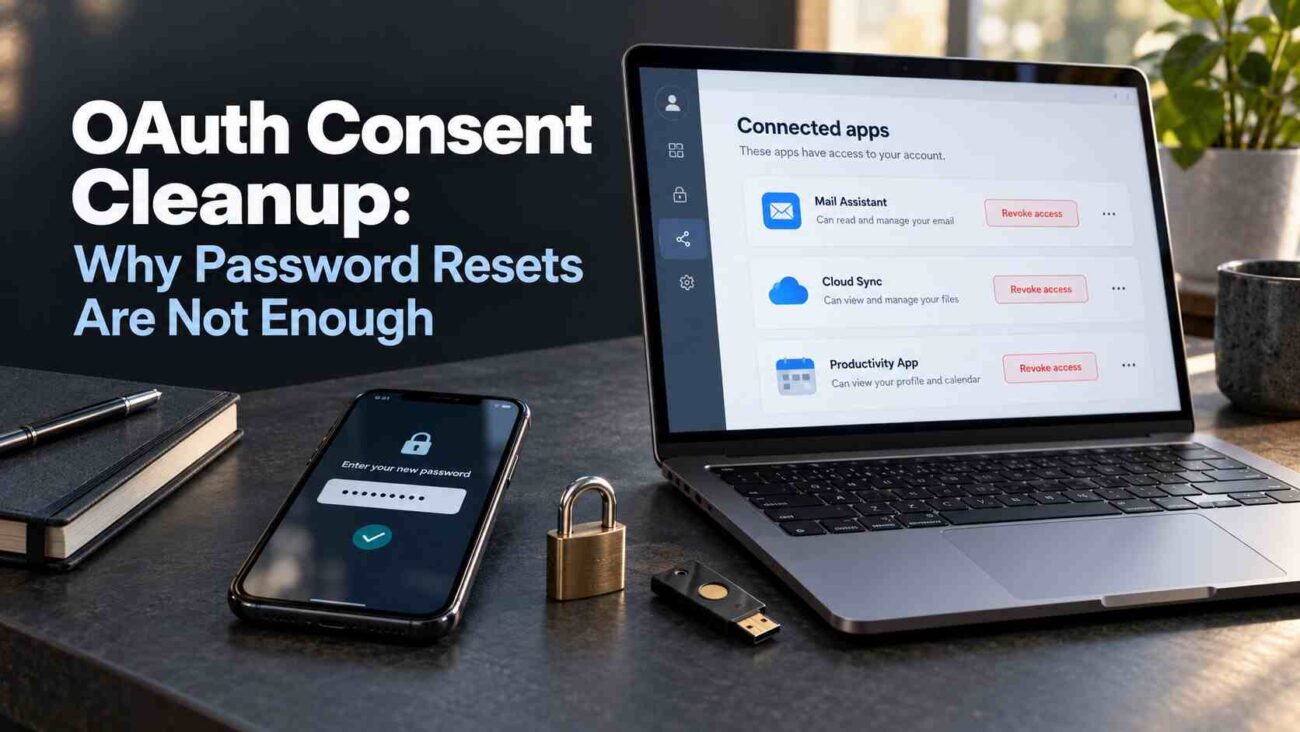
You changed your password after a suspicious email and expected the problem to end. But what about the app you approved before realizing something was wrong?
OAuth Consent Cleanup addresses permissions that can remain after ordinary account recovery. Microsoft explicitly warns that password resets and MFA alone do not resolve illicit consent grants. Here is how to review those connections, remove unwanted access and check your work.
What Is OAuth Consent Cleanup?
OAuth Consent Cleanup means reviewing permissions granted to connected apps, withdrawing unnecessary or malicious access, and investigating any activity those permissions enabled.
OAuth lets an application request limited access to another service. A calendar tool, for example, might ask to read your appointments.
Access tokens authorize requests to protected data. Refresh tokens can let an app obtain replacement access tokens without another interactive sign-in. Permissions define the approved scope of access.
The practical question is straightforward: which apps still have permission to do what?
Why a Password Reset Leaves More to Check
Changing your password and removing an app’s authorization solve different problems.
| Recovery action | What it addresses |
|---|---|
| Password reset | The account’s sign-in credential. |
| Session revocation | Existing sessions or refresh tokens, according to provider behavior. |
| Consent revocation | Permissions previously granted to an application. |
Password changes can invalidate some tokens; the outcome depends on the identity system and token type. Never assume that every token survives, or that every permission disappears.
In Microsoft Entra ID, delegated permissions let apps act for users. Application permissions can support access without a signed-in user. Investigators must check which model applies rather than relying only on changes to one user’s password.
Identify Connections That Deserve Attention
Start with your account provider’s app-permissions page. For each connection, record:
- The application name and publisher.
- The information it can read or change.
- Why you connected it.
- Whether you still need its features.
Match Permissions to the Actual Task
Imagine a document converter requesting ongoing access to your mailbox. Before approving it, establish why that access is necessary.
Prioritize unexplained email, file-writing or organization-wide permissions. In a work account, involve IT promptly if compromise is suspected. Microsoft recommends investigating consent records and the affected users to establish the incident’s scope.
Remove Unwanted Access in Google and Microsoft
Personal Google Accounts
Open your Google Account’s linked-apps page directly. Select Access to your Google Account, choose the app and open See details. Review its permissions, then select Remove access and confirm.
Check the connection type carefully. Google distinguishes data-access permissions from Sign in with Google and other account links. Removing one connection type should not substitute for reviewing the others.
Microsoft Work or School Accounts
Ask your IT team to investigate suspicious grants and contain confirmed compromise.
Authorized administrators can open Entra ID → Enterprise apps → All applications, select the app, then choose Permissions. Review both Admin consent and User consent.
Microsoft’s portal supports revoking admin-consented permissions. Revoking grants shown under User consent requires supported Microsoft Graph or PowerShell procedures. Use the appropriate administrator role and current provider instructions.
Verify the Cleanup and Reduce Repeat Incidents
OAuth Consent Cleanup needs a verification step. Confirm that the unwanted grant was removed. For work accounts, ask IT to inspect available audit logs for related consent activity.
For compromised Microsoft 365 accounts, also review unexpected authentication methods, mailbox forwarding and inbox rules. An attacker may have established more than one route to data.
Token and session timing matters: an application’s own session can require separate termination, and existing access may continue until relevant expiry or enforcement takes effect. Verify containment with your administrator instead of promising immediate universal logout.
Keep a short cleanup record: the app, permissions removed, action time and who checked the result. This gives you something concrete to revisit if the connection reappears or a legitimate integration stops working.
For routine prevention, apply least privilege: keep permissions tied to a current, understandable purpose. Review connections when you retire a tool, change roles or investigate suspicious activity.
Frequently Asked Questions
Does MFA stop OAuth consent phishing?
MFA helps protect sign-in. A successfully authenticated person can still approve a malicious application. Review requested access even after completing an MFA challenge. Scammers also target authentication codes. Our guide to Link verification code scams explains how genuine security messages can become part of a fraudulent request.
Does removing app access delete previously shared data?
No automatic deletion should be assumed. Google explains that developers may retain data shared earlier. Contact the developer about deleting those copies.
Should I remove every connected application?
Review each connection against its purpose and permissions. For workplace tools, confirm legitimate dependencies with IT so cleanup targets unnecessary access without disrupting essential services.
How do I know whether cleanup worked?
Check the permission record and relevant activity logs. For confirmed compromise, also verify session handling and other persistence mechanisms with your provider or security team.
Conclusion: Close the Permission Gap
OAuth Consent Cleanup complements password resets by addressing the access apps were granted. Review connected services, revoke unwanted permissions and verify remaining sessions or account changes. Start with one account today; if you find suspicious workplace access, send the details to your IT team.
