
A slow computer can be frustrating, especially when an unfamiliar Windows process starts using more CPU resources than expected. WMI Provider Host is usually a legitimate part of Windows, not an unwanted program. Still, unusually heavy processor activity deserves attention. The key is finding which application requests information and when activity becomes excessive. Here is how to investigate recurring spikes without disrupting Windows.
- What Is WMI Provider Host?
- How Does WMI Provider Host Actually Work?
- When Is High CPU Usage a Real Problem?
- Why Does WMI Provider Host Use So Much CPU?
- How to Identify the Application Behind CPU Spikes
- How to Fix WMI Provider Host High CPU Usage Safely
- Is WMI Provider Host Safe or a Virus?
- What About Older Windows Computers?
- Conclusion: Fix the Cause, Not the Messenger
- Frequently Asked Questions
What Is WMI Provider Host?
WMI Provider Host is a Windows background process that handles management information requested by software, scripts, and administrative tools. It uses Windows Management Instrumentation, which lets programs query hardware, services, processes, and other system details.
Its executable, WmiPrvSE.exe, hosts components called providers. Providers supply different information, such as device status or operating system events. Several instances can run under different accounts; that is normal.
It works behind the scenes rather than through a window you open.
How Does WMI Provider Host Actually Work?
Imagine a computer management application checking whether a printer is available. Instead of searching every Windows component independently, it asks WMI for the relevant status. The framework routes that request to a provider, which retrieves and returns the information.
This helps monitoring tools, inventory software, and administrators communicate consistently with Windows. A provider can answer many legitimate queries. Problems arise from excessive, expensive, or faulty requests.
Microsoft’s provider architecture documentation explains why providers operate in separate host processes: isolation can reduce the effect of a failing component.
When Is High CPU Usage a Real Problem?
Brief spikes during startup, installation, or hardware checks are often harmless. Persistent WMI Provider Host utilization accompanied by heat, fan noise, stuttering, or battery drain warrants investigation.
Open Task Manager, sort Processes by CPU, and observe several minutes. Sustained activity while idle matters more than a brief jump. Pay attention to timing and what applications are open.
The same diagnostic approach applies to Windows 11 high CPU usage and Windows 10 high CPU usage. Percentages alone cannot identify the offender; the host may be answering another program.
| What you observe | Possible explanation | Next check |
|---|---|---|
| Short startup spike | Routine system queries | Observe after startup |
| Spikes when an app opens | Repeated app requests | Close and retest app |
| Long idle-time load | Background software loop | Check client PID |
| Several host entries | Provider isolation | Check each PID |
| Unexpected file location | Possible impersonation | Verify signature and scan |
Why Does WMI Provider Host Use So Much CPU?
Triggers include monitoring utilities, inventory agents, drivers, and repetitive status checks. Damaged system files occasionally contribute.
Consider an illustrative example: a laptop’s hardware dashboard refreshes sensor readings every second. Closing that dashboard stops repeated queries, and CPU usage returns to normal. That suggests the WMI Provider Host workload comes from the dashboard, not necessarily a defect. Update it and retest.
Microsoft documents real diagnostic scenarios involving monitoring applications and queries to the Win32_NTLogEvent class. These examples show why identifying the requesting process matters more than simply ending the host. See its WMI CPU troubleshooting guide.
How to Identify the Application Behind CPU Spikes
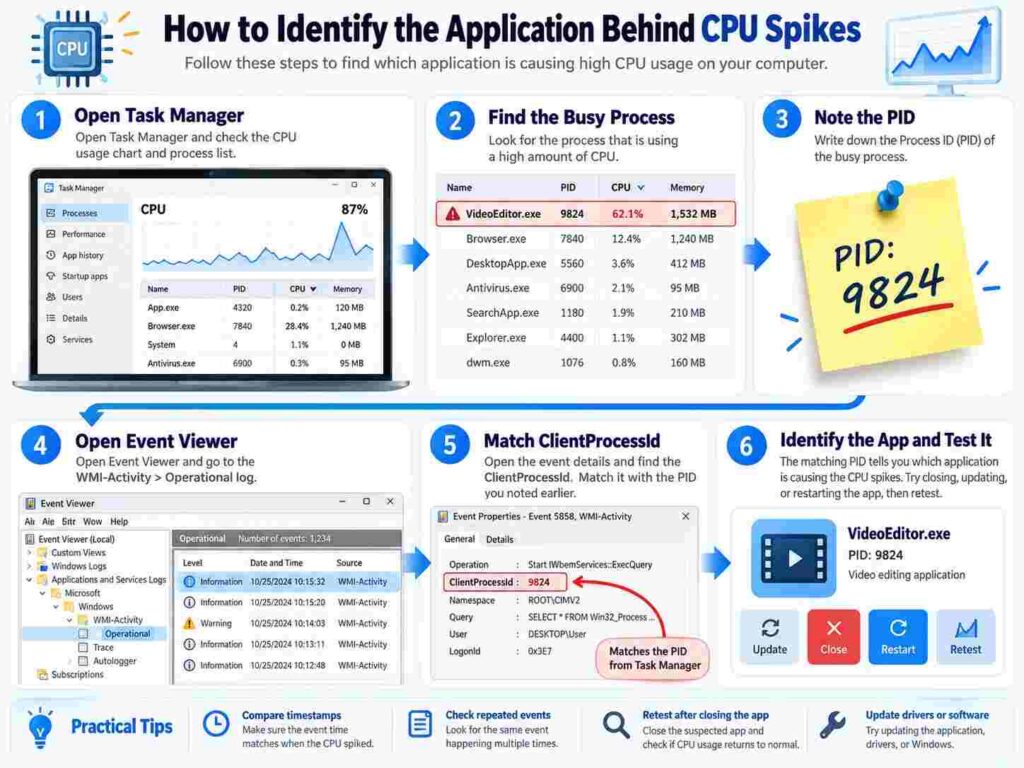
Identify the requester before making changes:
- Open the Details tab, locate the busy host executable, and record its process ID, or PID. Add the PID column if necessary.
- Press Windows + R, enter
eventvwr.msc, and open Event Viewer. - Navigate through Applications and Services Logs, Microsoft, Windows, WMI-Activity, then Operational.
- Check repeated events near the time of the CPU spike. Event 5857 can identify a provider host; certain 5858 entries display a
ClientProcessIdassociated with a request. - Match that client PID against a running process in the Details tab. Research its publisher and function before changing anything.
Logs provide clues, not proof. One error cannot establish sustained CPU causation. Process IDs can be reused; correlate timestamps before blaming WMI Provider Host.
For a stronger baseline, record CPU usage before opening a suspect utility, while it runs, and after closing it. Repeat this simple check following a restart. Consistent results are more useful than a single screenshot, particularly when scheduled background tasks run without warning.
For complex cases, Microsoft’s Sysinternals Process Explorer can reveal which providers are loaded in a particular host instance. Advanced tracing helps when ordinary WMI Activity logs do not supply sufficient context.
How to Fix WMI Provider Host High CPU Usage Safely
Start With the Least Disruptive Changes

First restart the computer and check whether the same pattern returns. Close recently installed monitoring dashboards, device management utilities, and automation tools individually. If the spikes disappear after one application closes, check its updates, settings, and support documentation.
Install available Windows Update patches and appropriate hardware drivers from trusted sources. Avoid generic driver download websites. If the issue began immediately after a specific update, review that update’s known problems before considering a rollback.
Test for Background Software Conflicts
If the requester remains unclear, use Microsoft’s clean boot procedure to isolate startup software. Reenable items afterward; keep essential services and security protections enabled. Microsoft’s clean boot instructions describe how to return to normal startup.
Repair Windows Only When Evidence Supports It

When Windows features also malfunction or system corruption is suspected, open Command Prompt as administrator. Run the DISM command below, allow it to finish, then perform an SFC scan:
DISM.exe /Online /Cleanup-Image /RestoreHealth
sfc /scannow
These tools repair Windows, not defective third-party software. Microsoft recommends running DISM before SFC. Restart and reassess after repairs.
Consider a Service Restart Carefully
A WMI service restart may clear stuck operations but interrupt dependent software. Avoid using it as your first fix, particularly on workplace computers. Never disable WMI Provider Host permanently. Resolving the requester is more durable than repeatedly resetting the host.
Is WMI Provider Host Safe or a Virus?
The genuine host is a normal Windows component. To verify an unfamiliar entry, open its file location and inspect the digital signature. Microsoft’s standard executable is typically under C:\Windows\System32\wbem. An unusual location or signature merits investigation, not an instant malware verdict.
Use Windows Security or your organization’s approved antivirus to run a scan when suspicious behavior accompanies the process. Avoid downloading tools that promise to delete the host; removing legitimate system files may disrupt management functions.
What About Older Windows Computers?
The diagnostics above remain useful on older installations. However, Windows 10 support ended October 14, 2025; consumer Extended Security Updates ended October 13, 2026. Devices without another applicable support program should move to a supported Windows release when possible. Troubleshooting a CPU issue does not replace necessary security maintenance.
Also Read: What Is My IP Address? Live IP Lookup & Location Data
Conclusion: Fix the Cause, Not the Messenger
WMI Provider Host is rarely the whole story behind persistent processor spikes. A better fix comes from observing the pattern, identifying the client application, and changing only what the evidence supports. Begin with process monitoring and software updates, move to event logs when necessary, and reserve system repair or service changes for appropriate cases. This measured approach helps restore performance while keeping Windows management features intact. Most importantly, it replaces guesswork with a repeatable method you can use whenever background activity becomes suspicious.
Frequently Asked Questions
Can I end the process temporarily?
You can sometimes end a host instance, but active management requests may fail and Windows may recreate it. Investigate the requesting software instead.
Why do multiple instances appear?
Windows separates providers across host processes, sometimes using different security accounts. Multiple instances alone are expected behavior.
Does the process need internet access?
Not inherently. Individual management clients may communicate with remote systems, depending on their configuration and permissions.
Can gaming software trigger unusually high activity?
Yes. Hardware overlays and monitoring utilities may repeatedly request sensor information. Test by closing one utility at a time.
Is a high CPU reading proof of malware?
No. Legitimate applications can overload the host. Check file authenticity, surrounding symptoms, and scan results before suspecting an infection.
