
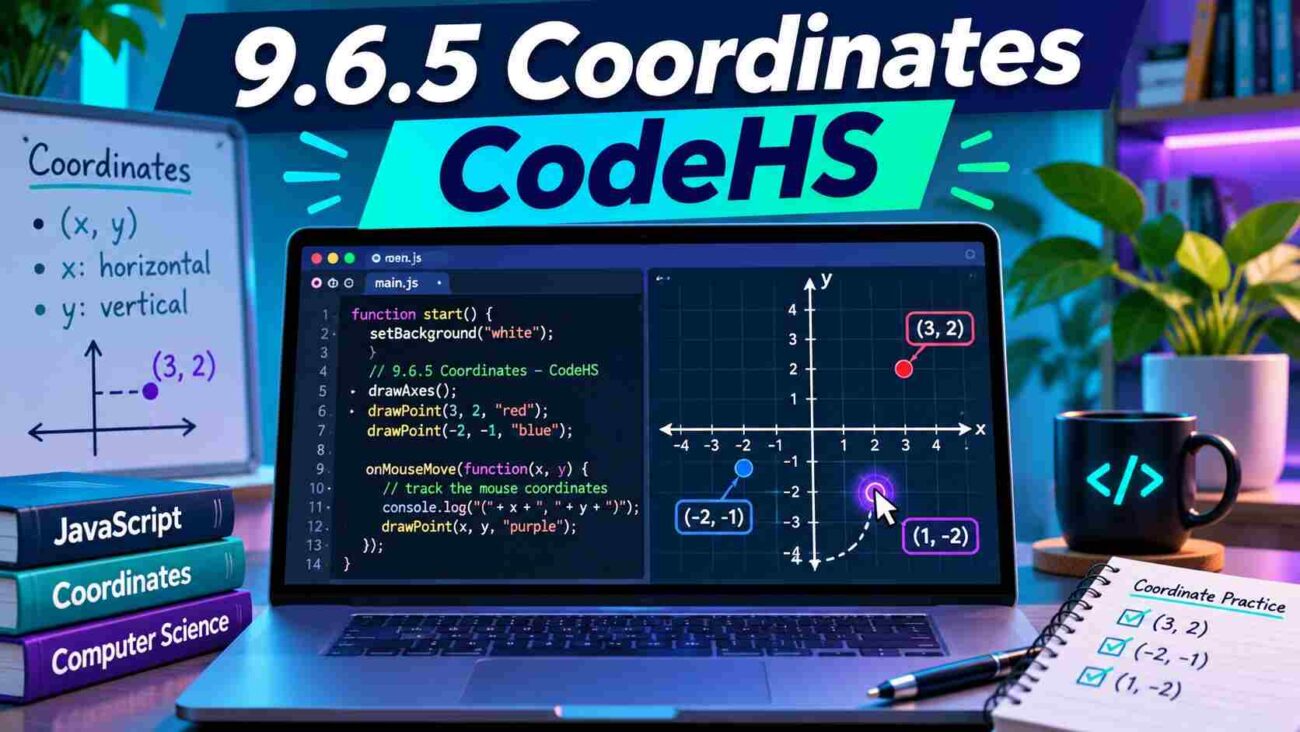
If your CodeHS Coordinates program displays overlapping numbers, ignores mouse movement, or fails to show the correct position, the problem is usually easier to fix than it seems.
The 9.6.5 Coordinates CodeHS exercise introduces mouse tracking through JavaScript graphics. Students learn to capture a pointer’s horizontal and vertical positions and display those values as the mouse moves.
This guide provides an understandable JavaScript example, explains the key commands, and covers common mistakes. It also shows how to test your work rather than simply copying a solution.
What Is 9.6.5 Coordinates CodeHS?
9.6.5 Coordinates CodeHS is a JavaScript graphics exercise that teaches students to display the mouse pointer’s X and Y coordinates as its position changes.
The exercise appears under lesson 9.6, Mouse Events: Mouse Moved, in the CodeHS Introduction to Computer Science in JavaScript curriculum.
Its central learning objectives include:
- Reading coordinates from mouse events.
- Connecting an event to a JavaScript function.
- Creating and displaying graphical text.
- Updating existing text when its values change.
- Understanding how pointer movement affects program output.
The task introduces event-driven programming: rather than continuously asking where the pointer is, the program responds when a mouse-movement event occurs.
The specific instructions and automated checks may differ between course editions. Always compare your implementation with the exercise shown in your classroom.
Understanding the X and Y Coordinate System
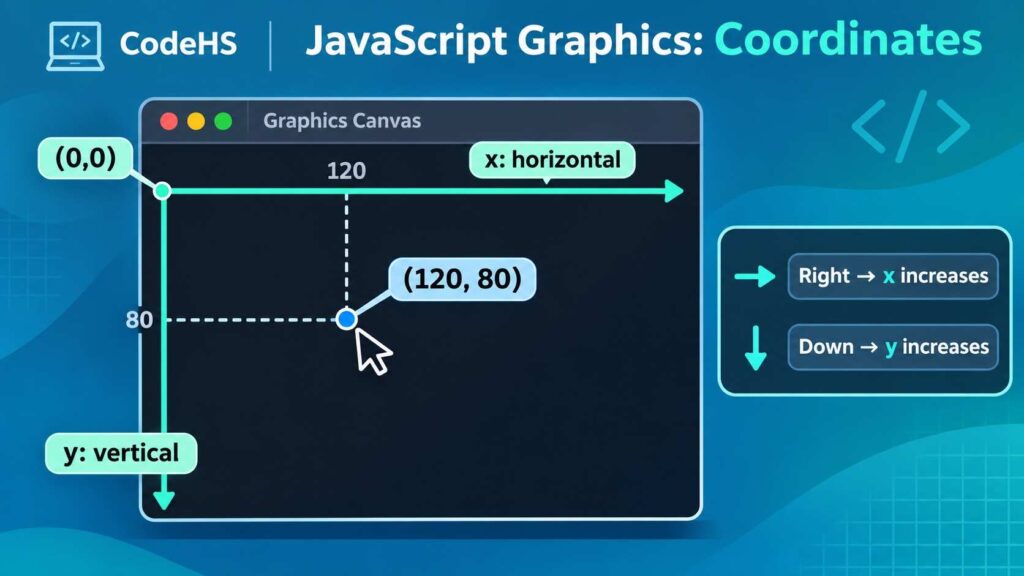
Before writing code, understand how the CodeHS graphics canvas measures positions.
A graphics canvas has two axes. The X-axis runs horizontally, while the Y-axis runs vertically. The coordinate system begins at the upper-left corner of the canvas, where both X and Y values are zero (0, 0).
Moving right increases X. Moving downward increases Y.
For example, (120, 80) describes a location 120 units right and 80 units down from the origin.
| Pointer position | Example coordinates | Meaning |
|---|---|---|
| Upper-left corner | (0, 0) | Starting point |
| Near the top | (100, 20) | Right and slightly down |
| Middle area | (200, 150) | Farther right and down |
| Lower-right area | (350, 300) | Near the canvas boundary, if large enough |
These values are examples; valid positions depend on the canvas dimensions.
This coordinate system in JavaScript graphics differs from a traditional mathematical graph, where positive Y usually points upward.
Understanding this distinction prevents mistakes when positioning objects or interpreting the mouse coordinates returned by the program.
9.6.5 Coordinates CodeHS JavaScript Code Example
The following example demonstrates the core behavior of a coordinate tracker using documented CodeHS graphics commands.
Example: Display Mouse Coordinates
var coordinateLabel;

function start() {
    coordinateLabel = new Text(
        "Move the mouse", "16pt Arial"
    );

    coordinateLabel.setPosition(10, 25);
    add(coordinateLabel);

    mouseMoveMethod(updateCoordinates);
}

function updateCoordinates(e) {
    var x = e.getX();
    var y = e.getY();

    coordinateLabel.setText(
        "(" + x + ", " + y + ")"
    );
}
This is an illustrative CodeHS JavaScript solution for learning the required techniques, not a verified submission for every classroom version.
How to Use the Example
- Open the Coordinates exercise in your CodeHS account.
- Read the instructions and preserve any required starter code.
- Enter or adapt the example in the JavaScript graphics editor.
- Run the program and move your pointer across the graphics canvas.
- Check whether the coordinate label changes continuously.
For instance, moving to a position of (75, 120) should update the label to show those two values.
The important behavior is that the same text object changes instead of new labels appearing repeatedly.
How the Coordinates Code Works
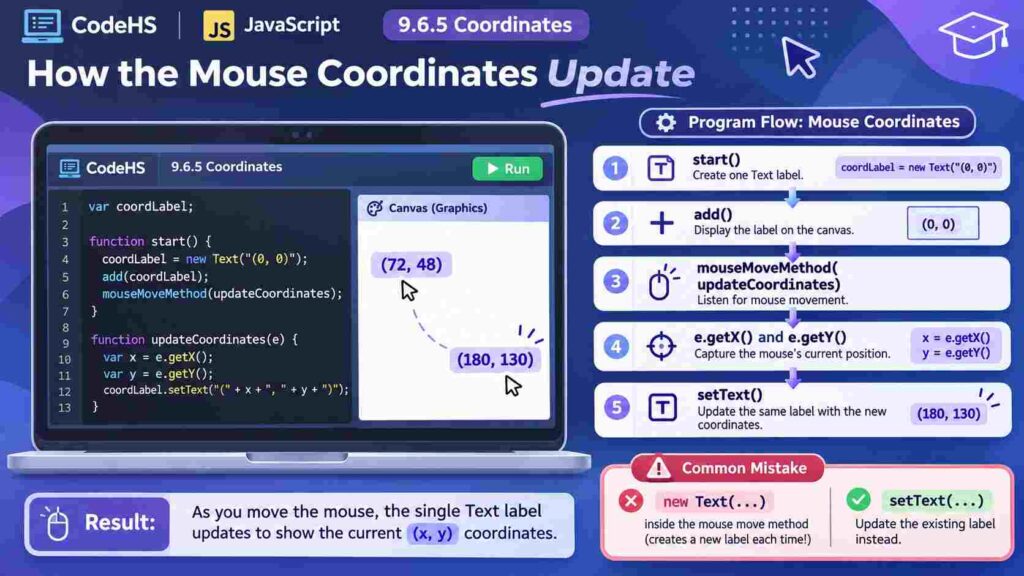
The 9.6.5 Coordinates CodeHS example combines initialization, mouse-event handling, and graphical text updates.
1. Create a Text Object
The statement new Text() creates a graphical label. The setPosition(10, 25) call places it near the upper-left corner of the canvas.
The add() command makes the object visible.
Notice that coordinateLabel is declared outside the functions. This allows both start() and updateCoordinates() to access the same object.
2. Register the Mouse-Movement Function
The command mouseMoveMethod(updateCoordinates) tells CodeHS which function should respond to pointer movement.
This is a JavaScript callback function. CodeHS invokes it when the relevant event occurs.
Do not write updateCoordinates() inside the registration call. The parentheses would invoke the function immediately instead of passing it as a callback.
3. Retrieve the Mouse Position
Within the event handler, e.getX() retrieves the horizontal position and e.getY() retrieves the vertical position.
These are documented CodeHS mouse events methods, not ordinary properties of a JavaScript string or number.
4. Update the Display
The setText() method replaces the label’s existing content with the latest coordinate pair.
This is preferable to creating a new Text object after every movement.
Students can consult the official CodeHS JavaScript Graphics documentation for the supported graphics objects and mouse-event methods.
Common 9.6.5 Coordinates CodeHS Errors and Fixes
The most frequent problems involve callback registration, variable scope, and graphical object management.
| Problem | Likely cause | Recommended fix |
|---|---|---|
| Coordinates never change | Incorrect callback registration | Check mouseMoveMethod() |
| Numbers overlap | New Text objects created repeatedly | Update one label using setText() |
| Text does not appear | Missing add() or incorrect position | Add and reposition the object |
| X and Y appear reversed | Wrong event method used | Check getX() and getY() |
| Program reports an error | Misspelled function or undefined variable | Check names, scope, and syntax |
Why Does the Text Overlap?
A common mistake is creating a new graphical label inside the mouse-movement callback.
Because the pointer generates many events, the program repeatedly adds objects without clearing previous ones.
Use dynamic text updates instead. Create the label once and change its contents whenever the event fires.
Why Does Nothing Happen?
First verify that the program runs successfully. Then move the pointer inside the actual canvas, not just across the surrounding editor.
If there is still no response, inspect the callback’s spelling and registration.
For JavaScript debugging, change one part at a time. This makes it easier to identify the precise cause of the problem.
How to Test and Improve Your CodeHS Coordinates Program
A good program should work across different pointer positions, not just one location.
Start near the upper-left corner and check for small coordinate values. Move right to confirm X increases, then move down to confirm Y increases.
Next, move the pointer rapidly around the canvas. The label should update without producing overlapping text.
You can also temporarily use println() inside the callback to examine the values returned by each event.
Three checks are especially important:
- The coordinates represent the current pointer position.
- Only one label remains visible.
- The required text location and formatting match the assignment instructions.
Avoid adding unnecessary graphics until your basic solution behaves correctly. To apply these JavaScript testing and debugging skills to a real browser project, explore our vibe coding for beginners guide, which demonstrates how to build, test, and improve an interactive application.
Where Are These Skills Used?
Mouse tracking in JavaScript supports interactive projects such as drawing applications, drag-and-drop interfaces, and simple games.
For example, a drawing application may use a pointer’s position to place marks on a canvas. A game might use the same information to aim at objects.
These applications build on the fundamentals taught in this exercise.
Frequently Asked Questions
What Is the Answer to 9.6.5 Coordinates CodeHS?
The central approach is to register a mouse-movement handler, retrieve X and Y values, and display them using a graphical Text object. The exact submission requirements depend on your assigned course version.
How Do You Display Mouse Coordinates in CodeHS?
Create a Text object, add it to the canvas, register mouseMoveMethod(), and use e.getX() and e.getY() to update the label through setText().
Why Does My CodeHS Coordinates Program Keep Adding Text?
This happens when the program creates a fresh Text object for each mouse event. Create the label once and update the existing object’s content instead.
What Is the Difference Between mouseMoveMethod() and mouseDragMethod()?
mouseMoveMethod() responds to pointer movement. mouseDragMethod() handles dragging, which involves moving the pointer while the mouse button is held down.
Can I Use This Code for Every CodeHS Coordinates Assignment?
Not necessarily. The example uses the classic JavaScript Graphics environment. Other courses may require different initialization functions, starter code, naming conventions, or output formatting.
Conclusion
The 9.6.5 Coordinates CodeHS exercise teaches an important programming concept: responding to user input while updating graphical content efficiently.
Once you understand coordinate values, mouse-event callbacks, and setText(), the assignment becomes much easier to troubleshoot.
Start with the example, verify the expected behavior against your classroom instructions, and experiment with different positions. Those skills provide a useful foundation for more advanced JavaScript graphics projects.
