
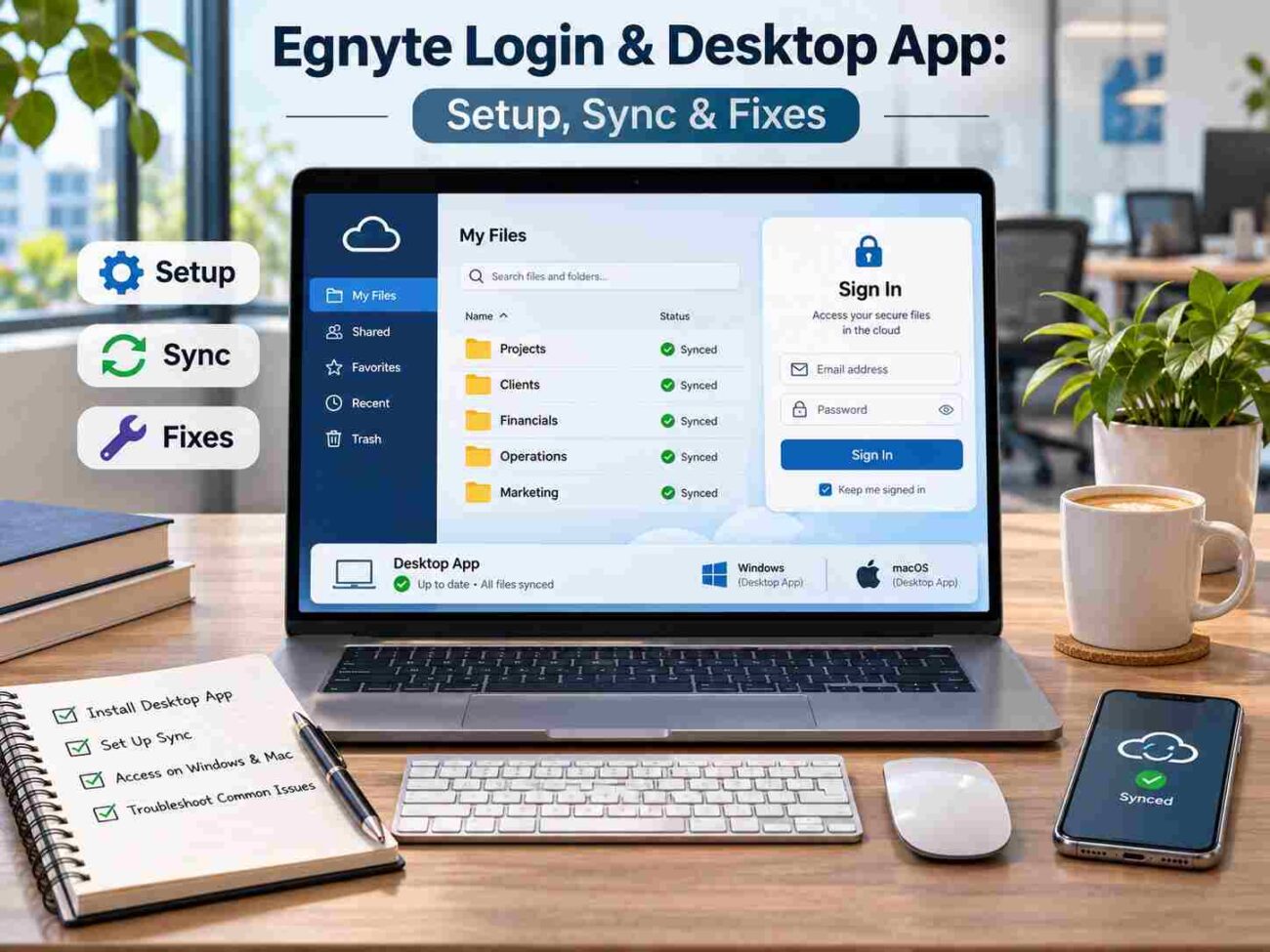
Egnyte lets organizations manage cloud files through a web portal and a desktop drive in Windows File Explorer or Mac Finder. For Egnyte login failures, first establish whether the organization uses native credentials or single sign-on (SSO). For a missing drive, check the user’s account role and drive connection. For stalled offline files, inspect the sync queue before removing or reinstalling anything. These are different failures, and they need different fixes.
Research method: Based on Egnyte installer, authentication, compatibility and support documentation checked November 18, 2026. No private account or hands-on testing was used. Interfaces and company policies vary; this is an independent guide.
- What Is Egnyte, and How Does Its Desktop Drive Work?
- Egnyte Login: Sign In Through the Correct Company Domain
- Egnyte Desktop App Download: Choose the Right Installer
- Install and Configure Egnyte on Windows
- Set Up Egnyte Desktop App Core on Mac
- Cloud Access vs. Offline Sync: Understand the Difference
- Egnyte Sync Not Working? Identify the Actual Failure
- File Locks, Conflicts and Safe Collaboration
- Security, Updates and Administrator Checks
- Frequently Asked Questions
- Can I use Egnyte without installing software?
- Why does Egnyte request my company’s domain?
- Does Egnyte download every file to my computer?
- Can a Standard User install and use Egnyte’s desktop drive?
- What if a file is still locked after I close it?
- Should I reinstall Egnyte when sync stops?
- Why are files visible online but not in Mac Finder?
- Conclusion
What Is Egnyte, and How Does Its Desktop Drive Work?
Egnyte enables organizations to securely access, share, and manage cloud-based files while maintaining control over sensitive business content. Authorized employees can work through the Egnyte web portal, while the Egnyte desktop app mounts permitted folders in Windows Explorer or Mac Finder. Microsoft also documents Egnyte’s integration with Microsoft cloud services, including supported file-management actions such as uploading, downloading, and sharing content. These integrations complement Egnyte’s broader business collaboration capabilities.
The Egnyte drive retrieves files on demand; browsing it is not the same as downloading everything for offline access.
Egnyte’s role documentation states that the Desktop App is available to Admins and Power Users, not Standard Users. Admins can also disable desktop access for a Power User. Someone who can open files in the Egnyte browser but cannot add a desktop drive should confirm their role and company access policy before reinstalling.
| Task | Best starting point | What to expect |
|---|---|---|
| Read or share a cloud document | Egnyte Web UI | Browser access with company permissions |
| Work in File Explorer or Finder | Desktop App | Mounted cloud location; files retrieved as needed |
| Work without internet | Offline folders | Selected files stored locally, then uploaded after reconnecting |
| Edit from the browser in a local application | Egnyte WebEdit | Browser-led workflow with local editing |
Understanding cloud access also requires distinguishing file collaboration from infrastructure management. Our AWS Console guide explains how administrators manage cloud resources, storage, and access permissions, while Egnyte focuses on secure access to organizational files.
Egnyte Login: Sign In Through the Correct Company Domain
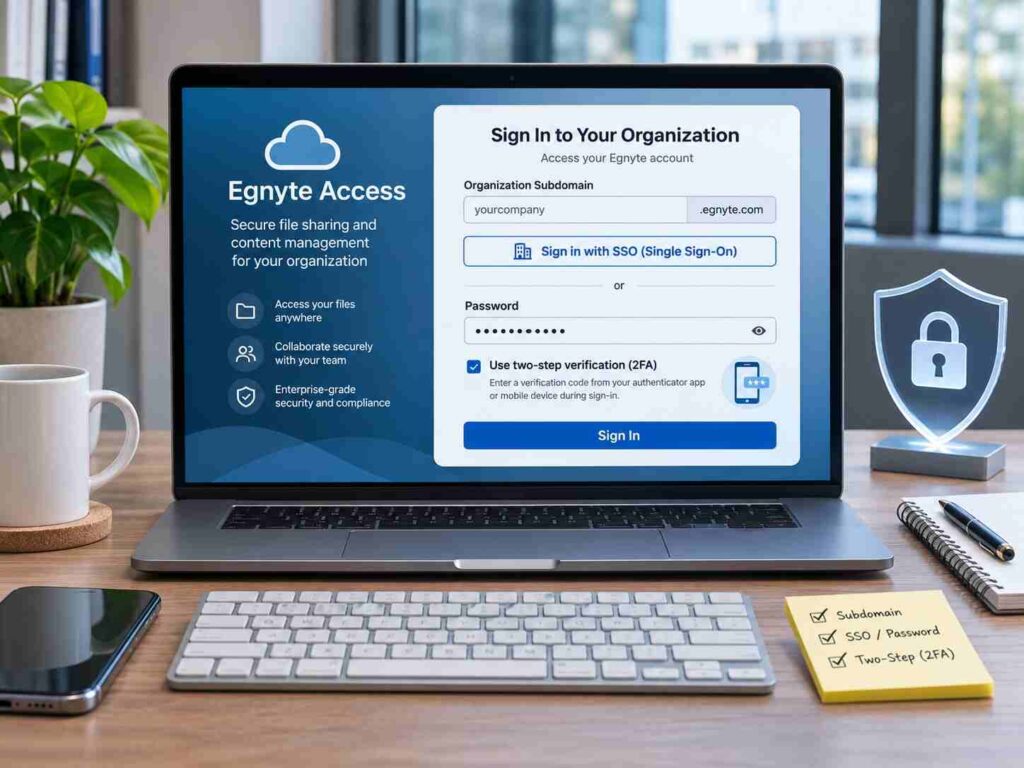
Your organization provides the Egnyte tenant address, such as yourcompany.egnyte.com, and your username or work email. Verify the address with IT or a trusted bookmark rather than following unsolicited links.
Sign in through a browser
- Open your company’s verified Egnyte web address, not an unrelated third-party login page.
- Enter the username or work email associated with your Egnyte account and continue.
- Follow the password prompt or your organization’s single sign-on redirect.
- Complete the required second verification step, if prompted.
- Once authenticated in Egnyte, check whether you can open Shared or Private folders that your role allows.
An Egnyte SSO sign in redirects to company identity services. If rejected, follow the employer’s Egnyte recovery procedure: an Egnyte password reset cannot fix an identity-provider account. When the browser works but the drive fails, note the tenant, error and any VPN/device-compliance requirement.
Reset a forgotten password or verification method
For a native-account password problem, Egnyte’s official recovery guide says to enter a valid email or username, choose Forgot password?, and follow the email link. The documented password-change link can be used once and expires after two hours. If the recovery message says your account uses a company directory or identity provider, ask your administrator: the password is not managed by the native Egnyte reset flow.
Egnyte requires two-step verification for interactive accounts, sometimes through SSO. Methods include authenticator apps, Authy and phone codes. An admin can reset enrollment when a device is lost. Never share a code with someone claiming to be support; prompts commonly appear while adding or reauthorizing an Egnyte drive. Official guidance: Forgot Password and Two-Step Login Verification.
Egnyte Desktop App Download: Choose the Right Installer
Use Egnyte’s official Desktop App Installers page, rather than an unverified download mirror. At the time of this review, Egnyte listed the following releases:
| Operating system | Recommended release on November 18, 2026 | Important distinction |
|---|---|---|
| Windows, 64-bit | 4.8.2 | Current branch for new installation and upgrades |
| Windows, legacy 32-bit | 3.31.1 | Existing compatibility environments; not the main new-feature branch |
| Mac, Apple Silicon or Intel | Desktop App Core 1.22.1 | Universal build and current Mac development branch |
| Mac, older classic client | 3.14.21 | Supported legacy option; not recommended for Apple Silicon |
Egnyte recommends 8 GB RAM, approximately 350 MB for installation, and up to 5 GB for accessed-file cache on a single-user computer. Mac compatibility requires a current check: Egnyte’s November Golden Gate guidance identifies macOS Golden Gate (27), Tahoe (26), and Sequoia (15) as the three supported generations; Sonoma is no longer officially supported. A separate general OS policy page still lists Sonoma, so the newer, release-specific guidance is the safer reference for this November 2026 article.
Why versions matter: The November 6 Windows 4.8.2 security update patches a bundled Brotli library. The November 5 Mac Core 1.22.1 update addresses an app stuck in Reimporting after certain OS updates and Mac migrations. These are documented fixes, not evidence that every login or sync failure is caused by an outdated client.
Install and Configure Egnyte on Windows
The Egnyte Windows client installs through an .msi package. Company policy may restrict installation.
- Download the recommended Windows package from Egnyte support, then open the installer.
- Follow the setup wizard. The documented default program folder is
C:\Program Files\Egnyte Connect\for the 64-bit client. - Keep the Egnyte installation and cache locations approved by IT.
- Finish installation and open the app from Start or the Windows system tray.
- Select Add Drive, supply your email or username, and enter the correct Egnyte domain if requested.
- Follow the password or company SSO prompts and complete identity verification.
- Select Open Folder after the connection succeeds; the mounted Egnyte drive should appear under File Explorer’s locations or This PC.
An Egnyte mapped drive receives a Windows drive letter; additional tenants may require separate drives. Windows Egnyte upgrades require a restart. Finish uploads before restarting, and do not install an older build over a newer one.
Set Up Egnyte Desktop App Core on Mac
Egnyte recommends Desktop App Core for supported Intel and Apple Silicon Macs. Core uses Apple’s File Provider framework, unlike the older Mac client.
- Obtain the current Mac DMG or managed-deployment PKG from Egnyte’s installer page.
- For the DMG workflow, move the application to Applications and launch it. For managed installation, follow organizational instructions.
- Approve any necessary Finder-extension or system-permission prompts as described by Egnyte and macOS.
- Choose Add Drive under Accounts & Drives; enter your approved Egnyte account details and complete SSO or second-factor verification.
- Open Finder and look under Locations for the Egnyte location. Check permitted folders before marking anything for offline use.
An Egnyte Mac Finder issue may involve File Provider or a blocked background helper. On Golden Gate, examine System Settings → General → Login Items & Extensions → Background App Activity; enable the Egnyte helper only if permitted, otherwise ask IT. Finder search sees cached files, not necessarily every cloud file. A Cloud Start Path may restrict visible folders. Protect unsent edits before removing the drive.
Cloud Access vs. Offline Sync: Understand the Difference
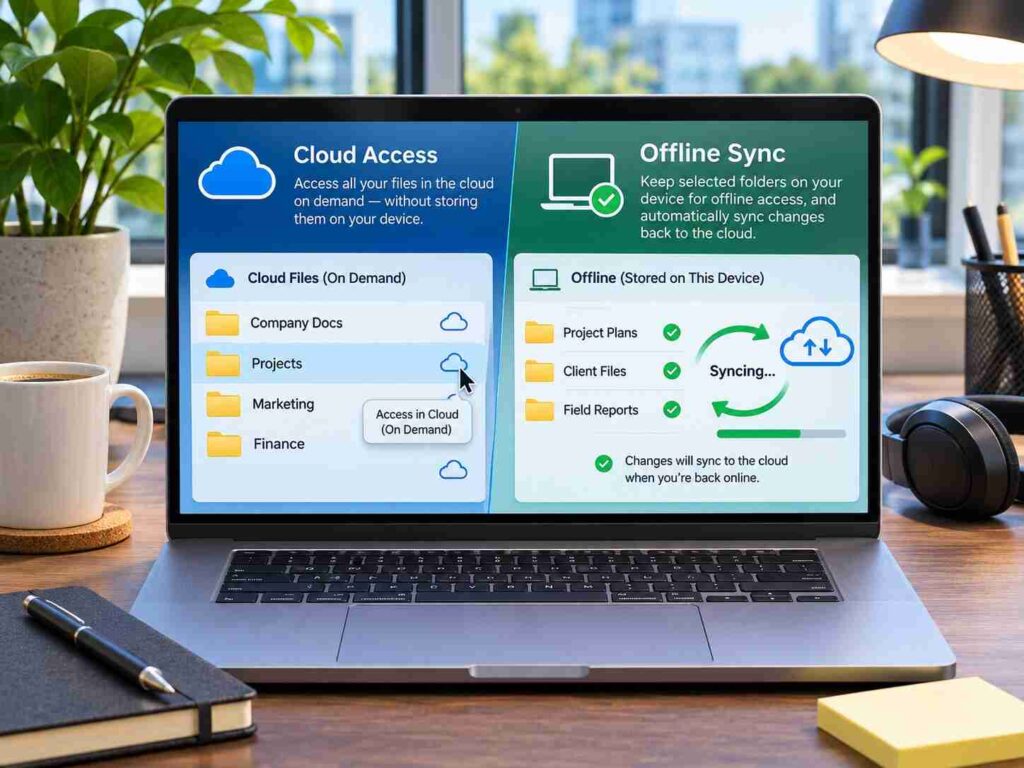
A mounted Egnyte drive, an offline folder and a connected folder are not interchangeable. The drive lists permitted cloud content and fetches files on demand. Egnyte offline folders retain selected cloud content for disconnected work, then upload edits on reconnection. Connected Folders synchronize a separate existing local folder with a cloud location; deleting items inside that linked folder can propagate deletions to the cloud. Confirm which feature is in use before changing it.
On Windows, open the Egnyte drive in File Explorer, right-click the chosen folder, and use Egnyte → Sync for offline access. In Mac Core, right-click a folder, open More Egnyte Actions, and choose the offline-sync command. On Windows, find the selection list under Settings → Offline Folders; on Mac Core, it is under Sync & Storage → Offline Folders.
Select only needed folders: Egnyte documents a 500,000-file per-user offline limit, not a target. Wait for downloads to finish and verify a sample document before disconnecting. Windows includes a manual Go Offline mode; Mac Core does not. A visible file is not necessarily cached.
If Sync for offline access is missing, administrators may have disabled the feature. Ask IT to inspect the account’s desktop-app configuration rather than attempting to bypass policy. Unsyncing or removing a drive can change where pending local files are stored; back up unresolved work and verify cloud versions first.
Egnyte Sync Not Working? Identify the Actual Failure
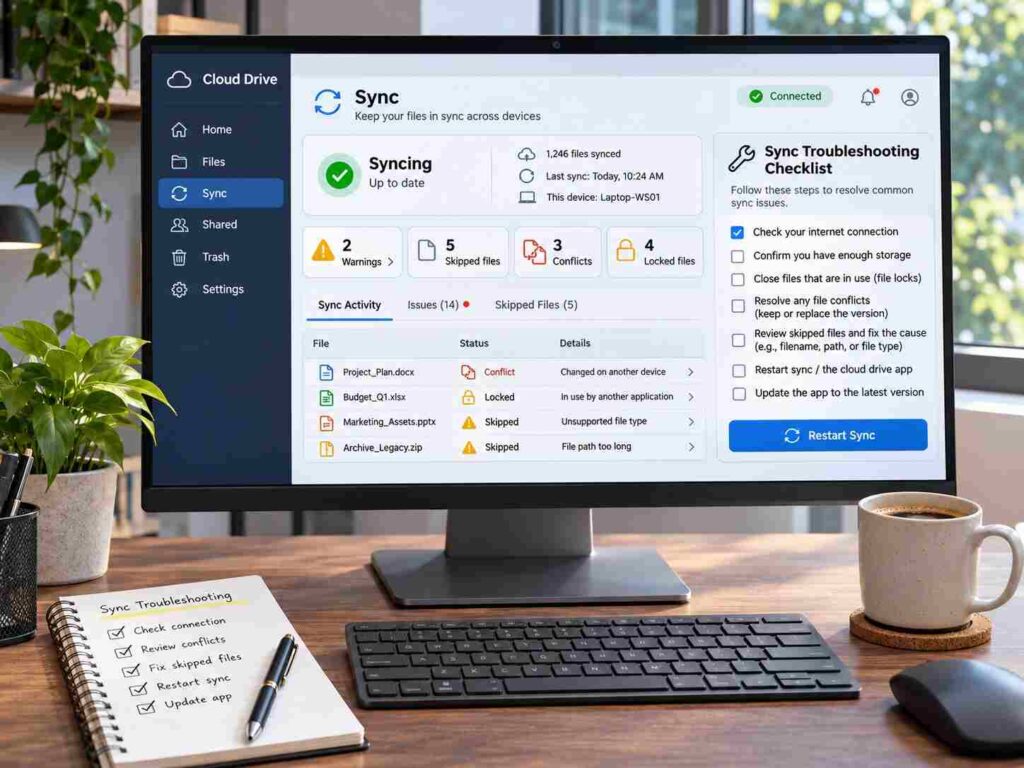
Use this four-part Egnyte diagnostic: Can you sign in through a browser? Is the drive visible in Explorer or Finder? Is the missing file present online? Does the app show pending or skipped transfers? The first failure separates authentication, permissions, folder scope and synchronization—without a risky reinstall.
| Symptom | Likely issue to check | Safest first response |
|---|---|---|
| Web access works; drive missing | Client disconnected, drive not added, permissions | Open app, inspect Drives, confirm allowed account role |
| Sign-in redirects repeatedly | SSO/session issue, wrong domain | Verify company domain and ask IT to check identity-provider logs |
| Offline folders stopped updating | Sync service or one problematic folder | Review Offline Folders and recent additions |
| “X files skipped” | Name, path, permissions, conflict, security detection | Open skipped-items details and read the reason |
| Low-space warning | Full system or cache disk | Free approved space; reduce offline selections |
| Files present online but absent locally | Cloud Start Path or folder permissions | Compare browser folder and mounted drive path |
| Unexpected locked document | Pending upload or active editor | Wait for sync, coordinate with owner, check status |
Fix a missing drive or a connection warning
If Egnyte drive not showing is your problem, first confirm the app is running and that its drive appears in the app’s account list. Windows and Mac display drives differently; do not assume the absence of a drive letter on Mac is an error. If Egnyte says Unable to connect, contact your administrator, its troubleshooting documentation specifically points to certificate trust problems, sometimes caused by a corporate proxy. Do not disable certificate verification as a workaround. Have IT inspect the machine’s trust chain and proxy configuration.
Each Egnyte tenant may require its own drive. If Egnyte files appear online but not on desktop, compare tenant, username, permissions and Cloud Start Path; a configured root may intentionally hide other folders. Check these before clearing caches.
Fix skipped files and interrupted uploads
An Egnyte skipped files notification means items failed to transfer. Open Skipped Items and read the exact reason before acting. Egnyte documents causes including a locked file, malware detection, insufficient storage, a destination folder removed from the cloud, or a name exceeding 245 characters. Its general skip guide also describes a 5,000-byte path limit. Mac Core 1.22 added one-click resolution for certain invalid-name cases; it does not cure permissions or malware problems. Do not delete skipped files just to clear the alert—they can contain unique local changes.
An Egnyte malware-detected skip needs security review: isolate the file and scan it as directed by Egnyte, rather than forcing repeated uploads. For a destination path not found or missing on cloud warning, first find where pending work is stored; moving it to a safe local folder can prevent data loss while IT investigates. Do not choose a deletion action until the files are independently accounted for.
Fix offline synchronization errors
An Egnyte synchronization error may originate in an offline selection, a connected local folder or a stalled upload. Check the Offline Folders, Connected Folders and Skipped Items tabs separately. If a newly selected folder triggered the failure, have the user or IT adjust that selection only after confirming unsynced edits are safe. Removing offline access does not normally remove the server copy; deleting data inside a Connected Folder, however, can synchronize that deletion. Check the Connected Folders guide before changing the connection.
Where the app offers Egnyte cache settings, treat them as storage controls, not a universal repair button. Deleting unknown local cache folders manually can destroy pending changes. Follow the product-specific guidance for your operating system and consult IT if files have not finished uploading.
File Locks, Conflicts and Safe Collaboration
Egnyte file locking helps prevent two people from silently overwriting the same document. For supported workflows, Egnyte locks an existing file while it is open for editing and retains the lock while changes are still uploading. A lock may remain after an editor closes the file.
Egnyte sync conflicts can arise if connectivity fails, uploads pause, or another person changes a cloud file before the first editor’s changes reach the service. Egnyte documents conflict copies intended to preserve competing edits. Compare versions with colleagues instead of deleting the unfamiliar copy; do not assume the file with the newest local timestamp is the authoritative one.
The October 2026 Egnyte Mac Core update added a lock during version uploads. For large Egnyte design files, finish uploads before switching machines. Egnyte’s automatic file-locking guide explains why locks can persist during upload and how interruptions affect them.
Security, Updates and Administrator Checks
Egnyte two-step verification protects access, but cannot help if staff enter credentials on a phishing page or share codes. Confirm the organizational domain, use the approved SSO flow, and keep two-step verification active. Egnyte’s account documentation states that two-step verification is mandatory for interactive accounts, with certain SSO configurations governed by the identity provider.
Keep Egnyte clients updated through approved channels. When many employees have the same failure, check Egnyte service status before investigating individual computers.
Administrators should check user role, disabled desktop entitlements, offline-sync permissions, proxy certificates, endpoint security and local free space before ordering reinstalls. When opening a support ticket, include the OS and Egnyte app versions, tenant, error text, time and time zone, whether browser login works, and whether the issue affects one device or a whole office. Avoid sending account passwords, MFA codes or sensitive documents in the ticket. A clean cache is less important than preserving pending local work.
Frequently Asked Questions
Can I use Egnyte without installing software?
Yes. If your organization’s permissions allow it, the Egnyte web interface supports browser-based file access. The desktop client is useful when employees prefer Explorer or Finder integration.
Why does Egnyte request my company’s domain?
The domain identifies the organization’s workspace and authentication configuration. Egnyte may require it when a username alone does not identify your account. Obtain the exact value from company IT.
Does Egnyte download every file to my computer?
No. Mounted cloud content can appear without a full local copy. Choose offline folders deliberately if you need access without internet, and allow the first download to complete before disconnecting.
Can a Standard User install and use Egnyte’s desktop drive?
Egnyte’s Desktop App documentation says it is intended for Admin and Power User roles. Ask your administrator to check your role and desktop access settings rather than trying another user’s account.
What if a file is still locked after I close it?
The last update may still be uploading. Check connectivity and pending transfers, and coordinate with the file owner. Do not force a duplicate edit unless the team understands how conflicts will be handled.
Should I reinstall Egnyte when sync stops?
Not immediately. Check browser access, account permissions, drive state, pending uploads, skipped-item reasons, available space and service status. Preserve all unsynced Egnyte edits before resets or removal.
Why are files visible online but not in Mac Finder?
The drive may be disconnected, its Cloud Start Path may restrict the visible folder, or a macOS background helper may be blocked. Check the exact tenant and permissions before rebuilding the drive.
Conclusion
Egnyte problems become easier to diagnose when you separate identity, drive access, cloud permissions and file synchronization. Use your organization’s trusted sign-in route, install a currently supported Egnyte client, compare the browser and desktop views, and investigate the exact transfer error. Preserve unfinished local edits before any reset. Reliable access matters more than clearing a warning.
Editorial note: This is an independent technical explainer based on public Egnyte support documentation reviewed November 18, 2026. It is not affiliated with Egnyte and does not reproduce private customer configurations.
