
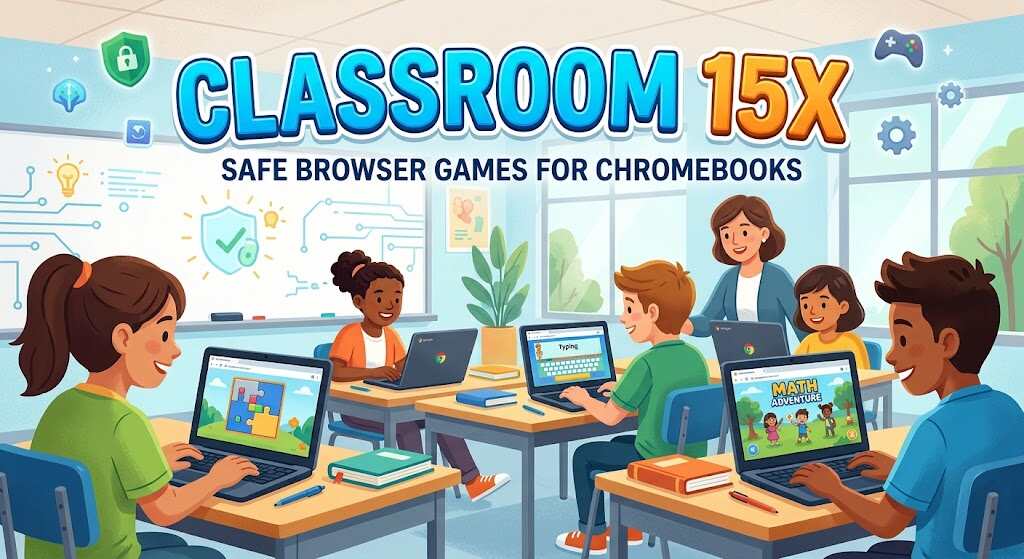
A five-minute game break should end with a refreshed student—not a download prompt, a privacy surprise, or an argument about school rules. That is the real question behind classroom 15x: can a convenient gaming site fit into a safe Chromebook routine? The answer depends on the website, the individual game, and adult approval. For families exploring classroom 15x, “opens in Chrome” is only the starting point.
What classroom 15x Actually Offers
The classroom 15x website at classroom15x.com advertises free, no-download browser games spanning action, racing, puzzles, and two-player titles. These are the operator’s claims, not results from independent Chromebook testing.
Treat classroom 15x as a leisure-games directory, not automatically an educational resource. This review covers that domain’s published pages, not every similarly named site or a hands-on malware test.
If you are comparing free Chromebook games, look beyond catalogue size. “Unblocked games for school” is a search phrase, not a permission slip: a page opening successfully does not prove that school rules permit it or that every game suits your child.
The Privacy Detail Parents Should Not Miss
The classroom 15x privacy policy describes cookies, IP-address logging, and third-party advertising technologies. It also says its policy does not cover other advertisers or websites. “No downloads” clearly does not mean “no tracking.”
One revealing detail: the classroom 15x policy’s advertising section contains the placeholder “www.website.com.” This is not evidence of malware, but it is a reason to seek clearer privacy information before approving access for children.
Do not share your name, password, email address, or location just to begin a game. Convenience should not require unnecessary personal information.
Set Up the Chromebook Before the First Game
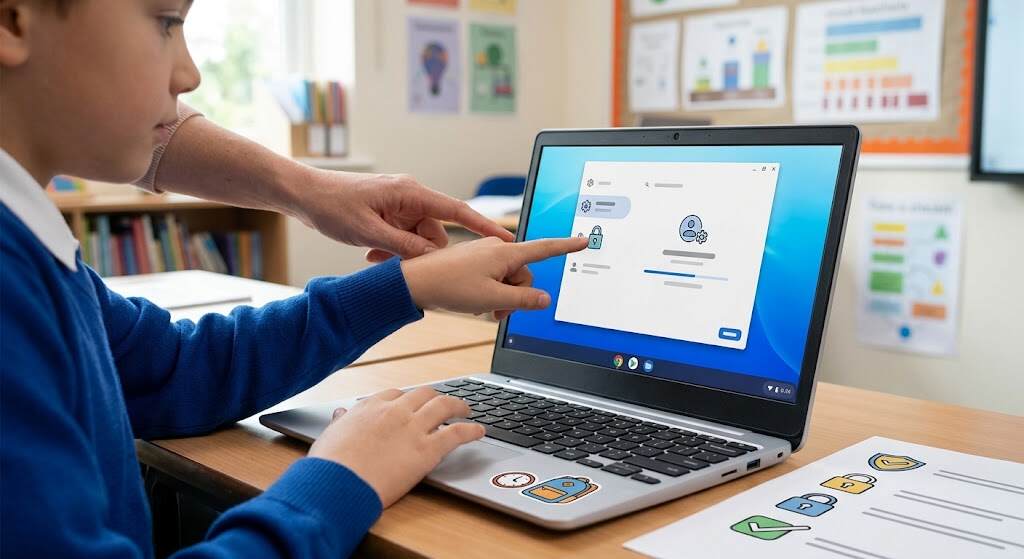
Before opening classroom 15x, check school rules. Google documents website blocklists and allowlists for managed Chrome browsers and ChromeOS devices. If access is blocked, ask the teacher or IT administrator; do not use mirror sites or bypass tools.
Next, review classroom 15x permissions under Settings → Privacy and security → Site settings in Chrome. Google lets users allow or deny access to features including camera, microphone, and location. Decline requests without a clear purpose. School-managed settings may be restricted.
Keep Safe Browsing enabled: it warns about phishing, malware, and other threats, but is not an age-suitability rating.
For a child’s supervised personal Google account, Family Link can help parents manage websites and permissions before allowing classroom 15x.
When Chromebook Games Won’t Load
If a browser game freezes, close unused tabs and reload once. Check the controls before settling in: a touchscreen-first title may be awkward with a keyboard and trackpad. Do not install an “unlocker” or disable browser protections to fix access. If performance stays poor, choose a simpler single-player puzzle rather than repeatedly refreshing a demanding 3D game.
Your classroom 15x Safety Checklist
Use this classroom 15x screening guide before bookmarking a game. It is a practical decision tool, not a safety certification.
| Check | What to look for | If uncertain |
|---|---|---|
| School approval | Exact URL permitted by staff | Ask before playing |
| Age suitability | Adult-reviewed gameplay and chat features | Pick another game |
| Privacy | Clear terms; no unnecessary personal details | Do not register |
| Page behavior | No forced downloads or unexpected redirects | Close the tab |
| Break boundaries | A timer and clear stopping point | Agree on limits first |
Turn a Quick Break into a Better Routine

For example, an early finisher might use classroom 15x for a teacher-approved, single-player puzzle after completing assigned work. Set a five-minute timer, mute audio, and close the game before the next lesson. Ask the student to explain one strategy—not just their score.
At home, preview the exact game together. Check advertisements and any chat before handing over the Chromebook.
The reviewed sources did not provide independently verifiable teacher or parent testimonials. These routines are illustrative suggestions, not customer stories or evidence of improved grades.
Five FAQs
1. Is classroom 15x safe for children?
Not automatically. The safety factor will vary depending on the website, gaming, ads, privacy policies, and adult monitoring.
2. Does classroom 15x work on school Chromebooks?
Browser games may run, but school restrictions, hardware, and individual game requirements affect access and performance.
3. Is classroom 15x the same as Google Classroom?
No. The reviewed site presents itself as a games directory; do not assume Google or school endorsement.
4. Does classroom 15x require downloads?
The reviewed website advertises no-download play. Reject unexpected installer or extension requests rather than treating them as necessary.
5. Are classroom 15x games educational?
A game can lead to conversation regarding strategy; however, entertainment games do not necessarily make for good learning devices.
Conclusion: Approval Beats Accessibility
Approach classroom 15x with curiosity and boundaries, not blanket trust. Choose an age-appropriate game, obtain school approval, limit permissions, and set a stopping point. If privacy information or on-page behavior raises questions, choose a school-approved alternative. A worthwhile Chromebook break should give students breathing room without asking them to trade away privacy, attention, or trust.
