
Your C: drive is nearly full, yet the folders you normally check look harmless. Before deleting random files or buying another SSD, find out where the space went. WizTree provides a visual breakdown of your storage, showing which files and folders are taking up space.
The useful part is knowing what to do with those results. This WizTree guide covers downloads, scanning, cleanup decisions and the limitations that matter. The review draws on official documentation; the steps below focus on Windows.
What Is WizTree, and How Does It Work?
WizTree is a tool from Antibody Software that analyzes disk space usage. It shows how storage is divided among files and folders, using sortable lists and a visual treemap. You can investigate a crowded drive without opening every directory manually.
On NTFS drives, WizTree can read the Master File Table, which records information about files and directories. This shortcut helps explain its scanning speed. High-speed NTFS scanning requires administrator access. Other drive types use a different scanning method, so results take different amounts of time.
Think of WizTree as a map for investigating storage. File size alone says nothing about whether a file is needed.
A folder containing thousands of small files can also consume substantial space. WizTree helps you inspect that accumulation, even when no single file stands out. This is useful for old project exports, repeated downloads or a cache that keeps growing.
Download WizTree and Choose the Right License
Get your WizTree download from the developer’s official download page. Choose the installer for regular use or the portable version for running the application from an extracted folder without installing it.
WizTree is free for personal use. Commercial use requires a paid license, with requirements based on business location and staff size. Check the current terms before using it at work.
Keep security software enabled when downloading. A familiar product name on a different website does not establish who supplied the file. On a managed work computer, follow your organisation’s software approval process.
How to Use WizTree to Find Large Files
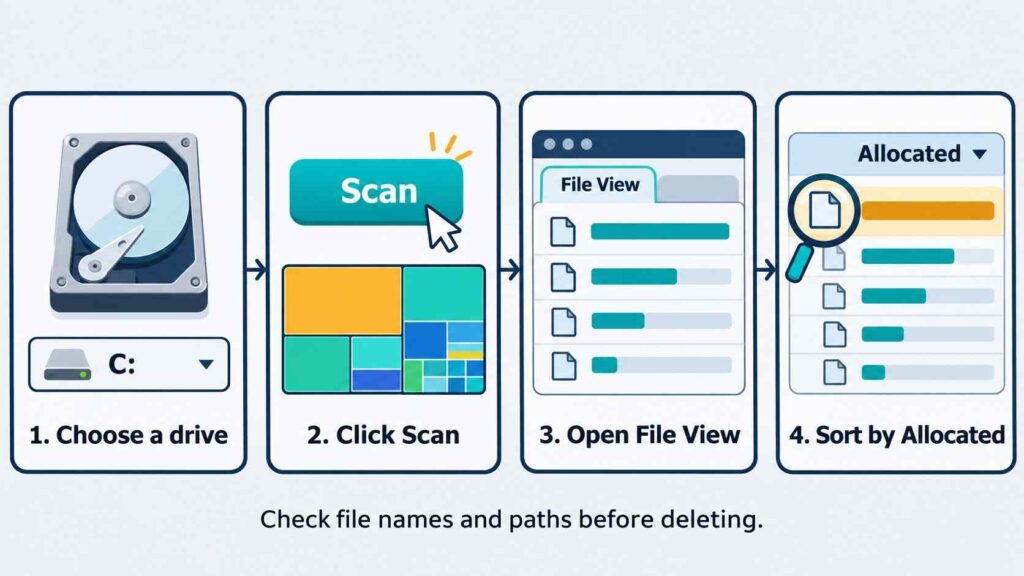
Start with one drive and finish reviewing it before moving elsewhere. This keeps the first WizTree scan manageable.
- Open the application. Allow administrator access if you want high-speed NTFS scanning and have permission to grant it.
- Choose the affected drive. If Windows reports that C: is full, begin there.
- Select Scan. Wait for WizTree to populate the results.
- Inspect large folders. Expand the directory tree to locate the subfolders consuming space.
- Review individual files. Use File View to investigate the largest items and their locations.
Suppose WizTree shows a 35 GB folder of recordings from a finished project. Open the folder, check the files and confirm whether a verified backup exists. You now have a specific decision: keep, archive or remove that material. That is more useful than guessing from folder names.
Read the treemap and storage columns
The WizTree treemap represents files as rectangles, making large items easier to spot. Confirm the selected file’s name and full path before acting. A large rectangle could represent a valuable backup or an expendable recording.
Two columns deserve attention:
| Column | Meaning | Practical use |
|---|---|---|
| Size | The file’s logical length | Understand how much data it represents |
| Allocated | Storage allocated to the file | Assess its current disk footprint |
For local cleanup, start by sorting Allocated from largest to smallest. Compression can make allocated space smaller than logical size.
For example, a forgotten folder of video exports may offer an easier decision than unfamiliar files inside an application directory.
Free Up Disk Space Without Breaking Windows
Use WizTree to identify candidates, then choose the appropriate removal method. Work through these categories:
- Personal files: Review old installers, recordings and archives. Back up anything you may need.
- Applications and games: Use their uninstall or library-management controls instead of deleting installation folders.
- Temporary and system files: Use Windows cleanup controls and review each category before confirming.
In Windows 11, open Settings > System > Storage > Cleanup recommendations. Microsoft also documents Storage Sense for removing selected temporary files and Recycle Bin contents.
When WizTree highlights unfamiliar Windows or AppData files, identify their purpose before changing them. Avoid deleting an entire folder simply because it looks large.
For OneDrive content, use Free up space in File Explorer when you want to retain the cloud copy and release local storage. Deleting synced files can also delete them online.
After reviewing deleted items, empty the Recycle Bin when appropriate. Run WizTree again and compare the drive’s free space.
Use Filters and Understand the Limits
Narrow a crowded file list
After scanning, open File View and enter a filter. WizTree supports searches by name, extension, size and date. Useful examples include:
*.mp4to find MP4 videos.>=1gbto show items at least 1 GB in size.>=1gb >=today-30to find large items modified within the last 30 days.
Modification dates describe file activity; they do not establish whether something is safe to remove.
Check duplicate candidates carefully
WizTree identifies possible duplicates using file names, sizes and, optionally, modification dates. It does not compare file contents. Matching entries therefore need further checking before deletion. Two applications may also require separate copies of an identical file.
Investigate mismatched totals
If WizTree’s allocated total differs slightly from Windows’ used-space figure, some NTFS metadata may explain the gap. The developer identifies directory indexes and security information as examples. A small difference alone does not establish a scanning fault.
If space disappears again after cleanup, compare the growing folder across scans. Investigate the application creating those files rather than repeatedly removing its output.
Is WizTree the Right Disk Space Analyzer?

WizTree suits people who want a visual explanation of a full drive, plus filters for investigating specific file groups. CSV export also helps when documenting storage use or sharing findings with technical support.
For a WizTree versus WinDirStat comparison, consider licensing and workflow. WinDirStat is a free, open-source Windows alternative with disk-usage views and cleanup tools. Avoid choosing solely from speed claims measured under different conditions.
Mac users can use the developer’s separate WizTreeMac application. Its scanning method and permissions differ from Windows, so follow the platform-specific instructions.
Before sharing a WizTree report, check whether its file names and paths reveal private project details. Send only the information needed to explain the issue.
Frequently Asked Questions
Is WizTree free to use?
Yes, WizTree is free for personal use. Businesses need an appropriate paid license. Check the developer’s current licensing terms before workplace deployment.
Can WizTree delete files?
Yes. WizTree provides file and folder deletion capabilities. Review the selected path and keep a backup of important data before confirming removal.
Why is my scan slower than expected?
WizTree’s high-speed NTFS method requires administrator access. Network locations and other file systems use different scanning methods. Drive conditions and the location being scanned can affect completion time.
Will deleting large files make my computer faster?
Freeing a crowded drive can help with storage-related problems and Windows updates. It cannot resolve every cause of poor performance. Check whether low storage is actually contributing to your problem.
If your PC remains slow after cleanup, check Task Manager for excessive CPU activity. Our guide to WMI Provider Host high CPU usage explains how to investigate when that process is responsible.
Conclusion
WizTree makes a full drive easier to understand by showing where storage goes. Its value comes from combining that visibility with careful decisions about backups, applications and personal files.
Start with one WizTree scan, review a few large items you recognise, and use the appropriate cleanup method. Then scan again to confirm how much space you recovered.
