
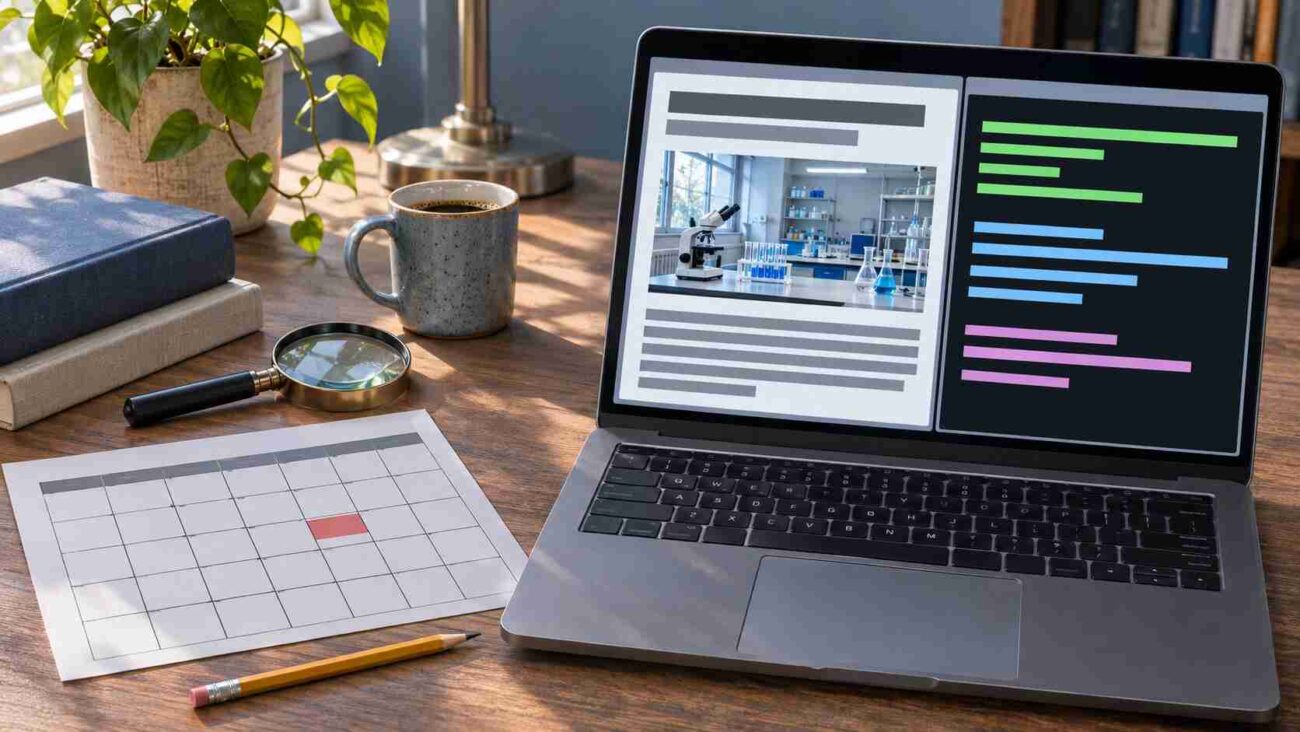
A fresh date can make an old news story look current. On Domikyo.com, a homepage story dated November 2026 describes events from the early days of Omicron. A Python guide on the same site links to official documentation and includes a command you can try yourself. Those pages give readers two ways to check what they’re reading.
Domikyo.com is a general-interest publication covering technology, business, finance, health, education, lifestyle, sports, and travel. This review draws on a November 14, 2026 check of its homepage, author archive, editorial pages, and two articles. It follows the news story to a dated copy of earlier reporting and tests a version of the Python command locally.
What Does Domikyo.com Cover?
The homepage takes you from a guide for first-time hearing aid users to a piece on business partnerships and a technical article about Python networking. The Tech section also lists stories about search rankings and artificial intelligence. The publisher mentions home networking and connected devices on its homepage as part of a wider range of subjects.
The best way to find out whether Domikyo.com answers your question is to open the relevant category, then look for an article that names your device, service, or location. If you came for a technical fix, look for a version number and steps you can reproduce. A guide tied to the software you actually use will save you time when the menus or settings have changed.
Who Writes for Domikyo.com?
The Python guide and the Omicron story both carry the byline “Kevin.” The byline opens an archive with that display name and posts on health, business, and technology. The About page lists the editorial team collectively. The author’s subject credentials were unverified in this review. For specialist advice, look for a named reviewer with relevant experience or a source that documents how the recommendation was reached.
Where to look for sponsorship disclosures
The editorial policy says relevant commercial relationships should be disclosed, and the advertising page offers sponsored articles. When a product recommendation catches your eye, look for a sponsorship label near the headline or an affiliate disclosure near the purchase links. Then ask what evidence supports that recommendation. With a product comparison, look for the models evaluated, how they were used, and the criteria behind the final pick.
What Two Domikyo.com Articles Show
The Omicron story and its date
The featured Omicron article on Domikyo.com displays November 4, 2026. Its opening describes a laboratory in Pune responding to the initial spread of the variant. A copy dated December 13, 2021, credits the BBC and describes the same lab and interviews. The World Health Organization’s statement designating Omicron a variant of concern is dated November 26, 2021.

The date on the Domikyo page tells you when the site presents the article as published. The earlier sources establish when the story’s events took place.
You can repeat the fact check by searching for a distinctive name and phrase from the story. If a headline search gives you several versions, put a short phrase from the article in quotation marks. Open the earliest relevant result you find and compare the people, place, and event dates. Pay special attention to phrases such as “last year” or “this week,” which depend on when the reporting took place.
What the Python HTTP server command actually does
The Domikyo.com guide shows how to launch a file server using Python’s standard library. It links to the official manual and explains why the built-in server suits development and quick transfers. The Python manual adds a detail worth checking before you run it. By default, the command serves files from your current folder and listens on all network interfaces. Other devices may be able to connect, depending on your network and firewall.
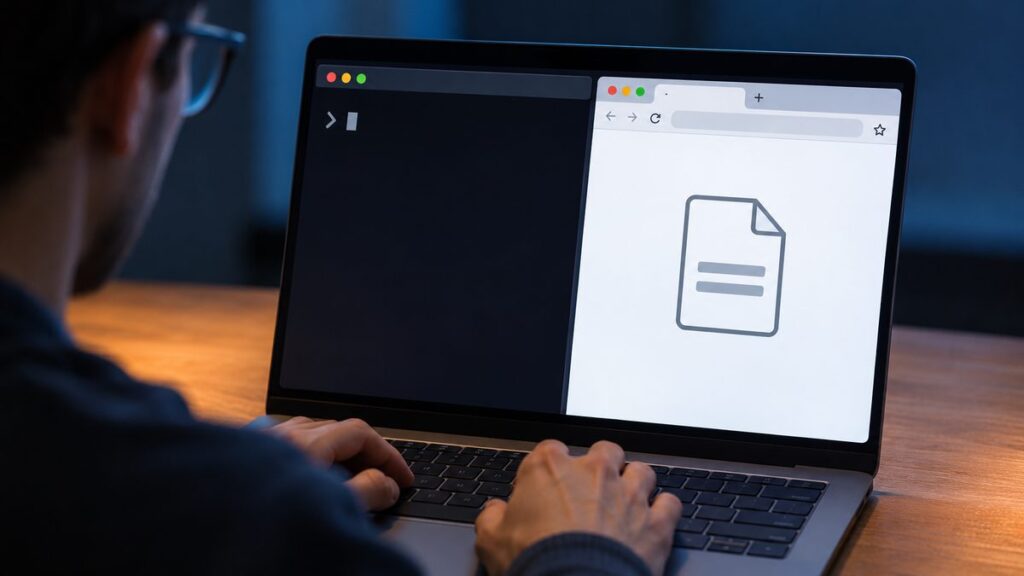
For a test limited to your own computer, use a machine with Python 3 installed. Create a new folder and save one line of sample text in a file named check.txt. Open a terminal in that folder and run the following command.
python3 -m http.server 8000 --bind 127.0.0.1Open http://127.0.0.1:8000/check.txt in your browser. The local test for this review returned HTTP 200 and the exact contents of the sample file. If port 8000 is already in use, choose a free port and use that number in both places. Press Ctrl+C in the terminal when you’re finished.
To try the same setup with a working example, follow our guide to building and testing a simple browser app locally.
How to Check a Claim Before You Act on It
Start with the one sentence that would change what you buy, install, or share. Credible sources should support that specific detail. If a review calls a tool “free,” check whether the feature you need is included in the free tier. A source that confirms a free download may leave subscription features unanswered.
| If the article says… | Check this detail | Where to look |
|---|---|---|
| A story describes a new development | The date of the event or announcement | The original report or agency statement |
| A feature works with your smart home devices | The exact model, software version, and any hub requirement | The manufacturer’s setup or compatibility page |
| A service includes a feature at no extra charge | Plan, region, and renewal terms | The provider’s pricing and feature comparison |
| An address qualifies for a school or local service | The current boundary or eligibility rule | The agency that administers the policy |
If two pages disagree about when an article appeared, check a web archive such as the Wayback Machine. Open a snapshot of the exact URL and look for the sentence or date in question. A snapshot can show what a page displayed on the day it was captured.
How to Tell If a Website Is Legit
Start with the address bar. The reviewed publication is at www.domikyo.com. For downloads mentioned in a guide, go straight to the software maker’s website. If your browser displays a Google Safe Browsing warning, close the page and check the address from a source you trust.
If a photo is central to a story, try a reverse image search with Google Lens. Compare the captions and dates on the pages that display it. An earlier version may identify a different place, event, or photographer and give you a better lead for checking the story.
Conclusion
Domikyo.com can help you get oriented on an unfamiliar topic. Before you share a story or follow a tutorial, check the detail that affects your decision. Start with the article you already have open. Pick one claim, find the original record or current documentation, and see whether it supports what the page says.
Frequently Asked Questions
Can I read Domikyo.com without an account?
Yes. The homepage and both sampled articles opened without a sign-in. Use the navigation to browse categories or the site search to look for a particular topic.
Who owns Domikyo.com?
Individual ownership remains unverified in this review. A domain lookup through ICANN can show which registration details are public, such as the registrar. If you want to know who wrote a specific article, start with its byline.
Can a website safety checker tell me whether an article is accurate?
It can show whether the service has flagged the URL for certain browsing threats. To check an article’s accuracy, trace its claim to the original document, reporting, or product instructions and compare the details.
How do I report an error on Domikyo.com?
The editorial policy lists a contact for corrections. Include the article address, the sentence you want reviewed, and a link to the record that supports your correction.
