
Your phone sees five similar networks. Your printer refuses to connect. Meanwhile, your new router advertises features that sound more complicated than the problem. Understanding your SSID helps you separate three questions: which network you selected, whether your device can join, and whether that network has internet access. This guide explains the differences, modern setup choices and practical fixes. Technical guidance was checked against manufacturer documentation on October 24, 2026. Setup examples are illustrative, not customer interviews.
- What is an SSID and How Does it Work
- Know Which Network Detail You Actually Need
- Find Your SSID Without Guessing
- Rename Your Network Without Creating Extra Work
- Set Up Wi-Fi 7 for Compatibility First
- Fix the Failure You Actually Have
- Keep Visitor Access Separate
- Build a Network You Can Recognise and Trust
- Frequently Asked Questions
What is an SSID and How Does it Work
An SSID, short for Service Set Identifier, is your Wi-Fi network name. It appears in the list of nearby networks on your phone or computer. Your access point normally advertises that name; selecting it starts the connection process. Password verification and encryption are separate steps. TP-Link makes this distinction in its naming guide.
A name identifies a network without proving who operates it. Someone else can broadcast an identical label. At a hotel or café, confirm the correct connection details with staff before joining.
- The router broadcasts its SSID so nearby devices can discover the network. Hiding the label changes discovery behaviour without providing meaningful access protection.
- Multiple access points in a properly configured mesh can share one name. Seeing one entry does not mean your home contains only one radio.
- Capitalisation matters: CedarHome and cedarhome are different names. Copy the exact spelling when manually adding a network or configuring equipment without a screen.
Know Which Network Detail You Actually Need
Router labels often display several credentials together. Use this comparison before entering information into a setup screen. Supplying the management password when a printer wants the wireless password will fail.
| Detail | Purpose | Practical example |
|---|---|---|
| Network name | Identifies the wireless network | CedarHome |
| Wi-Fi password | Authenticates a protected connection | Your private joining passphrase |
| Administrator password | Opens router management controls | A separate management credential |
Find Your SSID Without Guessing
If you are searching for how to find your Wi-Fi name, start with a connected device. The sticker usually shows factory details, which might differ from the current configuration after someone renames the network.
- On an iPhone or iPad, open Settings, then Wi-Fi. Find the connected network rather than choosing a nearby entry because its signal looks stronger.
- On Android, open Settings and look under Network and Internet or Connections. Manufacturers vary the wording; select the active wireless connection to inspect it.
- On Windows, open the taskbar network panel and expand available wireless networks. On a Mac, inspect the Wi-Fi menu or its System Settings page.
- In your router app, check the main wireless configuration. This is particularly useful when every device is disconnected or the original sticker is unreadable.
Rename Your Network Without Creating Extra Work
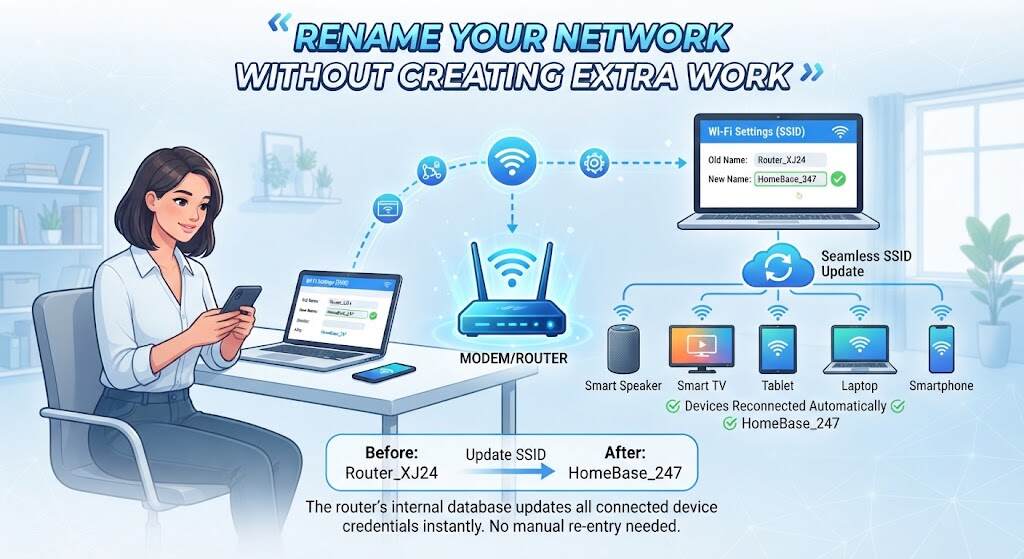
To change Wi-Fi name, connect locally and open your manufacturer’s app or router settings page. Back up the configuration first. TP-Link documents different menu paths for different models, so follow your equipment’s instructions.
Changing an SSID disconnects devices using its previous name. Arrange for the change during a time when it is alright to interrupt briefly, particularly when cameras, thermostats, or phones rely on it.
- Choose something recognisable without including your surname, address or phone number. A neighbour can usually see the label, even without knowing your password.
- Record the new name and joining password before saving. Ensure that the administrator passwords are kept distinct so that when you share your internet connection, you don’t have to share control of the router.
- Reconnect one phone first, then test other equipment. If a device retains outdated details, forget its saved network and join again using current credentials.
- When replacing your own router, reusing your previous name and password can reduce reconnection work. Devices must still support the replacement’s security settings.
Set Up Wi-Fi 7 for Compatibility First
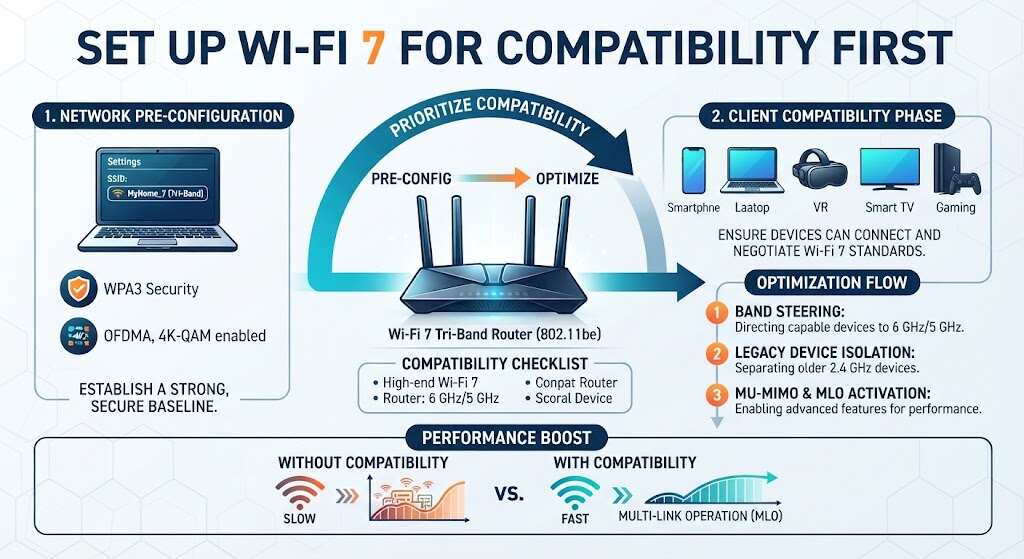
Successful Wi-Fi 7 router setup requires compatible hardware and software. Microsoft lists Windows 11 version 24H2 or later as supporting the standard, alongside a suitable adapter. Update drivers and router firmware before diagnosing missing features.
For supported Apple devices, use the same SSID across your main network’s available bands. Apple’s guidance, updated October 22, explains that different band names can produce limited compatibility and prevent access to some newer wireless benefits.
- Enable multi-link operation only as your manufacturer recommends. It coordinates multiple wireless links, with capabilities depending on the router, client and implementation; older equipment cannot gain this feature through renaming.
- Follow the router’s requirements for WPA3 security, particularly on 6 GHz. Where supported, a separate compatibility network can accommodate older equipment without weakening your main network’s configuration.
- If a smart plug needs 2.4 GHz, consider the router’s dedicated IoT network. TP-Link documents this option for compatible Deco models, with available controls varying by model.
For example, a new laptop might connect immediately while an older bulb fails during pairing. That difference suggests checking the bulb’s band and authentication requirements before changing the entire household’s setup.
Do not assume every Wi-Fi 7 router includes 6 GHz. Dual-band models exist, and available spectrum varies by country. In the US or UK, check the exact model’s regional specifications and supported security modes before copying settings from an overseas review. A newer label on the box cannot remove hardware limitations.
- For smart devices, also verify local discovery still works after separation. A printer or speaker may need communication with your phone, which isolation can block.
Fix the Failure You Actually Have
Work through discovery, joining and internet access in that order. A useful troubleshooting note records which devices fail, the displayed error and any recent changes. This gives support staff evidence instead of an incomplete description.
- For Wi-Fi network not showing, confirm wireless networking is enabled, move near the router and test another device. Check whether the missing network uses a band your equipment supports.
- If the network appears but rejects your password, verify the exact credentials and security compatibility. Remove an outdated saved profile, then reconnect; repeatedly renaming the network rarely addresses authentication failures.
- For Wi-Fi connected but no internet, compare another device on the same network. If both fail, inspect the modem or router’s internet status and check your provider’s outage information.
- If only one Windows computer fails, run Microsoft’s Network and Internet troubleshooter in Get Help. Reserve network resets for later, because they remove configurations you might need to restore.
Imagine a television streams normally while a laptop reports no internet. The working television suggests the broadband connection is available. Concentrate on that laptop’s configuration before replacing equipment or changing every wireless setting.
According to a 2024 Microsoft Q&A participant, Windows displayed no internet even when browsing and gaming were active. This is an individual report, not a diagnosis. Check whether several apps actually fail before trusting a status icon, changing settings or assuming your broadband connection has stopped working.
- Change one setting at a time and record the result. If connectivity worsens, restore that setting immediately before trying the next adjustment.
Keep Visitor Access Separate
A guest Wi-Fi network gives visitors separate joining details. Check whether its controls block access to household devices; isolation depends on configuration. Likewise, an IoT label alone does not establish isolation. Test access deliberately, retain encryption and avoid treating a hidden name as a security feature.
Build a Network You Can Recognise and Trust
Treat your SSID as a useful label within a larger setup. Choose a distinctive name, protect access with suitable encryption and verify compatibility before changing bands or authentication. When something breaks, identify whether discovery, joining or internet access failed. That sequence keeps troubleshooting focused and helps you make changes with a clear purpose.
Frequently Asked Questions
Is an SSID the same as a password?
No. The name identifies the network; the password helps control access. Knowing the visible label does not reveal a properly chosen private passphrase.
Can two networks have identical names?
Yes. Matching names do not prove common ownership. Confirm public hotspot details with the venue, and give your home connection a distinctive label.
Will renaming my network improve speed?
Renaming alone does not increase radio capacity or broadband bandwidth. Better placement, compatible equipment and suitable settings address performance problems more directly.
Should I hide my network name?
Usually, leave broadcasting enabled. Apple advises against hiding networks: it does not secure them and can introduce privacy or connection complications.
Must every device support Wi-Fi 7?
No. Older devices can connect using supported earlier standards and compatible security settings. They simply cannot use features requiring newer hardware.
