
Imagine designing a shopping app while a teammate builds its checkout screen remotely. Your developer needs measurements; your client wants a preview. The platform connects those tasks in one shared workspace. Instead of sending screenshots back and forth, everyone can inspect the evolving design. Here is how it works, how to build your first project, and where its limitations matter.
- What Is Figma, and What Can You Actually Build?
- Why Figma Makes Teamwork Easier
- Understanding the Figma Workspace
- Build Your First App Screen in Figma
- Six Features Worth Learning Before Advanced Tricks
- Beyond Screen Design: The Wider Figma Toolkit
- Where Figma Helps in Real Projects
- What Real Customer Stories Reveal
- Is Figma Free, and What Are the Limitations?
- Conclusion: Start Small, Test Early, Improve Together
- Five Frequently Asked Questions
What Is Figma, and What Can You Actually Build?
Figma is a browser-based platform for designing interfaces, collaborating, and testing screen flows. Its core editor, Figma Design, lets you arrange text, images, buttons, icons, and layouts without building the application itself. Desktop apps also exist, but a browser is enough.
To understand what Figma is used for, imagine a restaurant ordering service. There, you can sketch the menu, style a product card, connect an Add to Cart button to a basket screen, and invite customers to click through the experience. Those screens communicate intended behavior; they do not automatically create a working payment system.
Designers, developers, founders, marketers, and students use it. An introductory Figma for beginners lesson requires neither JavaScript nor previous design experience.
Why Figma Makes Teamwork Easier
Handoffs scatter feedback across emails and notes. The editor keeps designs, comments, and collaborators together. Multiple people can edit a shared file, while others review with permission-based access. Changes appear without fresh exports.
This helps with Figma UI design, where details change frequently. A designer adjusts spacing, a product manager comments on confusing wording, and a developer checks component specifications. That helps, although teams still need ownership and decisions.
Understanding the Figma Workspace
Three areas matter in Figma Design. The left panel organizes pages and layers. The central canvas holds your visual work. The right panel controls selected objects, including dimensions, colors, typography, and layout behavior.
A frame acts like a screen or container. Layers represent individual objects. Components are reusable pieces, such as navigation bars. Instances reuse components with selective overrides. It also supports vector editing for icons and shapes.
A Figma wireframe is a stripped-down layout showing structure before visual polish. Start with gray boxes and readable labels. Confirm the journey before polishing colors and shadows.
Build Your First App Screen in Figma
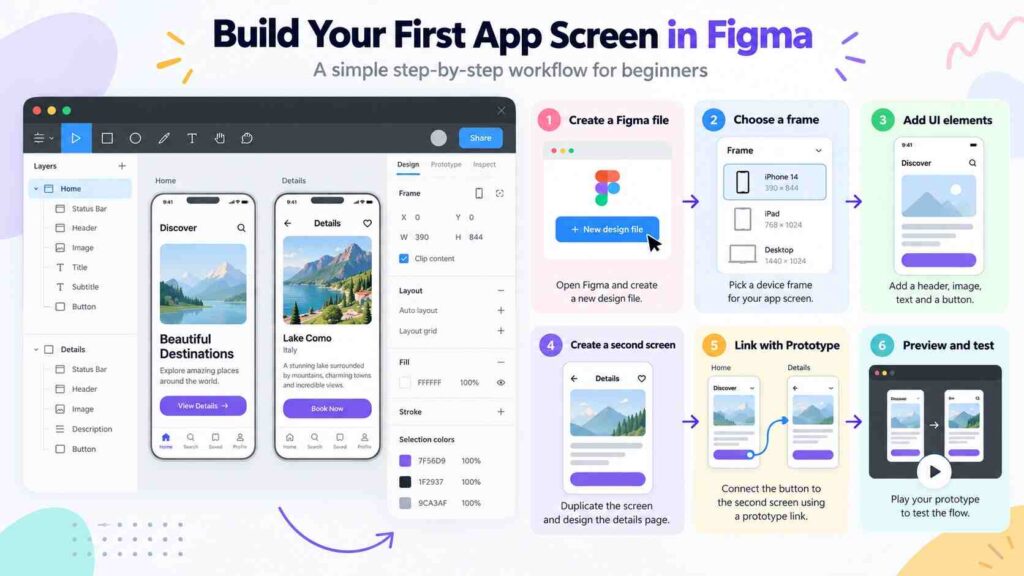
To learn how to use Figma, build two screens for a bookshop app.
- Create an account. Register online and create a design file.
- Add a frame. Press
F, then select a phone-sized preset. Name it Home. - Place content. Press
Tfor a heading. Add rectangles for book covers and a button labeled View Details. Keep spacing consistent. - Create a second screen. Duplicate the frame as Book Details; add a description, price, and button.
- Connect the experience. Select View Details, open the Prototype tab, and drag its connection handle to the second frame. Choose click navigation.
- Preview and share. Run the prototype, click through it, and ask someone unfamiliar with the design to find a book. Notice hesitation.
That exercise teaches hierarchy, interactions, and feedback. If testers cannot spot the button, improve contrast or wording before adding extra screens. The software supports experiments but cannot judge usability for you. Request the tester to share their expectation with each tap. Their explanation may uncover unclear wording that polished visuals hide completely.
Six Features Worth Learning Before Advanced Tricks
| Feature | What it does | Beginner benefit |
|---|---|---|
| Frames | Organize screens and content | Cleaner projects |
| Components | Reuse interface elements | Consistent buttons |
| Auto layout | Adjust spacing as content changes | Fewer manual fixes |
| Prototypes | Link screens and interactions | Early usability checks |
| Comments | Collect contextual feedback | Faster revisions |
| Dev Mode | Inspect build specifications | Clearer handoffs |
Try Figma auto layout next. Select a button and its label, then press Shift + A. It can manage padding and spacing as the text changes. That helps with longer translated labels. Still test different screen widths. Unlike stretching a screenshot, flexible layouts preserve relationships between elements when content changes. Check narrow and wide screens, since poorly configured components can still overflow.
Use components for repeating cards and menus. Build a modest Figma design system with agreed colors, text styles, and reusable buttons. The approach simplifies consistent updates. Prototyping creates clickable flows, while Dev Mode helps eligible developers inspect properties and changes; neither eliminates the need for sound engineering.
Beyond Screen Design: The Wider Figma Toolkit
The platform is no longer only a canvas for interfaces. FigJam supports brainstorming and flowcharts. Figma Slides helps present ideas. Figma Draw expands illustration work. Figma Sites focuses on website publishing, while Figma Make uses prompts and design context to generate functional prototypes or apps. Availability varies by plan.
In October 2026, Figma announced code-backed canvas layers in open beta and Specs for shared design and technical context on paid plans. Neither is essential for beginners. Beginners should master frames and prototypes before relying on AI-generated results, which require testing and review.
Where Figma Helps in Real Projects
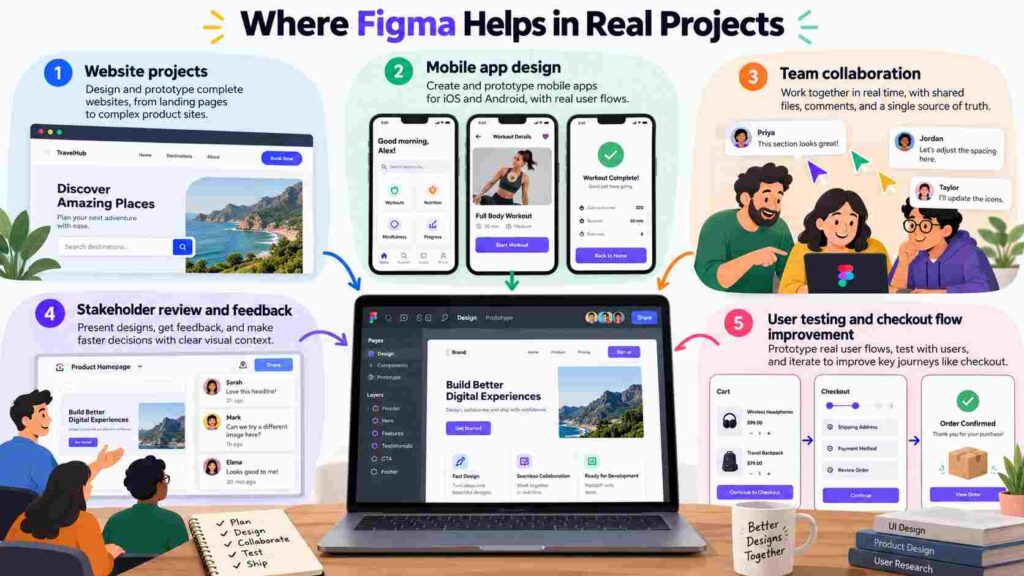
For website projects, teams can compare desktop and mobile layouts. For mobile app design, a startup can test whether customers understand onboarding steps. A nonprofit can use FigJam to map a donation journey, then build a clickable Figma prototype that stakeholders can review remotely.
Imagine a checkout hiding delivery charges until its final screen. The design allows the team to expose that cost earlier and test comprehension before implementation. The goal is discovering confusion early, not decorating screens.
What Real Customer Stories Reveal
Figma’s published Coles Group case study describes how the Australian retailer brought scattered design work into shared workflows and used FigJam to invite broader participation. Results may differ elsewhere.
In another Figma-published case study, Commonwealth Bank reported that its design team reduced annotation time from 6.5 minutes to 1.5 minutes per file. This is a customer-reported figure, not an independent benchmark. Clear specifications reduce repetitive handoff questions. A newer October 2026 Figma customer story also describes Lufthansa Systems using Figma Make to explore realistic cockpit map prototypes for user testing. Such examples show possibilities, not guaranteed outcomes.
Is Figma Free, and What Are the Limitations?
Searches for Figma pricing lead to a Starter plan with free, limited access; paid tiers offer broader team libraries, projects, and developer features. Figma assigns Full, Dev, Collab, or free View seats according to responsibilities. Check limits before adding paid colleagues. Free viewers can inspect and comment, but editing design files requires appropriate permissions and an eligible seat.
A frequent comparison is Figma vs Canva: Canva generally prioritizes ready-made visual content, while Figma’s principal strength is structured interface design and collaborative product workflows. The editor has a learning curve. Complex files, weak naming conventions, and careless sharing permissions create friction. Clickable mockups are not finished software.
Conclusion: Start Small, Test Early, Improve Together
This approach works best when it turns uncertain ideas into something people can see, discuss, and test. Begin with two screens, one reusable button, and a user journey. Invite constructive feedback, watch how someone navigates your prototype, and refine the weakest step. Then explore layouts, libraries, and developer handoffs. Newer AI and publishing products add possibilities, but thoughtful design still begins with understanding users. Master that process first, and the platform becomes more than software: it becomes a practical shared language for building better digital experiences.
Five Frequently Asked Questions
1. Do I need coding skills to start Figma?
No. You can design screens, organize components, and create clickable prototypes visually. HTML and CSS help with developer conversations but are optional.
2. Can I use Figma on Windows or Linux?
Yes. Figma operates in supported web browsers across major desktop operating systems. Application software is available for Windows and Mac operating systems. Large files demand capable hardware.
3. Can a Figma design become a real website?
A regular Figma Design document is not the website implementation. Developers can implement its specifications; Figma Sites and Figma Make also offer publishing workflows, subject to product capabilities, plans, and careful testing.
4. Does Figma automatically save my work?
Figma saves cloud-based file changes automatically and supports version history. Recovery capabilities and retention depend on plan and permissions. Name major milestones; undo history is not a backup.
5. Can clients review without editing anything?
Yes. Share a file with view or comment permission rather than edit access. Check links for confidential projects. On the free plan, prototype sharing can expose access to the underlying design file.
