
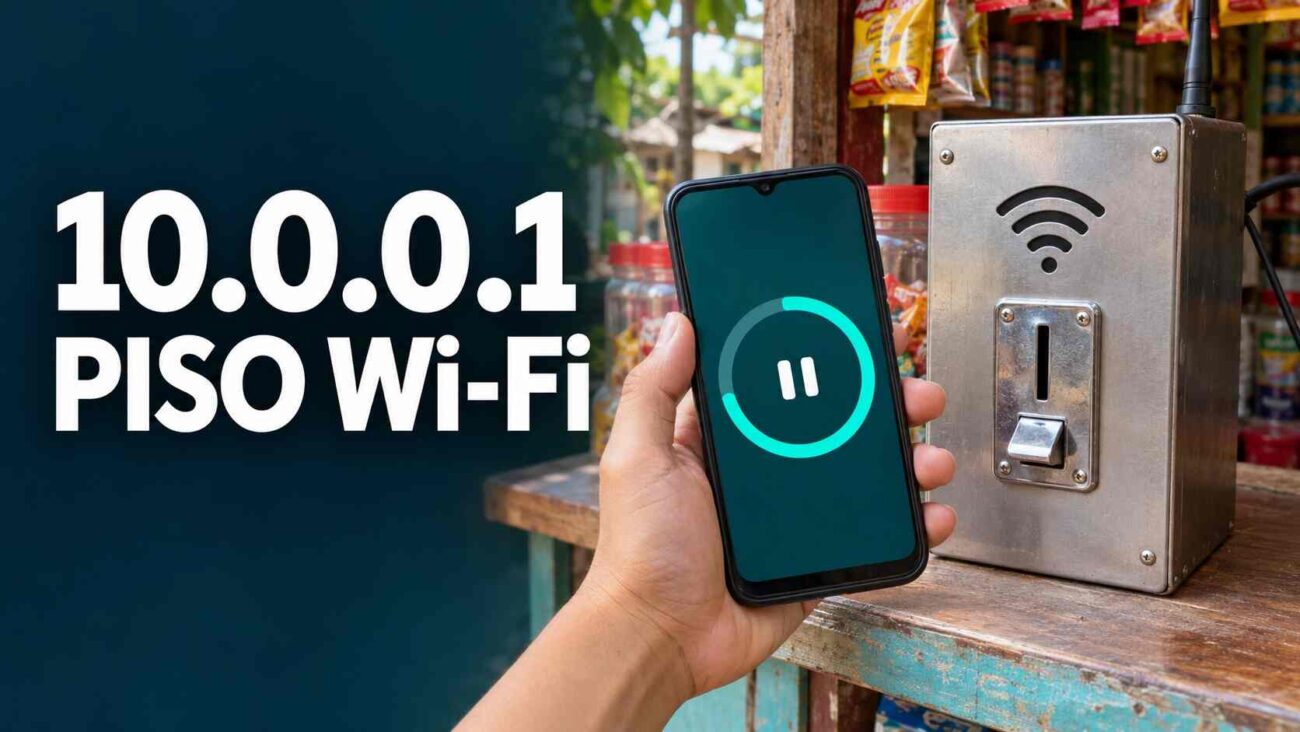
Your phone says it’s connected, but the 10.0.0.1 Piso WiFi portal keeps spinning. Before you put another coin in the machine, check whether the balance page opens. Join the network named on the machine, then type http://10.0.0.1 in your browser’s address bar. If the page opens, its balance and timer can tell you whether you need to pay, have an active session, or can resume time you already bought. If it stays blank, the checks below can help you narrow down the problem before spending anything.
Open the 10.0.0.1 Piso WiFi portal
What is a captive portal?
A captive portal is the page a Wi‑Fi network opens to let you sign in, accept terms, or pay before you can browse. A Piso WiFi machine outside a sari-sari store in the Philippines can use the same kind of page to show rates, accept a voucher, or display how much time you have left.
Use the address posted on the machine
You may have found this page by searching 10.0.0.0.1 piso wifi, 10.0-0.0-1 piso wifi, or 10.0.01 piso wifi. For a machine that lists 10.0.0.1, type all four groups of digits exactly as shown. If you searched piso wifi 10.0.0.1, enter only the address in your browser after joining the hotspot. Follow the operator’s posted instructions if the machine uses a different address.
Compare the WiFi name on your phone with the one posted on the machine. Two nearby vendors can have similar names. If you join the wrong network, you might see a different price list or balance, even if the address you typed is correct.
Fix the portal when it won’t load
Start with what you see on screen. A blank page points to a different problem from a page that opens and shows a running timer.
| What you see | What to check first |
|---|---|
| Google results open | Type the full address into your browser and press Go without selecting a search suggestion. |
| WiFi connected, no internet | Check whether the customer page still opens. The hotspot may be waiting for payment or sign-in before it lets you browse. |
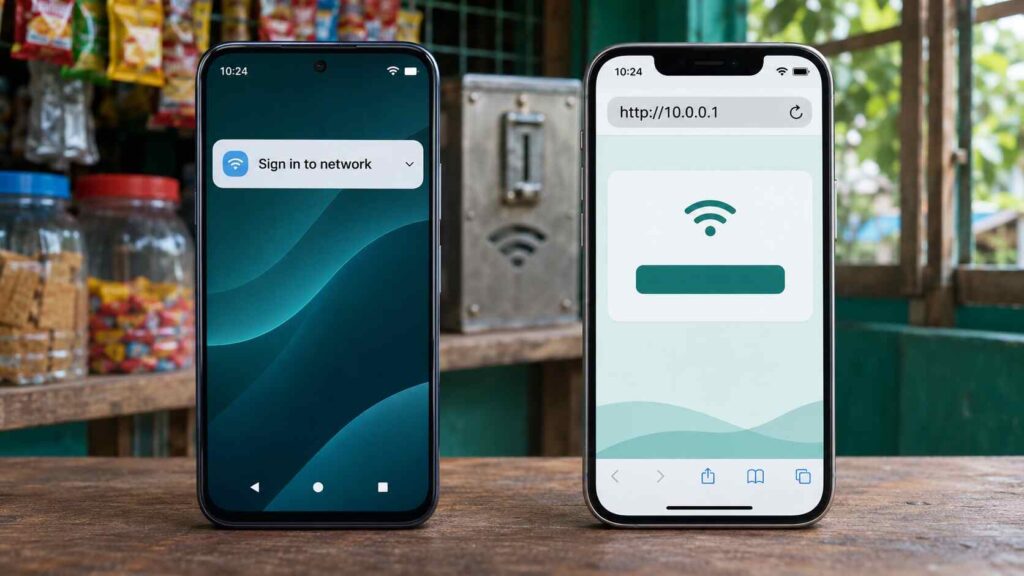
| “Captive portal detected” | Open the network’s sign-in prompt and check whether it shows a payment or connection step. |
| The browser times out | Move closer to the machine, rejoin its WiFi, and enter the posted address again. |
| The sign-in window disappears | Rejoin the named network and open the portal in your regular browser while still connected. |
| The page opens, but Pause is missing | Check that paid time is active. If it is, ask whether the machine allows pausing and whether your session has pauses left. |
| A voucher is rejected | Compare the characters with the code you were given. Ask the seller to check whether it has expired or already been redeemed before buying another. |
On Android, open the network’s sign-in notification
On a Pixel, go to Settings → Network & internet → Internet and select the network on the machine’s sign. Tap the Sign in to network notification if it appears. Menu names vary across Android phones, so search Settings for WiFi if those labels differ. If the phone switches to mobile data while you’re waiting, turn mobile data off briefly and try the portal again with WiFi still on. Restore mobile data after the check.
WiFi not working on iPhone?
Open Settings → Wi‑Fi, select the Piso Wi‑Fi network, and wait for the welcome screen to appear. If the screen closed, tap the information button next to the network and choose Join Network if it’s offered. If the iPhone offers Without Internet, that option keeps you connected so you can try the local address in Safari.
If the 10.0.0.1 Piso WiFi page still fails, ask the attendant to confirm the address. On iPhone, the Router field in the connected network’s details shows the default gateway, which can help you spot an address mismatch. If another device opens the page on the same hotspot, focus on the WiFi settings on your phone. If both devices fail at the confirmed address, show the attendant before trying to pay.
If the same phone struggles on other Wi‑Fi networks too, try these Wi‑Fi troubleshooting checks to see whether the problem follows the phone.
Pause and resume your paid WiFi time
Open the 10.0.0.1 Piso WiFi page on the phone you used to pay. When the timer is running, tap Pause Time if the machine offers it. Wait until the page confirms the pause or shows Resume. Operators can limit how many times you can pause and set an expiration for the session. Your remaining minutes can stay frozen during a pause while the deadline for using them still approaches.
Run a one-minute timer check before you leave
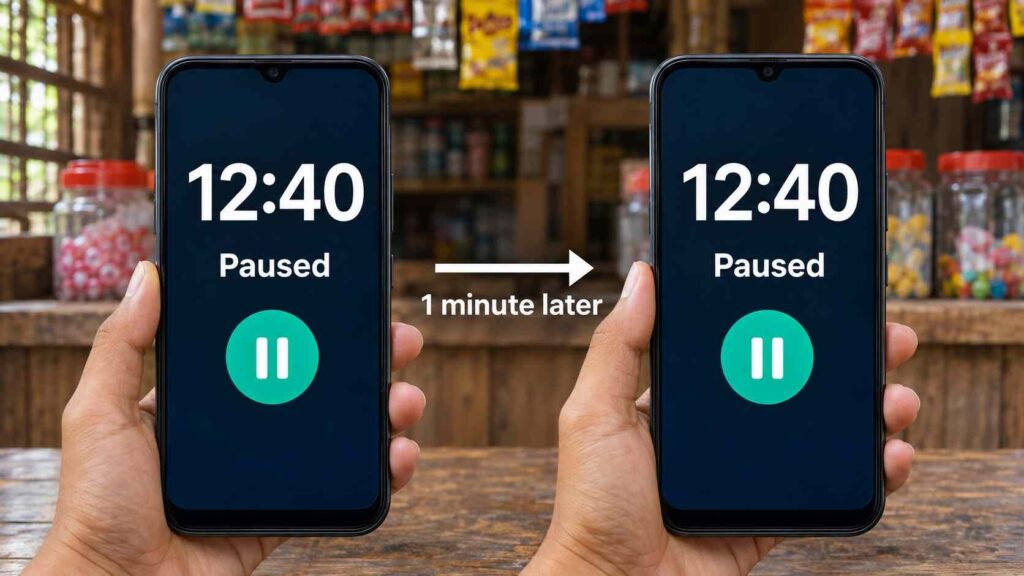
Say your countdown reads 12:40 when you need to step away. Pause it, note the time displayed once the portal confirms the pause, and wait one minute with your phone still on the same WiFi. Refresh the portal and check both the time and the session status. If you still see 12:40 and Paused, the pause held during your check. If you see about 11:40 and Active, ask the attendant to check before you leave.
When you’re ready to go online again, connect to the same hotspot with the same phone. Open the portal and select Resume if you see that option. Watch for the countdown to move again, then try opening a web page. If the session is missing, check the network name and ask whether the session expired.
Paid but got no time? Check before paying again
Read the posted rate and follow the machine’s order of payment. If the screen has an Insert Coin button, tap it and wait for the prompt before feeding the slot. If credit appears and the timer has yet to start, look for a button labeled Done Paying or Connect. For a digital payment, verify the merchant name or number with the attendant before you confirm.
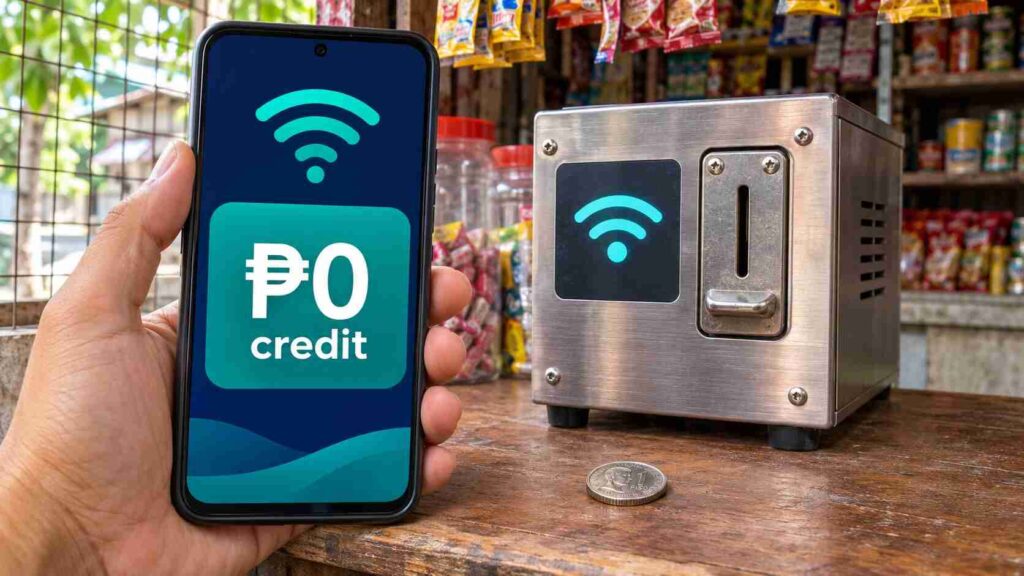
If the machine takes a coin and the 10.0.0.1 Piso WiFi page still shows zero credit after you finish paying, refresh once on the same phone. Note the machine’s label, the amount, and the time you paid. For a digital payment, check the transaction status in your payment app and keep the reference number. Show the attendant the portal screen and share those details so they can check the payment before you try again.
Why is my WiFi not working after I pay?
An active timer tells you the machine started your session. With mobile data off, try two different websites to see whether either loads over WiFi. If both fail while the portal still opens, tell the attendant your timer is running and give them the names of the sites you tried. The operator controls automatic pausing during an outage on machines that support it. If you can pause manually, do that while they check the connection.
Frequently asked questions
Can I open the 10.0.0.1 login page from home?
You need to be on the hotspot that hosts the customer page. If you see a 10.0.0.1 admin login on your home network, it may belong to your router. Xfinity uses the same address for gateways with local admin access enabled.
Does turning off WiFi pause the timer?
Only if your machine is set to pause when your phone disconnects. Use the on-screen pause button and check the status before relying on it.
Can I resume paid time on another phone?
Use the phone that started the session. Some machines identify the device when you resume, so ask the operator whether they can help if you need to switch phones.
Do I need an app to sign in?
A standard customer portal opens in a browser or your phone’s WiFi login window. If you bought a voucher, enter its code in the field provided by the machine.
Conclusion
Open the 10.0.0.1 Piso WiFi portal before you pay, then make sure the countdown starts. Before walking away, confirm that the timer has stopped. If the balance stays at zero or the timer runs without internet, show the attendant the screen and tell them when you paid.<!– Meta description: Can’t open the 10.0.0.1 Piso WiFi portal? Fix sign-in on Android or iPhone, pause and resume paid time, and find out what to do if a coin adds no credit. URL slug: 10-0-0-1-piso-wifi Suggested internal link: Use “Wi-Fi connection problems on Android” after the Android troubleshooting paragraph to point to your phone Wi-Fi troubleshooting guide. Suggested internal link: Use “how to use public Wi-Fi safely” after the captive portal explanation to point to your public hotspot safety guide.
